
Advanced Filtering
In ContentPaul, you can easily toggle the visibility of advanced filter options in different views using the mixer control icon.
How to Use
- In both the Browse section (left side) and the Calendar section (right side), you’ll see a mixer control icon at the top of the screen.

- Click this icon to show or hide the filter options, allowing you to customize the view based on your needs.

This feature helps you quickly access or hide filters without cluttering your workspace.
Advanced Filtering
Advanced Filtering enables powerful sorting and organization of your items. You can apply filters based on:
- Assigned User(s): Show items assigned to specific users.
- Workflow Status: Filter items by their current workflow status.
- Due or Publishing Date: Sort items by their due or publishing dates.
- Hide Versions: Toggle visibility of versions of items
- Name: Search and filter items by name.
Additionally, you can hide versions of items for a clearer overview, making it easier to manage and review your content.
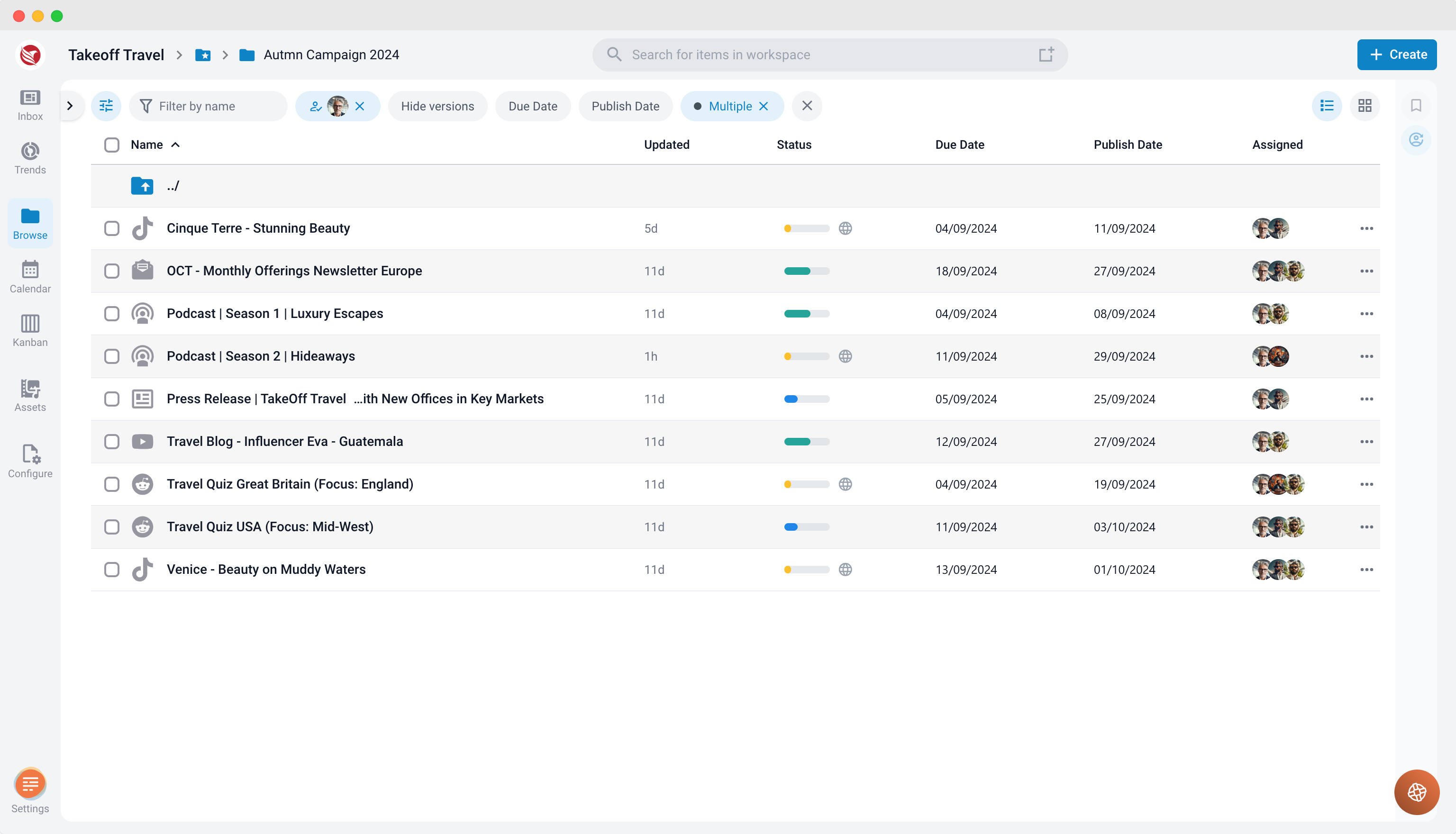
Advanced Filtering is a powerful tool that allows you to select multiple items and perform bulk actions.
Key Points
- Selection: Filter items based on criteria like assigned users, workflow status, dates, or names.
- Bulk Actions: Apply changes to multiple items simultaneously.
Important Note: If you change values on items so they no longer meet the filtering criteria, the list may become empty. Always check your filters after making bulk changes to ensure the desired items are still visible.
Persisting Filtered Lists
When you click on an item from a filtered list and then navigate back using the breadcrumb trail, you will still see the filtered list. This ensures you can easily return to your filtered results without having to reapply your filters.