Organizing Content with Folders
Learn to create, move, rename, duplicate, and delete folders to organize and manage your content efficiently in ContentPaul.
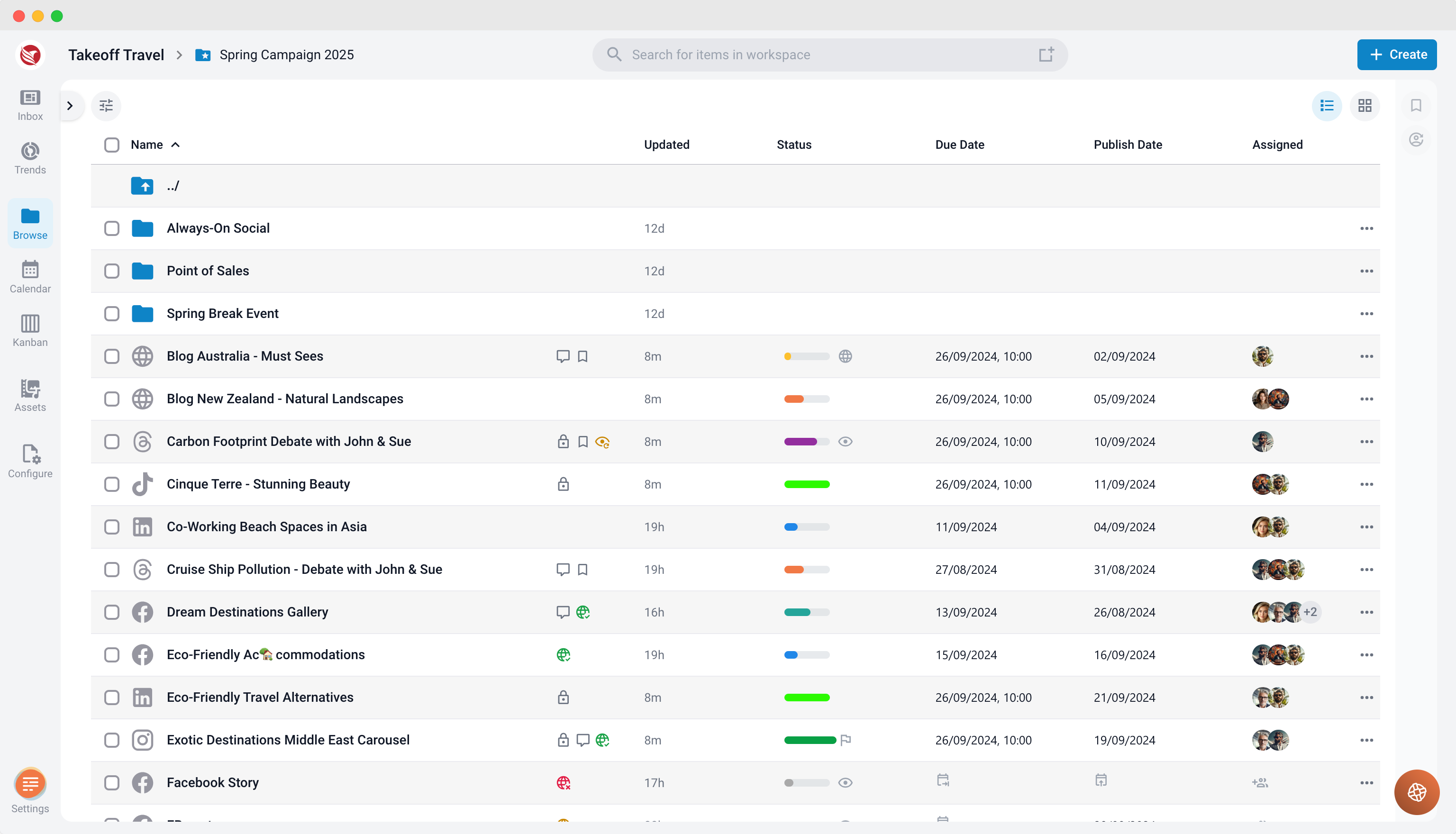
Folders in ContentPaul allow users to logically organize their content, making it easier to manage projects and campaigns. You can create, nest, move, rename, duplicate, and delete folders to customize your content structure based on your needs.
Creating and Nesting Folders
- You can create new folders and nest them within other folders, allowing for a hierarchical structure.
- For example, you can organize a campaign by placing all items into a project folder and then further organizing by placing content for each channel (e.g., social media, email, blog) into respective subfolders.
Renaming Folders
- To rename a folder, simply hover over the folder name and click the "Edit name" button that appears.
- Enter the new name, and the folder will update immediately.
Moving Folders
- You can move folders to other locations or into different project folders. When you move a folder, all items inside will move along with it.
- Note: If you move a folder into a different project folder that has a different workflow applied, the items will retain their original status. However, going forward, you will only be able to select statuses from the new workflow when updating those items.
Duplicating Folders
- ContentPaul also allows users to duplicate folders, including all the items inside. This is useful for replicating content structures for similar projects or campaigns.
Deleting Folders
- When deleting a folder, all the items within the folder will also be deleted.
- However, if you later need to recover the folder, it can be restored from the recycle bin, and all items inside will be restored as well.
By organizing your content in folders, you can keep projects, campaigns, and tasks well-structured and easily accessible. ContentPaul’s folder management features provide flexibility and control over how content is grouped and handled.