
Working with the ContentPaul Tagging System
ContentPaul offers a sophisticated tagging system to help organize and streamline content management. Unlike simple tagging, this system allows for a fully customizable structure, enabling users to create and manage tags that suit their specific workflows and organizational needs.
Features of the ContentPaul Tagging System
Free editable Tag field
By default, every instance includes a free editable Tag field. Users can add their own tags here, and these become available for others to use across the workspace.
Custom Tag Categories
Users can create multiple Tag Categories to structure tags effectively. Examples of common categories include:
- Personas: Tags for user profiles.
- Keywords: Relevant SEO terms or themes.
- Topics: Main subjects or areas of focus.
- Stories: Specific campaigns or narratives.
Configurable Scope
- Tags can be restricted to a specific workspace or made available across the entire ContentPaul instance.
- The scope can be adjusted for individual categories to meet your organization’s needs.
Preset vs. Editable Tags
Administrators can decide if a category allows only predefined tags or if users can freely add their own tags. This ensures control and consistency where necessary while maintaining flexibility.
Managing Tags in ContentPaul
To manage tags, follow these steps:
Access Tag Configuration
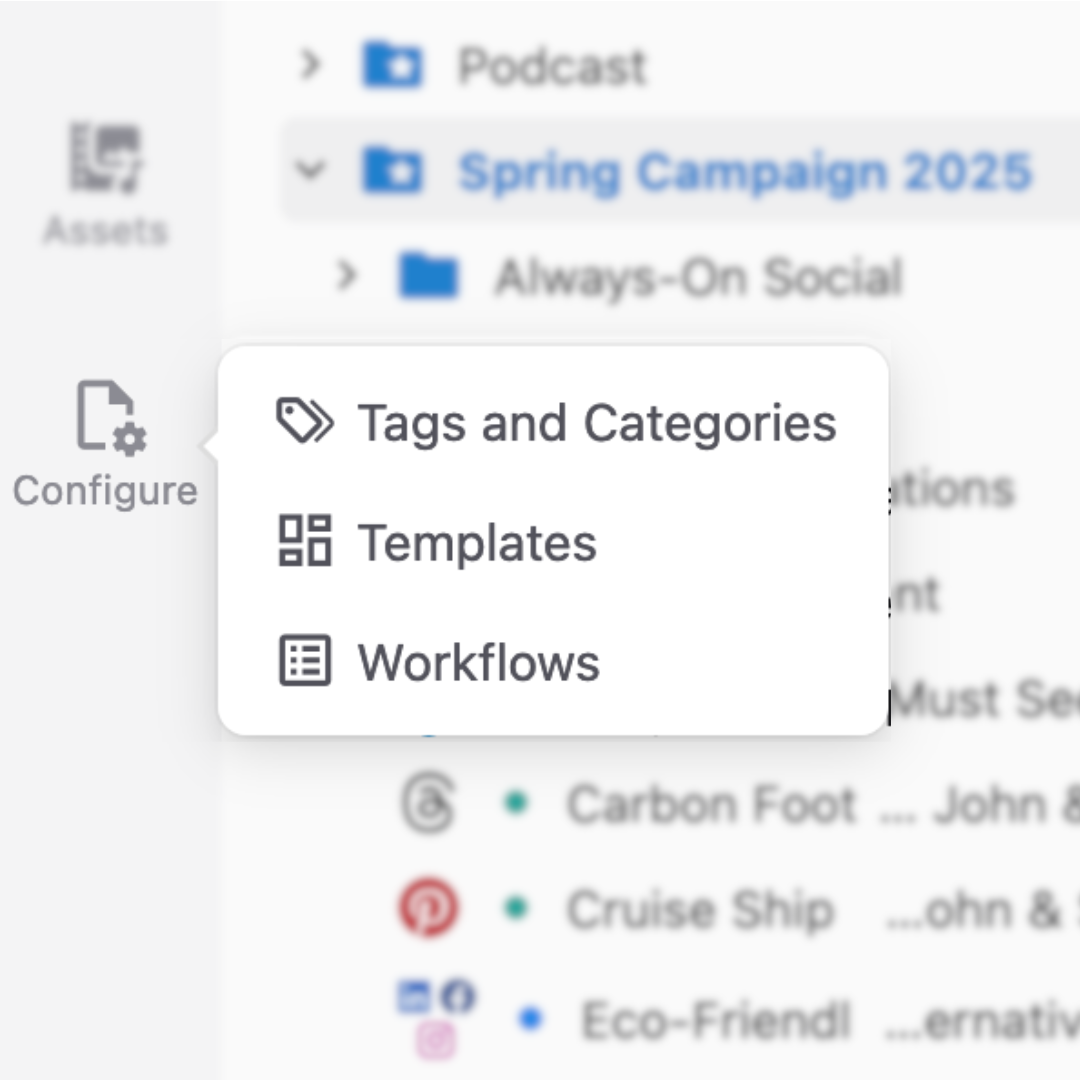
Navigate to Configure > Tags to view and manage all existing categories and their settings.
Create a New Tag Category
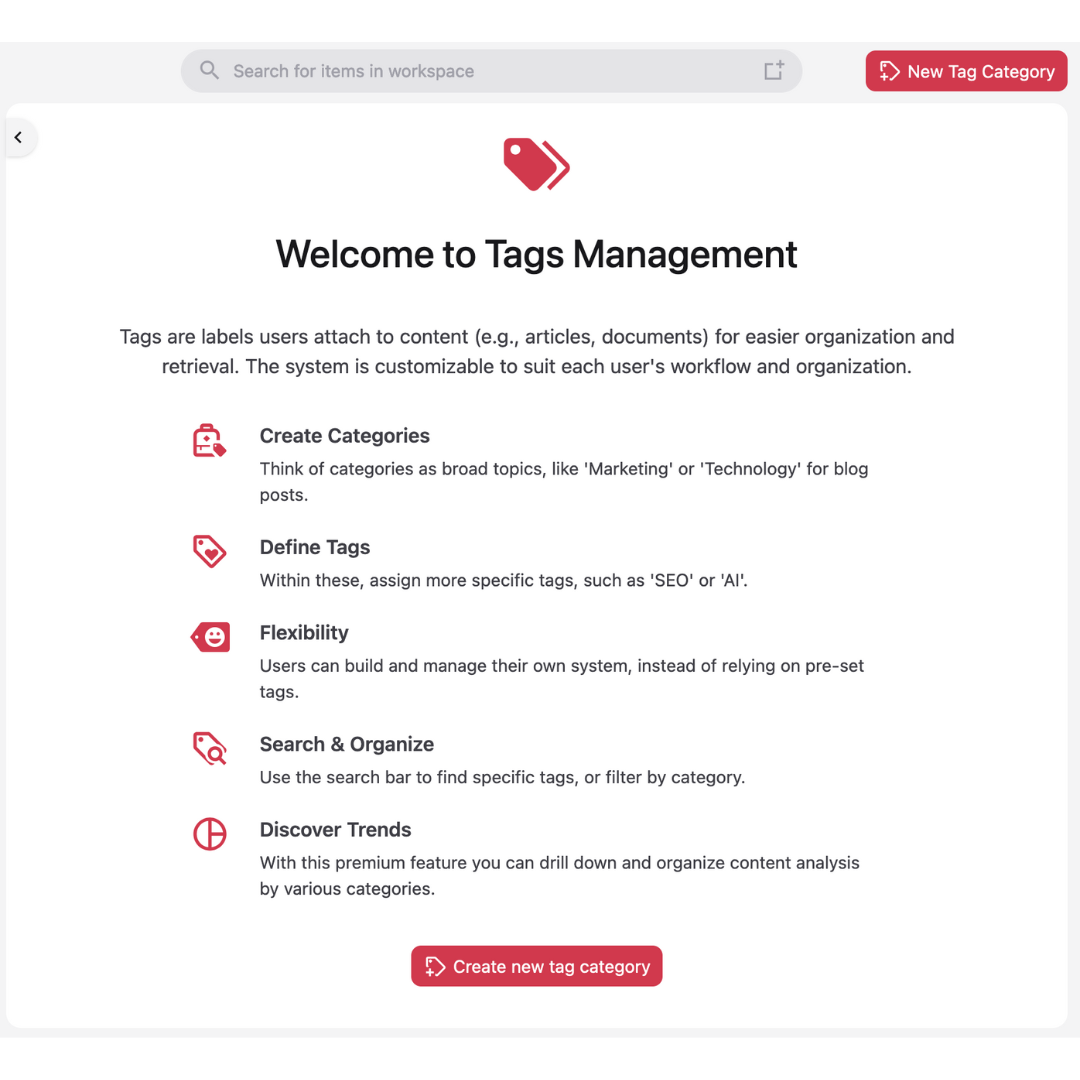
- Click the Add New Category button in the top-right corner.
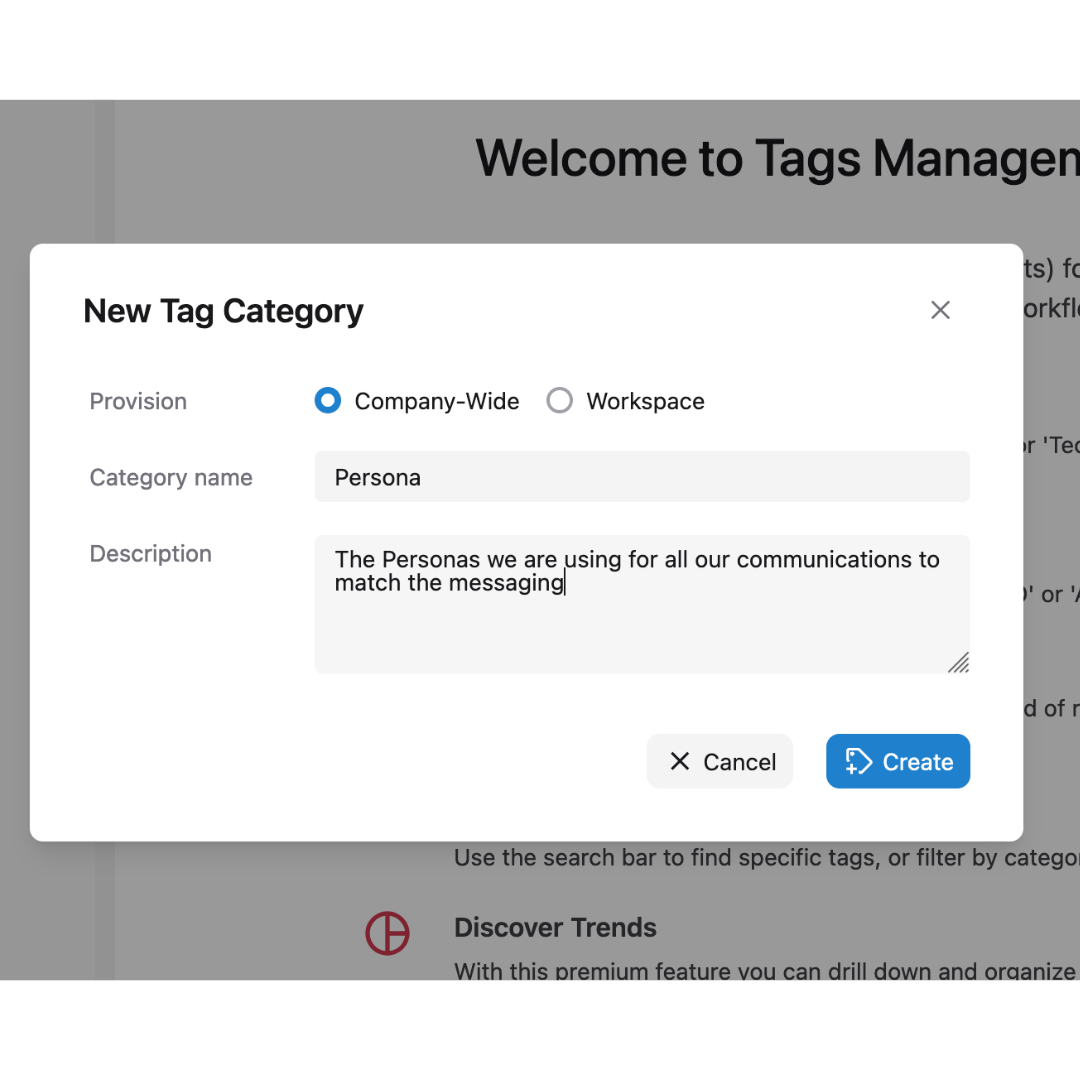
- Define the category name and scope (workspace-specific or instance-wide).
Add Tag Values
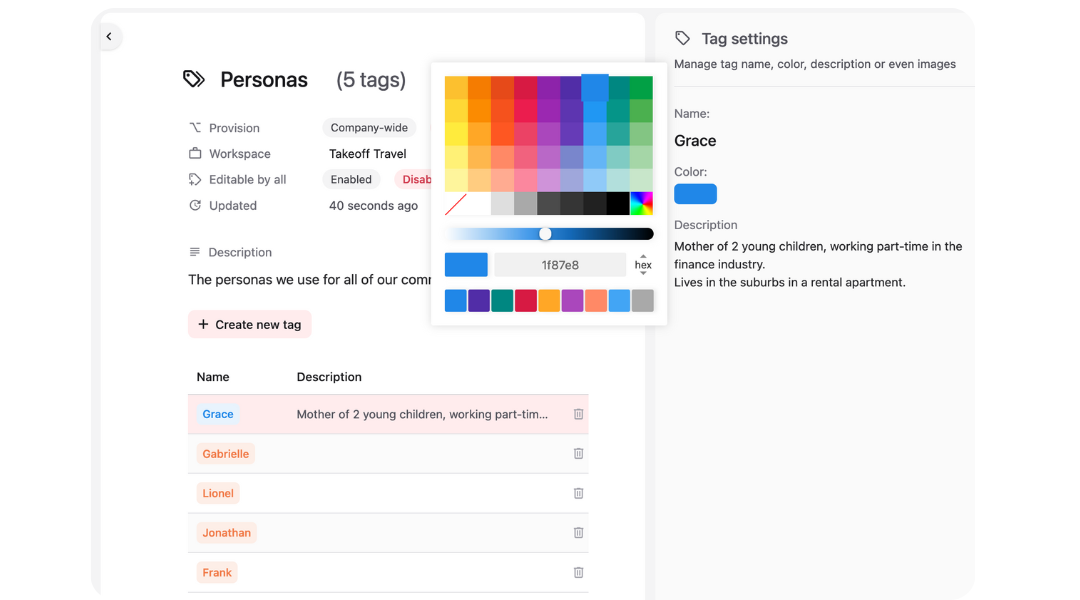
- First set user permissions for editing ("Editable by all"): can all users edit the tag values (on the fly) or just users with permission (within «Configure»).
- Now populate it with relevant tag values.
- For each tag, you can:
- Add a description visible to users.
- Assign a unique color for easy identification.
Applying Tags
Tags can be applied in two main ways: through the Browse section or directly within a Content Item.
In the Browse Section:
- Use the column selection panel to make the relevant Tag Category visible in the browse table.
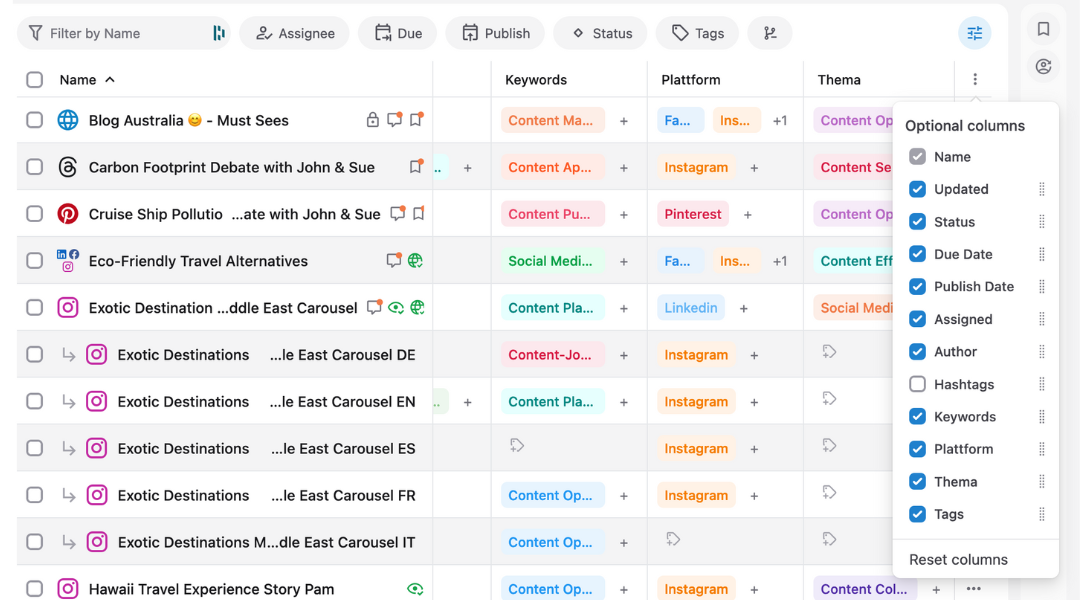
- Once visible, tags can be added by clicking the tag symbol in the column.
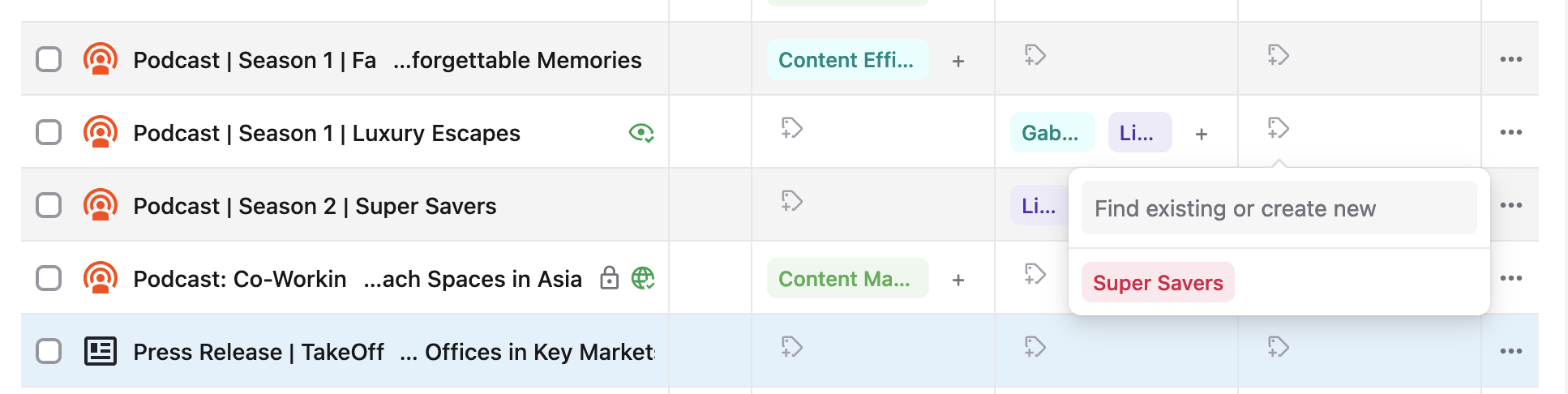
Within a Content Item
- Add the Tag Category field to the metadata section of the item.
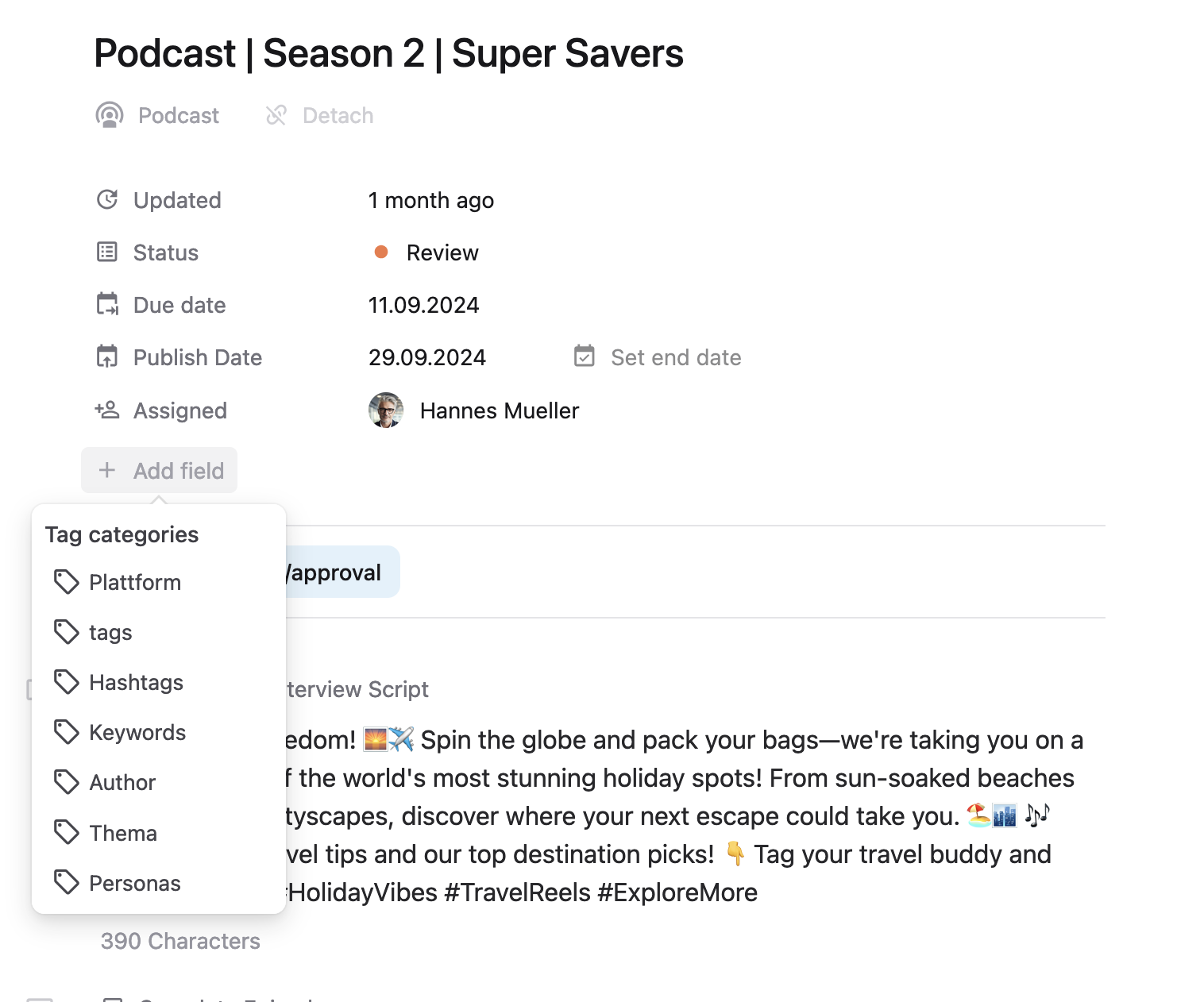
- Select from the available tags to apply them to the content.
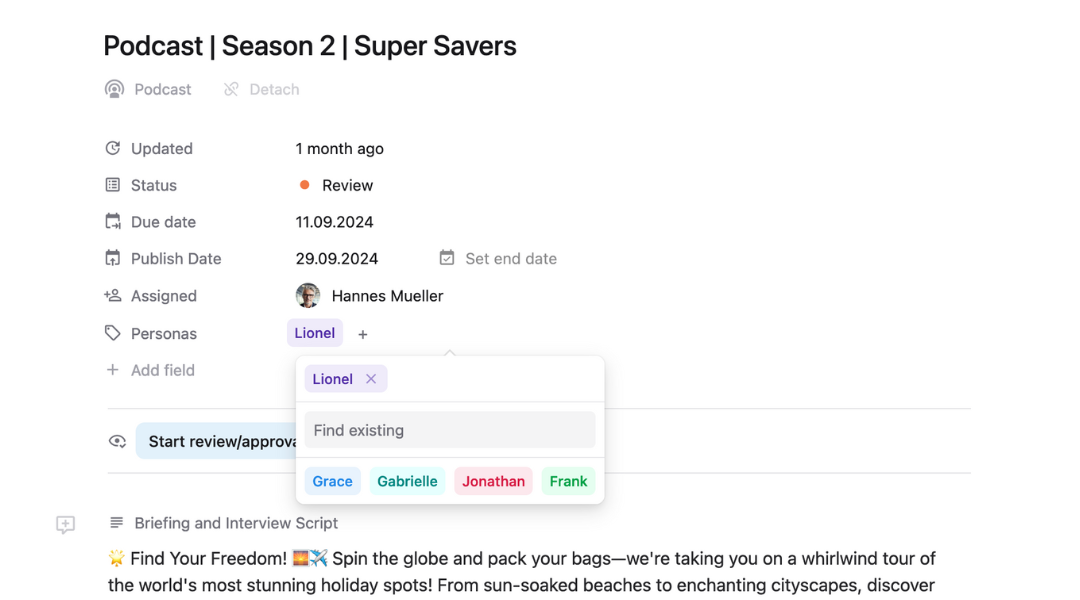
Notes on Visibility
- Individual Customization: The visibility of tag-related columns and fields is user-specific. Each user must activate these fields for their own view if required.
- Personalized Views: This feature ensures that users can tailor their workspace based on their roles and needs, without cluttering the views for others.