
Start an Approval Flow
In ContentPaul, starting an approval flow is a simple and structured process that ensures your content is reviewed and approved by the necessary stakeholders before publication. Here's a detailed guide on how to initiate an approval flow.
Step 1: Accessing the Approval Flow Option
You can start an approval flow using two methods:
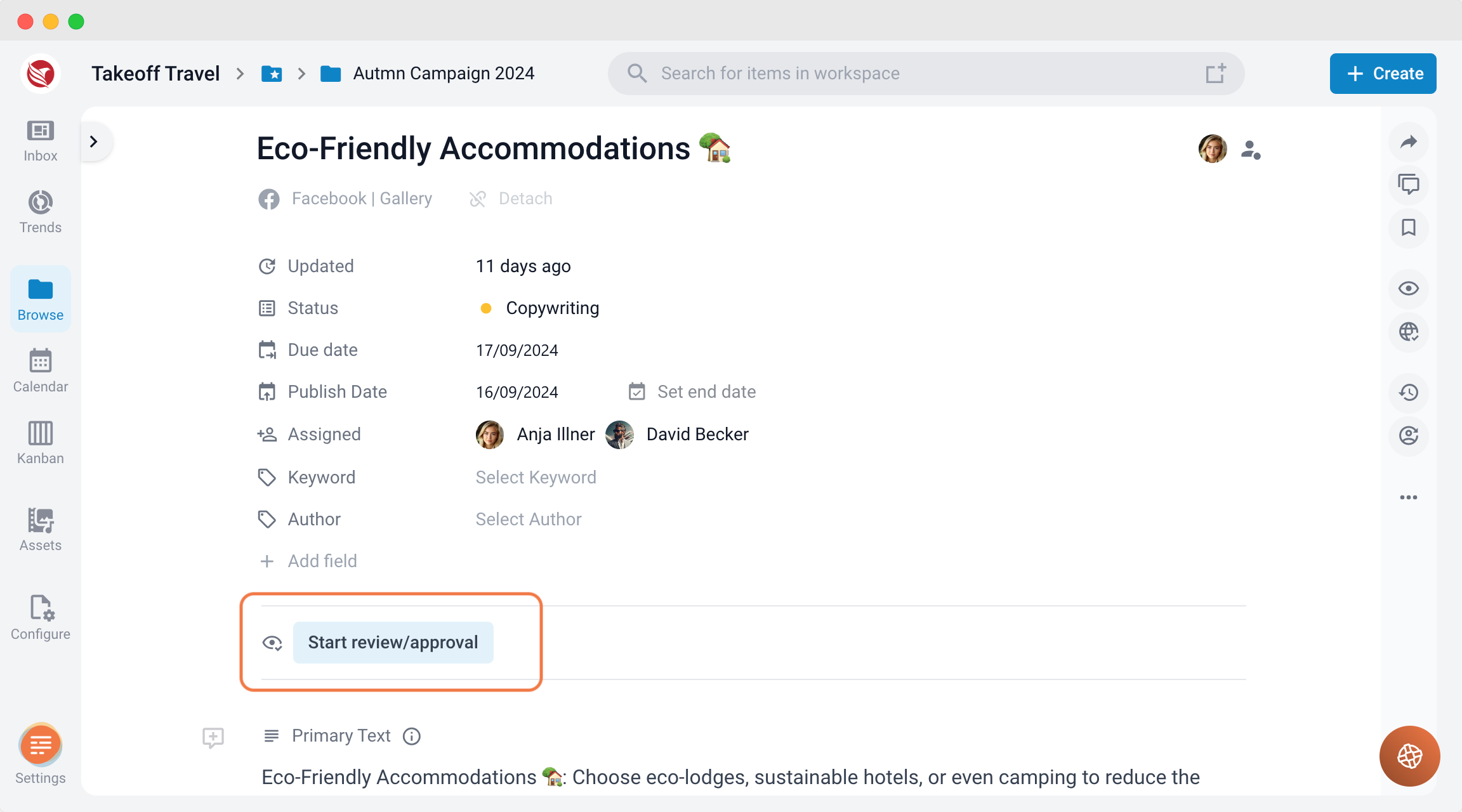
- From the Editor
- Open the content item in the Editor.
- Below the meta tags in the header, you will see a prominent "Start Review/Approval" button.
- Click the button to begin the approval process.
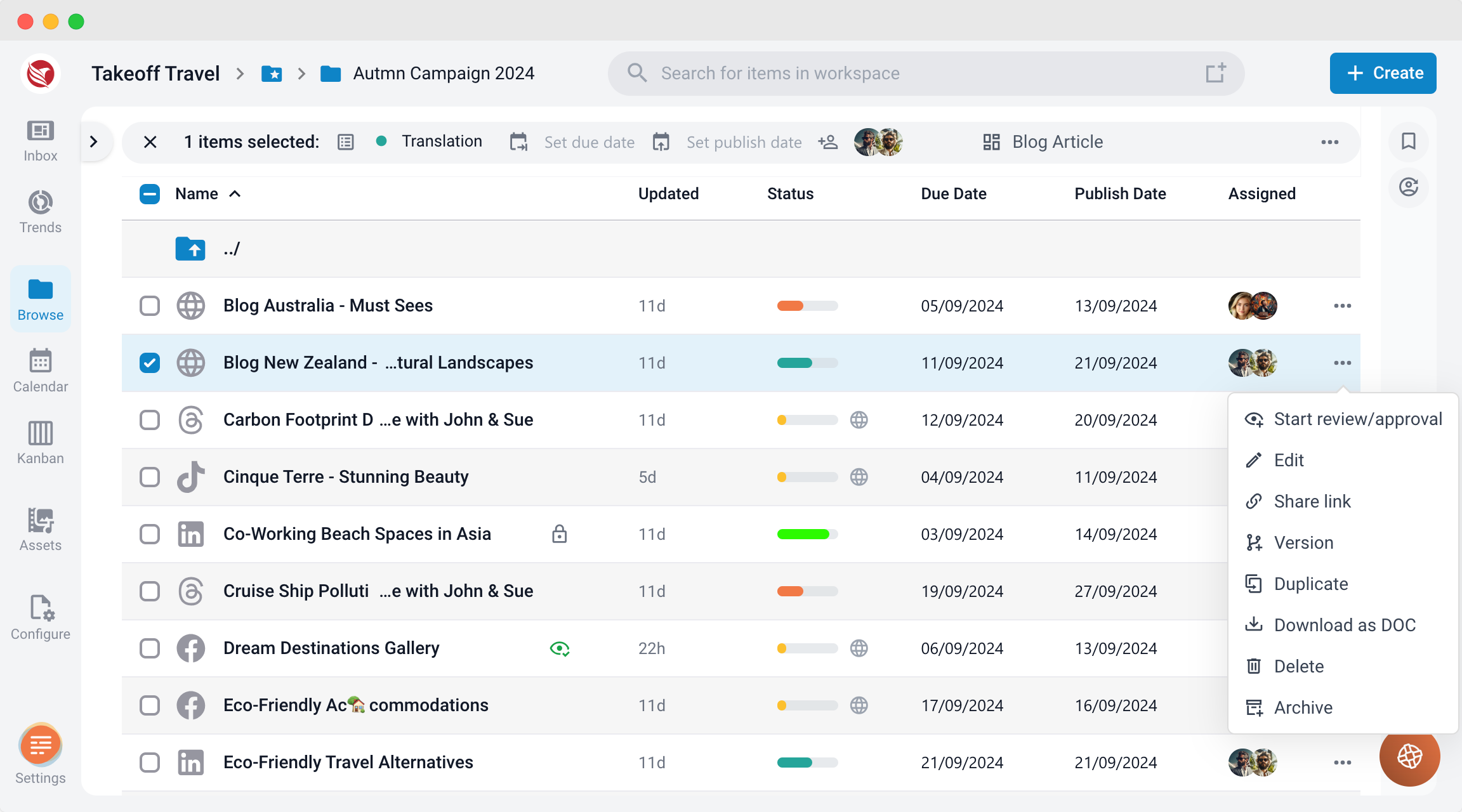
- From Browse View
- Single Item
- Navigate to the Browse View where your content items are listed.
- Click on the three dots next to the item you want to review.
- Select "Start Review/Approval" from the dropdown menu.
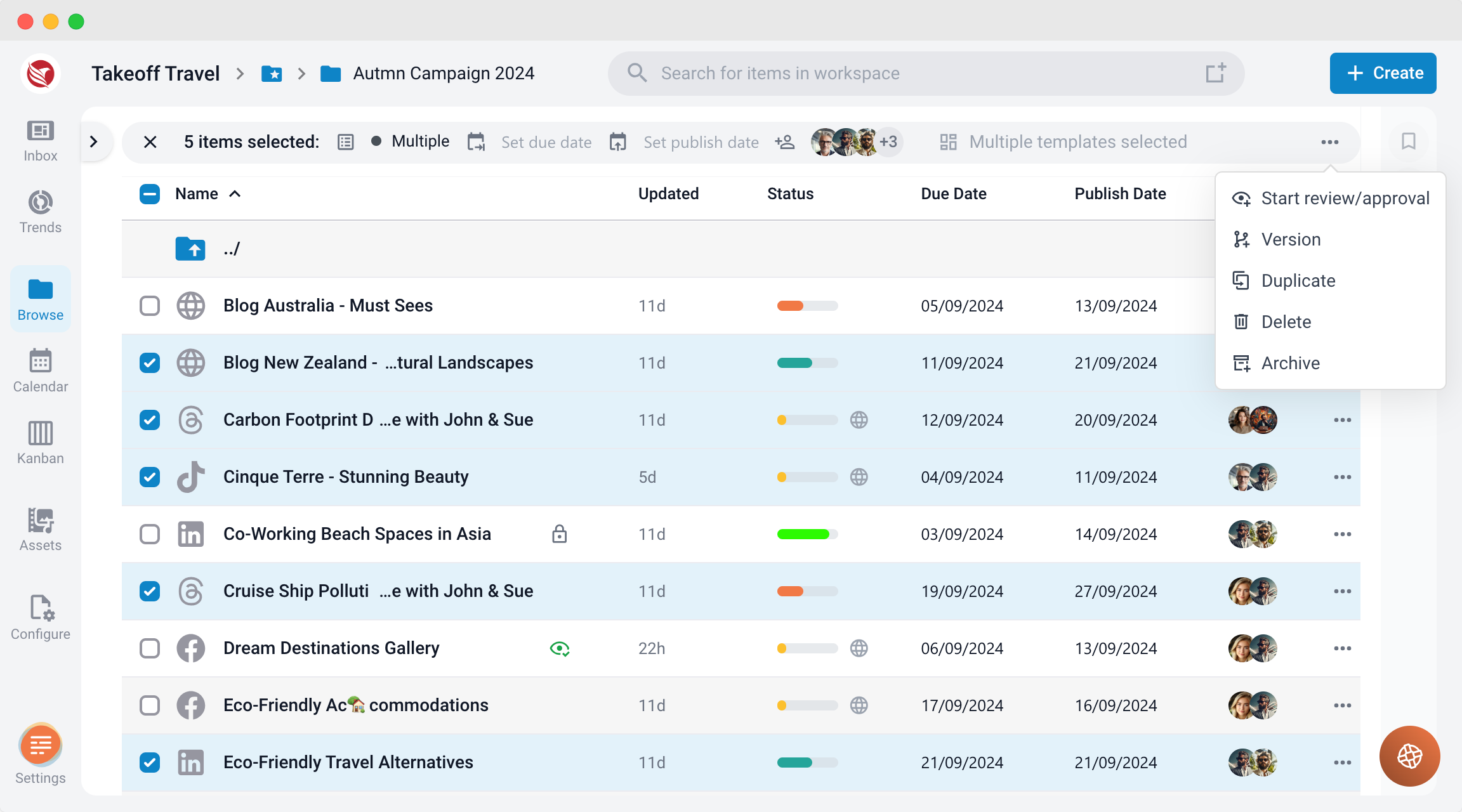
- Multiple Item
- Navigate to the Browse View where your content items are listed.
- Select the items you want to review
- Click on the three dots in the bulk selection menu at the top
- Select "Start Review/Approval" from the dropdown menu.
- Single Item
Step 2: Setting Up the Approval Flow
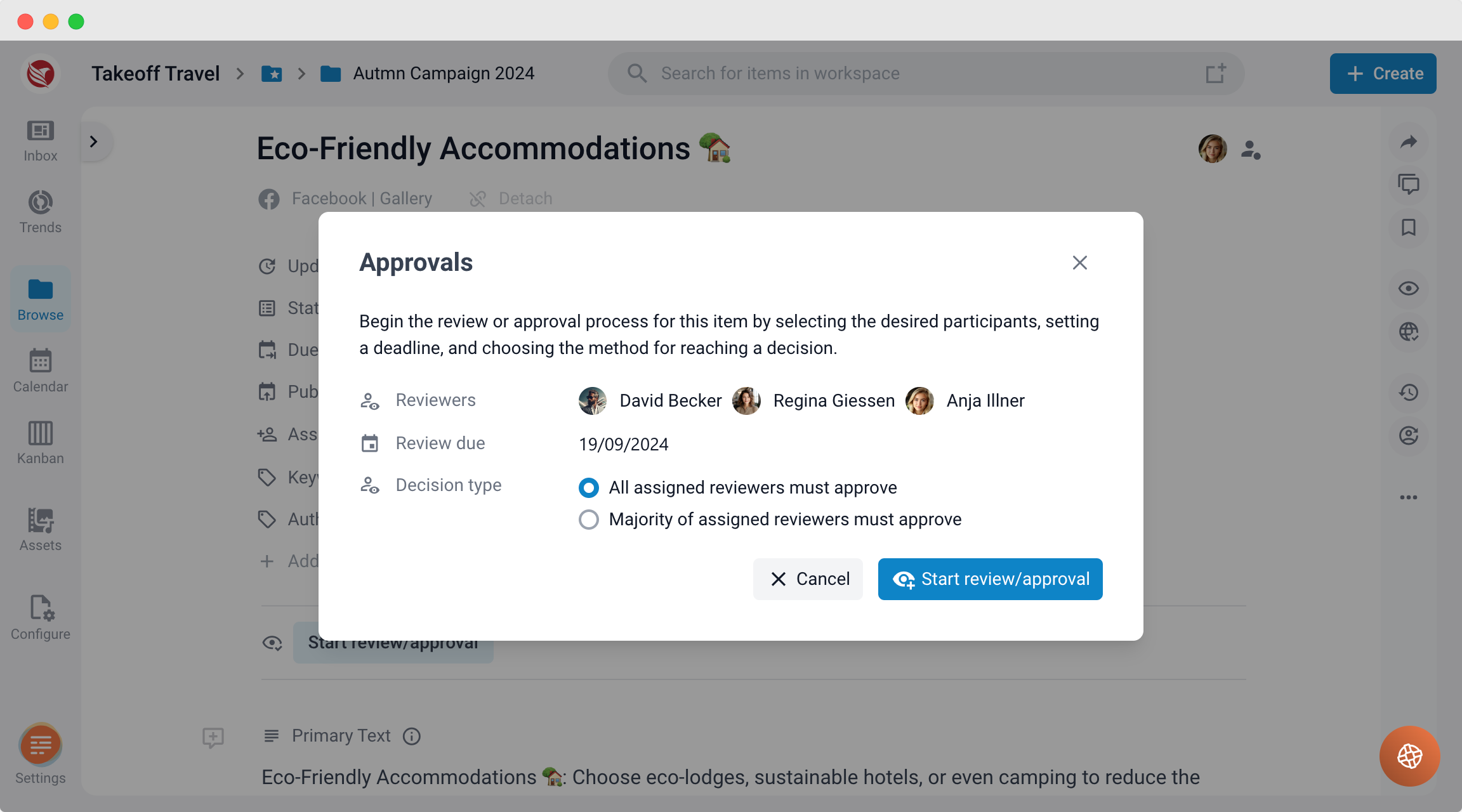
Once you click on "Start Review/Approval", a modal window will open where you can configure the approval flow:
- Invite Approvers
- In the modal, you can invite users who should review and approve the content. These users will receive a notification about the approval request.
- Set the Deadline
- Select a deadline for when the approvers need to give feedback. Choose a specific day, and the deadline will be automatically set to 23:59 hours of that day.
- Define Decision Rules
- Choose whether the approval requires a majority decision or unanimous approval from all invited users.
- The decision options for approvers include:
- Approved
- Approved with Changes
- Rejected
- Skip Approval
Note: Both Approved and Approved with Changes are treated as approvals, but Approved with Changes takes precedence over a simple approval.
Step 3: Managing the Approval Flow
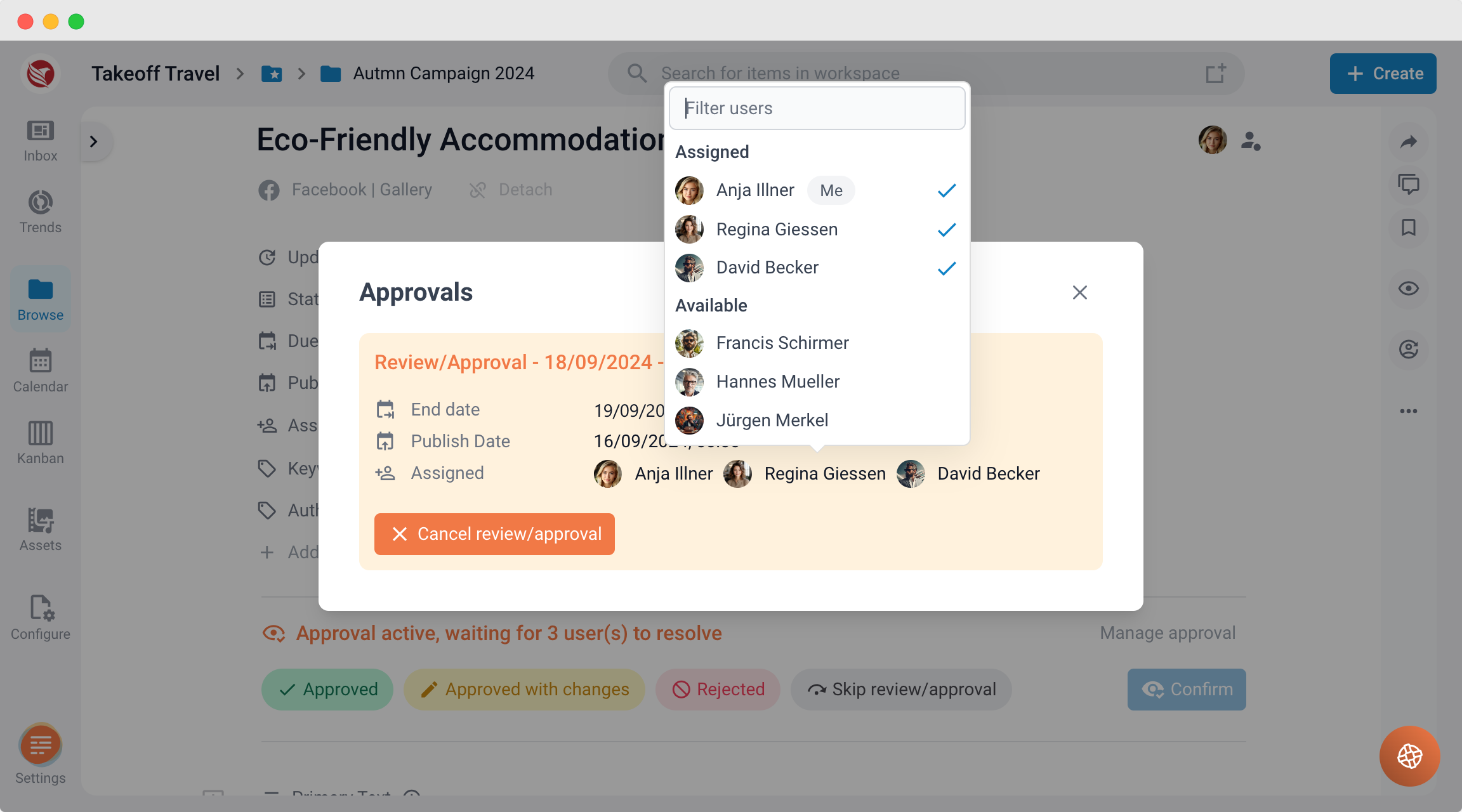
Only users with the Project Manager or Admin role can start an approval. As the Approval Organizer, you have control over the approval settings and can make adjustments while the process is ongoing, such as:
- Adding more approvers
- Extending or changing the deadline
- Cancelling the approval flow entirely if necessary
Step 4: Viewing the Approval Decision
Once the approval process is completed, a decision will be displayed. Users can click on the decision to view details about:
- Who participated in the approval
- How each approver voted
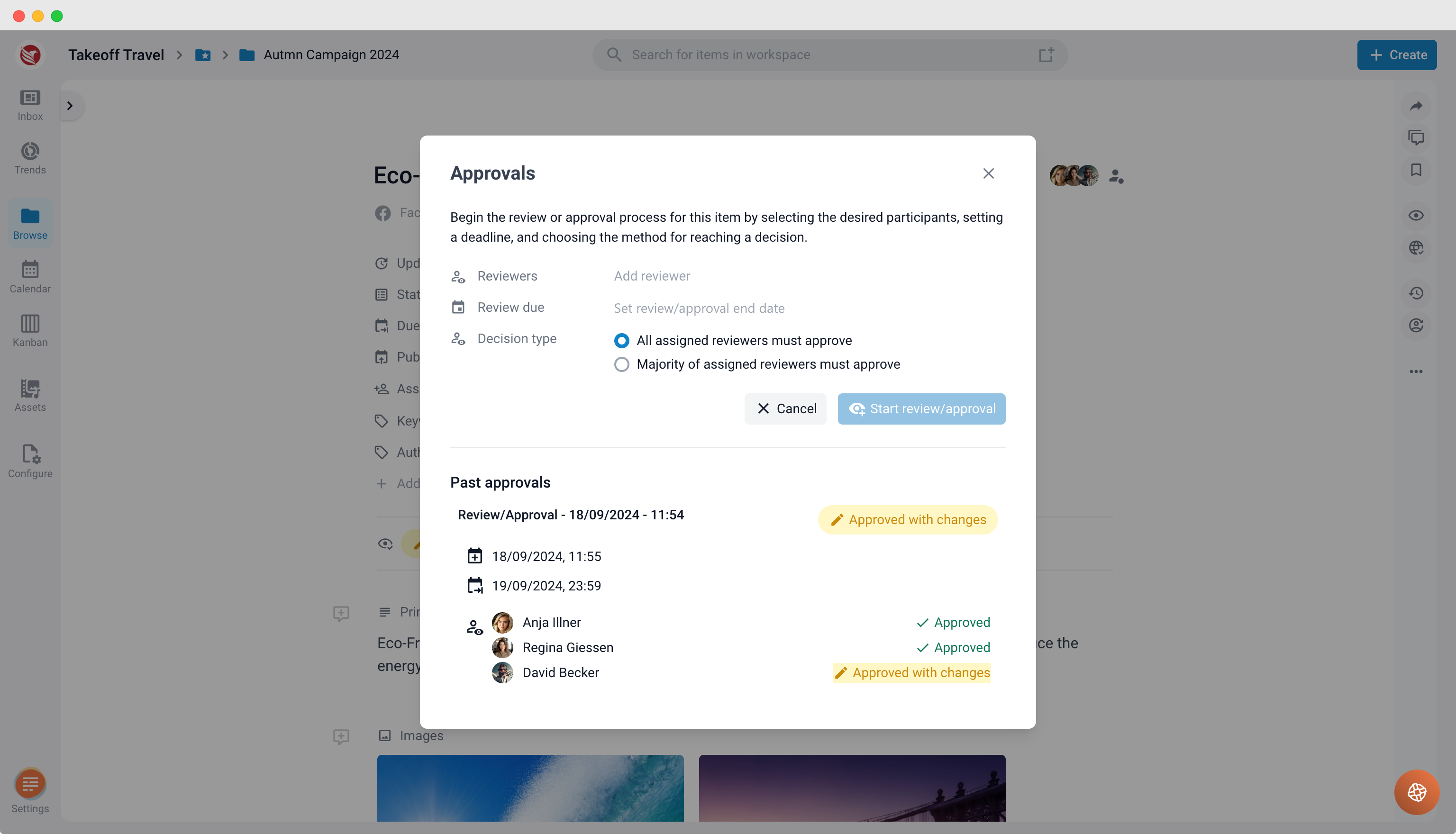
If needed, the approval can be restarted, allowing you to run the approval process multiple times. By clicking on the decision, you can access the modal again, where you have the option to:
- Start a new approval flow
- Review previous approvals, including the list of participants and their decisions.
ContentPaul ensures that the approval process is clear, transparent, and adaptable, allowing you to maintain full control over your content approvals.