
Assign Items to Users
Learn how to assign items to one or multiple users, manage assignments, and handle bulk assignments easily within the workspace.
Items can be assigned to one or multiple users, making them visible in the assigned users' inboxes. Assigned users will receive updates on the item, including status changes, date changes, and other notifications.
Assigning Items
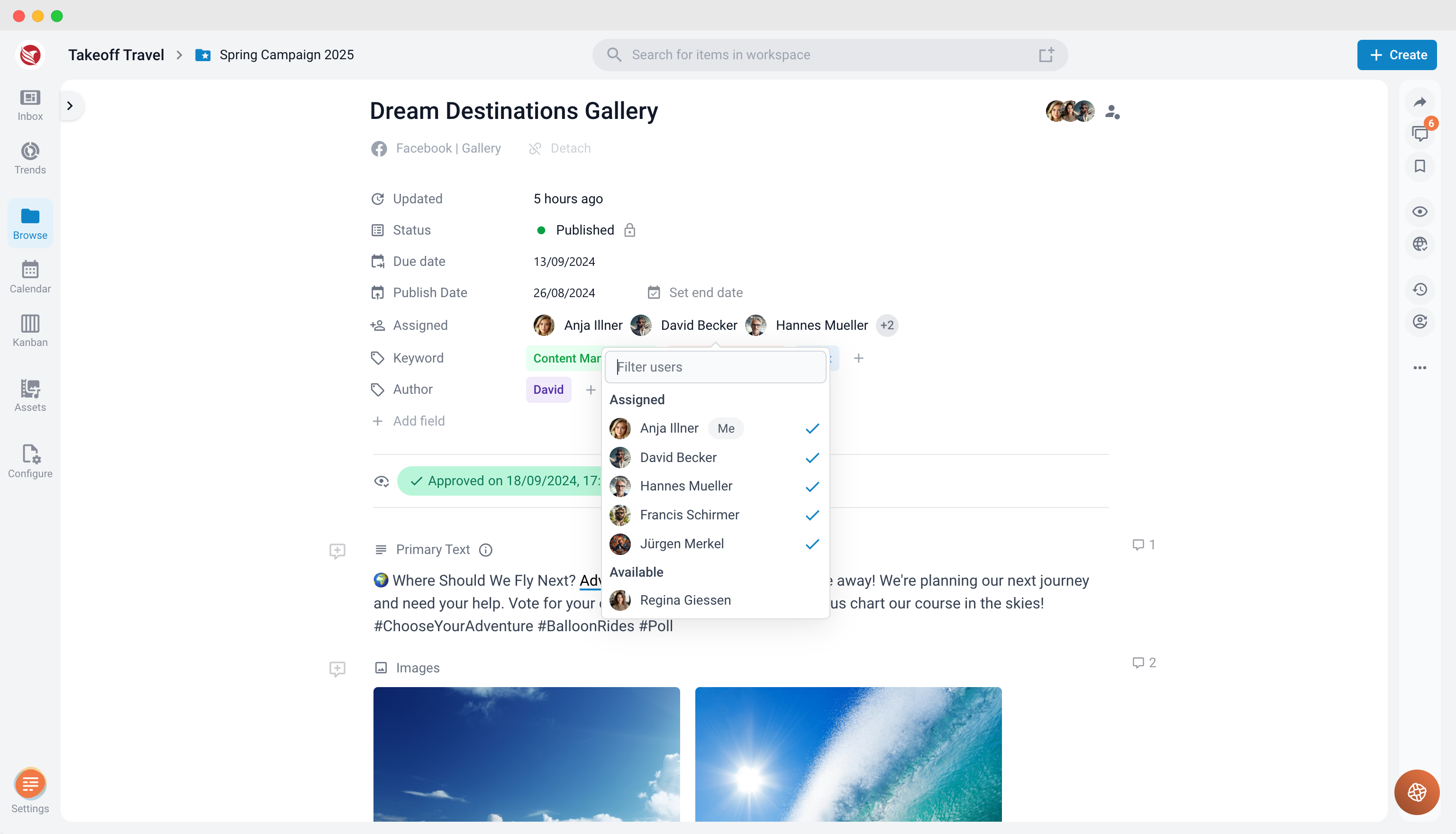
Adding Assignees in the Editor
- Open the Item: Navigate to the item you wish to assign.
- Click "Add Assignee": In the item detail view, click the "Add Assignee" button.
- Select Users:
- A selection panel will appear with a list of available users.
- Select one or multiple users from the list.
- Automatic save: The selected users will now be assigned to the item.
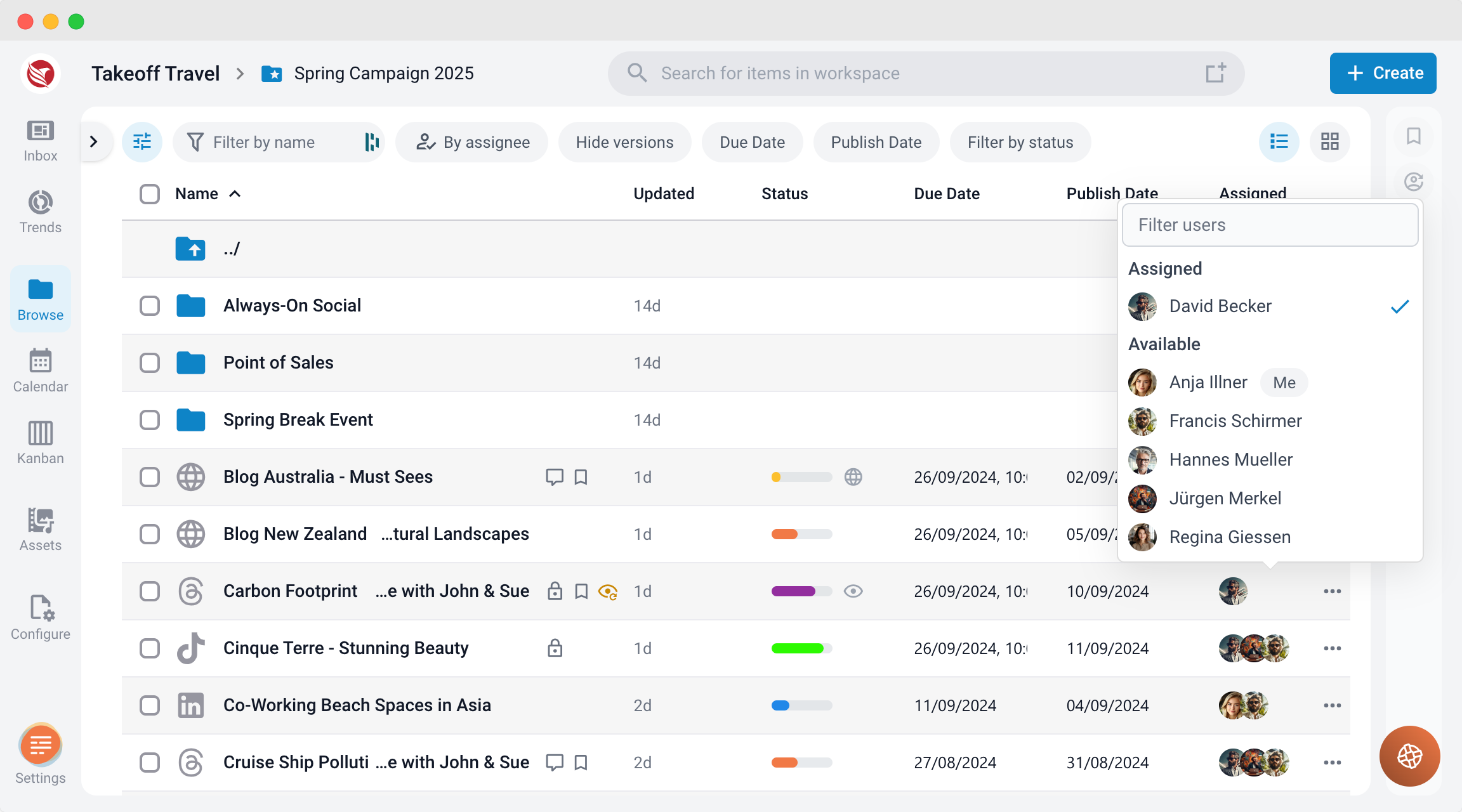
Adding Assignees in the Browse section
- Select the Item: Scroll to the item you wish to assign.
- Click "Add Assignee": In the "Assigned" column, click the "Add Assignee" button.
- Select Users:
- A selection panel will appear with a list of available users.
- Select one or multiple users from the list.
- Automatic save: The selected users will now be assigned to the item.
Unassigning Users
- Open the Item: Navigate to the item with the assigned users.
- Click on User Names: In the item detail view, click on the names of the users you want to unassign.
- Automatic save: The selected users will be unassigned from the item.
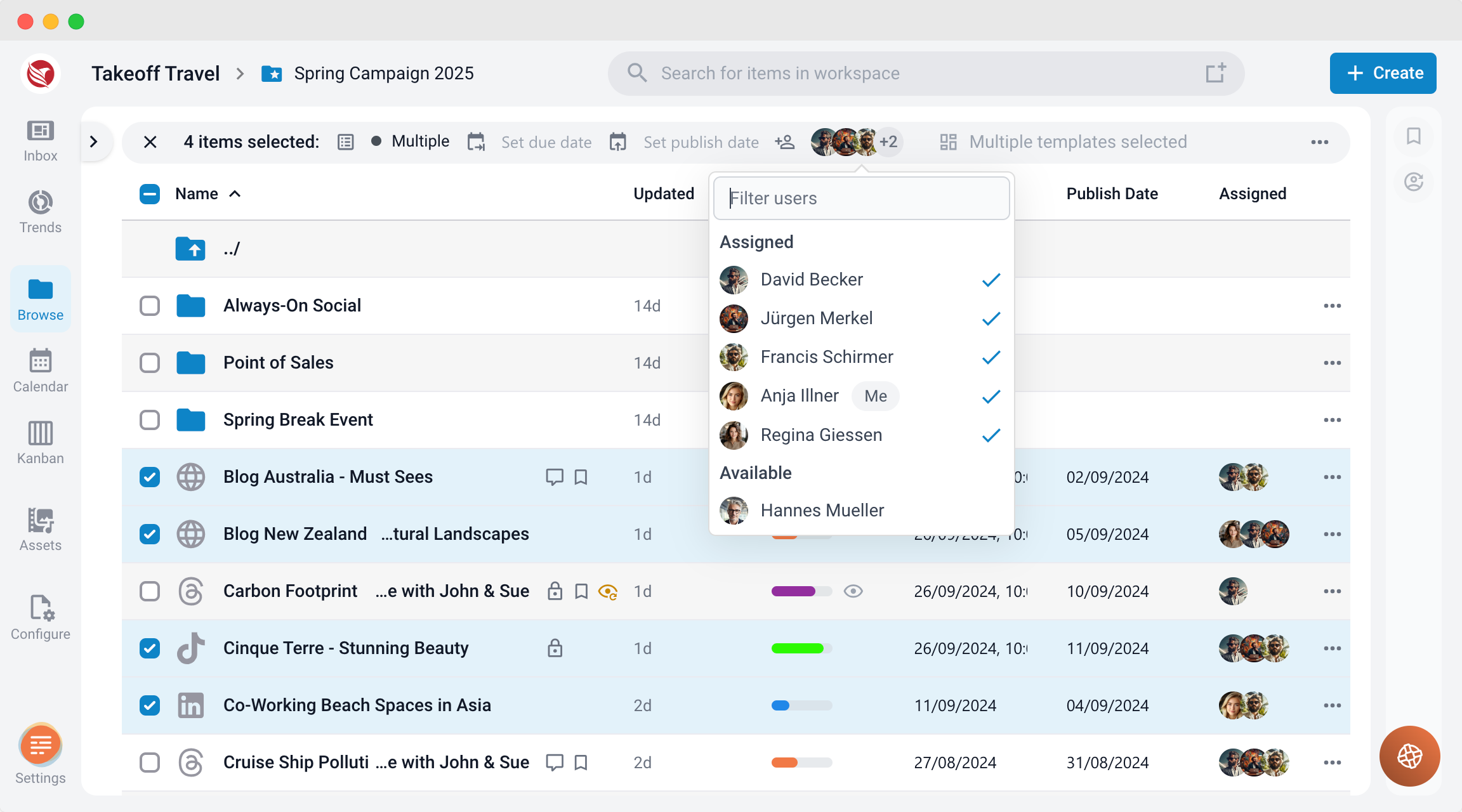
Bulk Assigning Items
- Navigate to Folder Browser: Go to the folder browser list view.
- Select Items: Choose multiple items you want to assign by selecting their checkboxes.
- Click "Add Assignee": Click the "Add Assignee" button in the bulk action menu at the top of the list.
- Select Users: Choose one or multiple users from the selection panel.
- Automatic save: The selected users will be assigned to all the selected items.
Important Notes
- Inbox Visibility: Assigned items will appear in the assigned users' inboxes.
- Notifications: Assigned users will receive all updates related to the item, including status changes and date changes.
- Access Restrictions: Only users with access to the workspace will appear in the selection panel.
By following these steps, you can efficiently manage item assignments, ensuring that all relevant users stay informed and up-to-date on their tasks.