
Video Commenting
ContentPaul provides a powerful and intuitive system for commenting on videos, enhancing collaboration and ensuring detailed feedback. This guide covers all aspects of video commenting, including marking specific positions, mentioning other users, receiving notifications, using direct links to comments, resolving comments, and distinguishing between team and public comments.
Commenting on Videos
Marking Specific Positions
- Open the Video: Navigate to the project and select the video you want to comment on.
- Play or Scrub Through the Video: Watch the video or manually scrub through the timeline to find the exact moment you want to comment on.
- Activate Comment Mode: Click on the comment tool or icon to start adding comments.
- Select a Timestamp and Location: Pause the video at the exact timestamp where you want to leave a comment. Click on the screen at the desired location to anchor your comment.
- Add Your Comment: Once the position and location are selected, a comment box will appear. Type your comment and click submit. The marked area on the video screen will be highlighted, indicating that it has a comment.
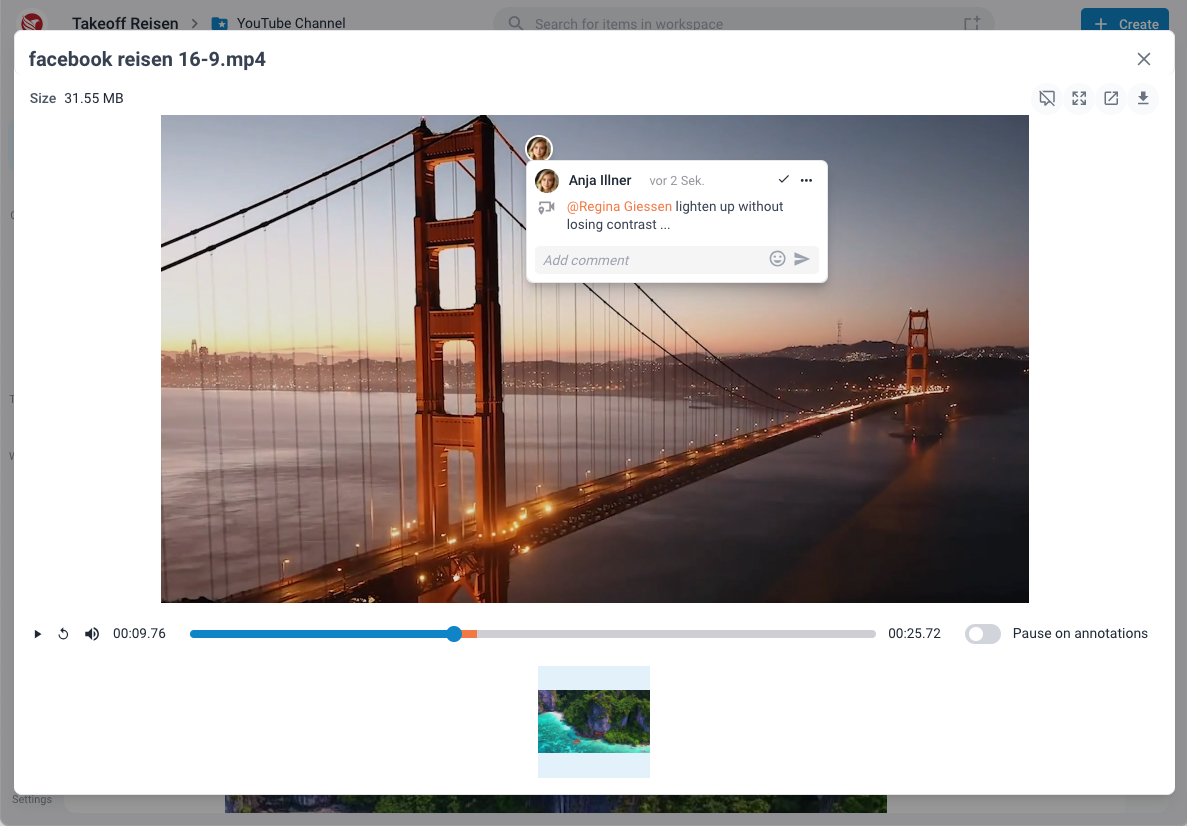
Mentioning Other Users
- Type “@” and Username: In the comment box, type the “@” symbol followed by the username of the person you want to mention.
- Select User: A list of matching usernames will appear. Select the appropriate user from the list.
- Complete the Comment: Finish typing your message and submit the comment. Mentioned users will be notified and can easily access the comment.
Notifications and Direct Links
Notifications
- Receive Notification: When you are mentioned in a comment or a new comment is added to a video you’re following, you will receive a notification.
- Access Notifications: Notifications can be accessed from your inbox within ContentPaul or via email if email notifications are enabled in your settings.
- Direct Links
- Direct Link in Notification: Notifications include a direct link to the specific comment on the video.
- Click the Link: Clicking the direct link will take you directly to the video, start the playback at the exact timestamp, and highlight the commented area, allowing you to see the feedback in context.
Show/Hide Comments
If your video becomes too cluttered with comments and you want to see the full picture, you can easily manage comment visibility. Click the hide/show comments button to toggle the visibility of comments on or off. This allows you to view the video without any distractions.
Resolving Comments
- Identify Comments to Resolve: Review comments on the video and identify those that have been addressed.
- Mark as Resolved: Click on the comment to open the options menu and select “Resolve.” The comment will be marked as resolved, indicating that the issue has been addressed.
- Review Resolved Comments: Resolved comments can be reviewed at any time, providing a history of feedback and resolutions.
Team and Public Comments
Team Comments
- Internal Collaboration: Use team comments to communicate with your internal team members.
- Visibility: Team comments are visible only to team members and exclude external stakeholders or clients.
- Usage: This feature is useful for internal feedback, discussions, and instructions that should remain within the project team.
- Public Comments
- External Feedback: Use public comments to communicate with both internal team members and external stakeholders or clients.
- Visibility: Public comments are visible to everyone with access to the content item, including external parties.
- Usage: This feature is ideal for feedback and discussions that involve clients or stakeholders, ensuring transparency and inclusion.
Benefits of Video Commenting in ContentPaul
- Precision Feedback: Marking specific timestamps and locations on the video allows for detailed and precise feedback, ensuring clarity.
- Enhanced Collaboration: Mentioning users and using direct links in notifications fosters prompt and effective communication.
- Efficient Workflow: Resolving comments keeps the workflow organized and ensures that all feedback is addressed.
- Targeted Communication: Differentiating between team and public comments ensures that feedback is directed to the appropriate audience.
Commenting on videos in ContentPaul is a comprehensive feature designed to enhance collaboration and ensure detailed feedback. By utilizing tools such as marking specific timestamps and locations, mentioning users, direct notifications, comment resolution, and visibility settings, users can effectively manage feedback and streamline their workflows.