Delete and Restore Items
Easily delete and restore items in ContentPaul with a confirmation step and access deleted items in the Recycle Bin anytime.
In ContentPaul, users can delete any item, folder, or project with a simple process that includes a confirmation step. Here's how you can delete and manage deleted items:
Single Item Deletion
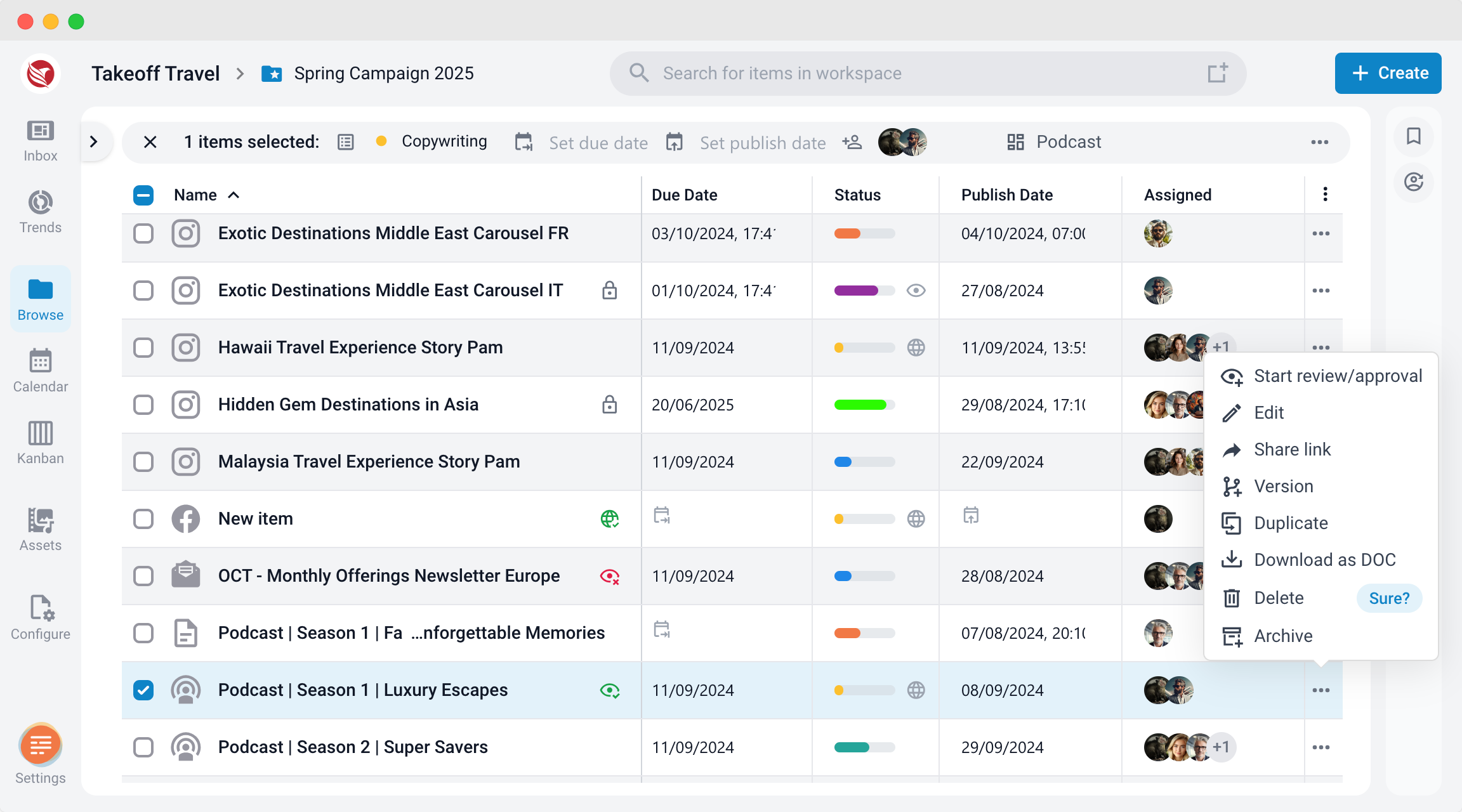
- From the Browse Section: Click the three dots at the end of the item line and select Delete.
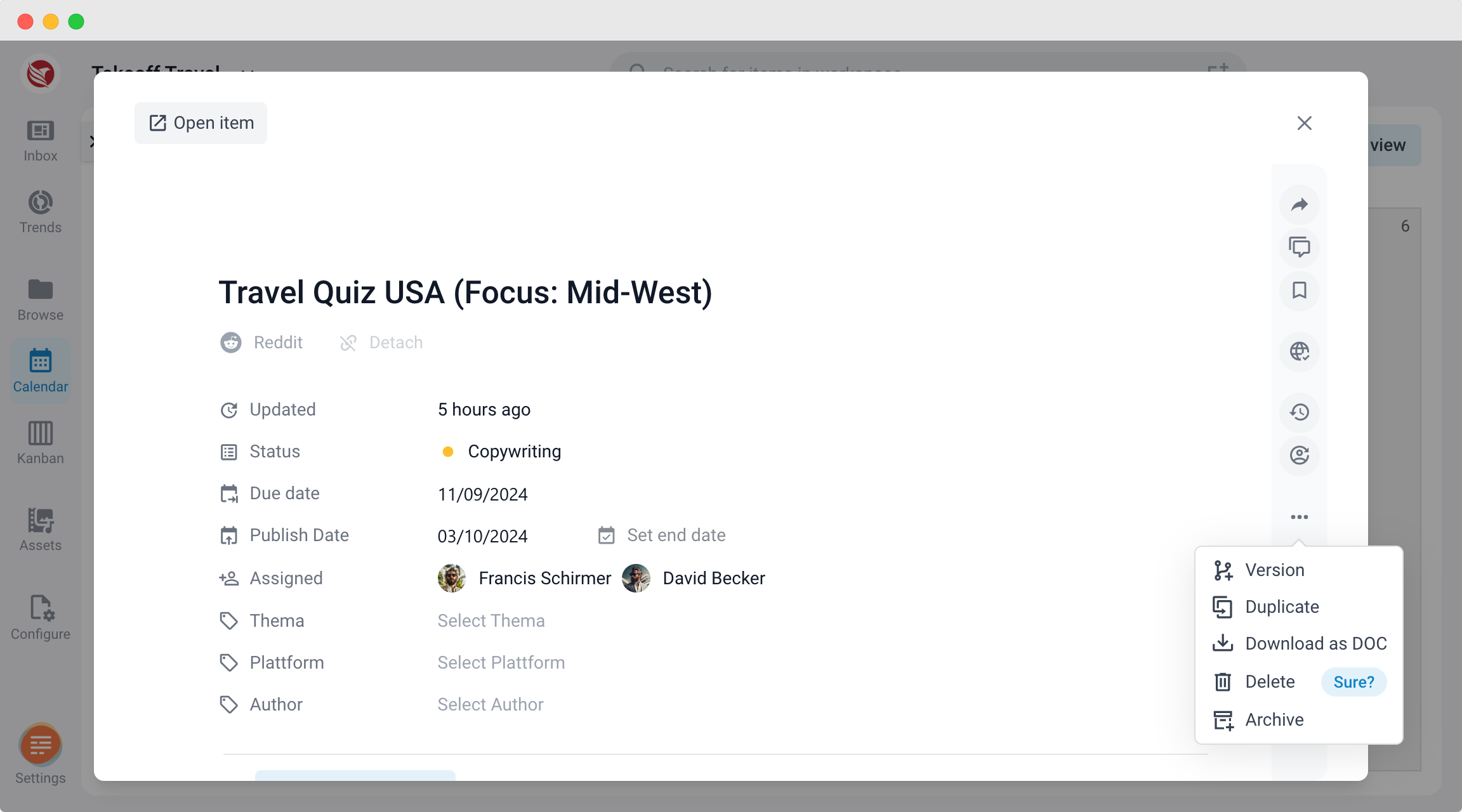
- From the Editor or Preview Modal: Open the right sidebar, click the three dots, and select Delete.
- A "Sure?" flag will appear. Click it to confirm and complete the deletion.
- A "Sure?" flag will appear. Click it to confirm and complete the deletion.
- Bulk Deletion:
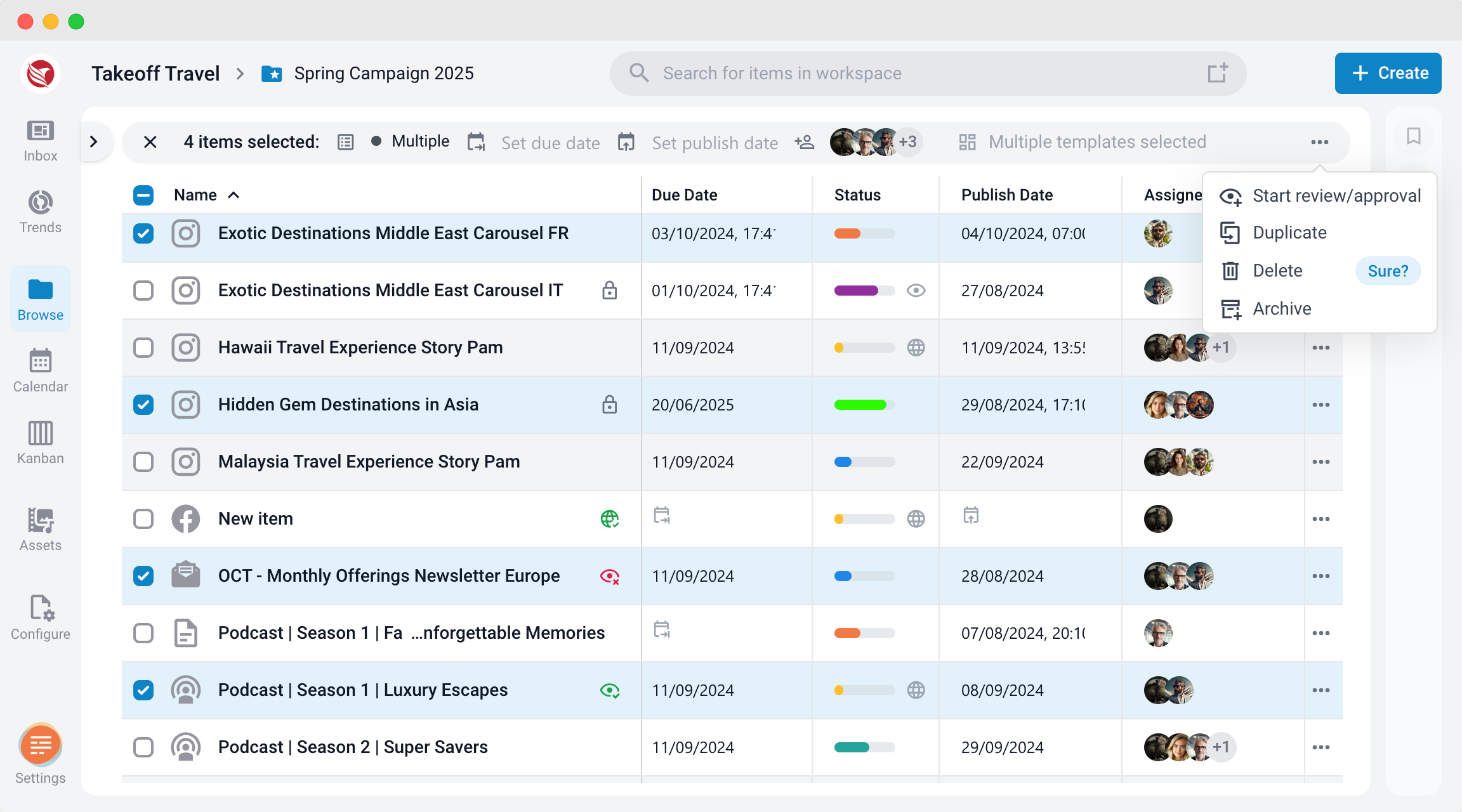
- Select multiple items by checking their checkboxes.
- From the bulk edit menu at the top of the screen, click the three dots and select Delete.
- Confirm the deletion when prompted.
- Deleted Items and Recycle Bin:
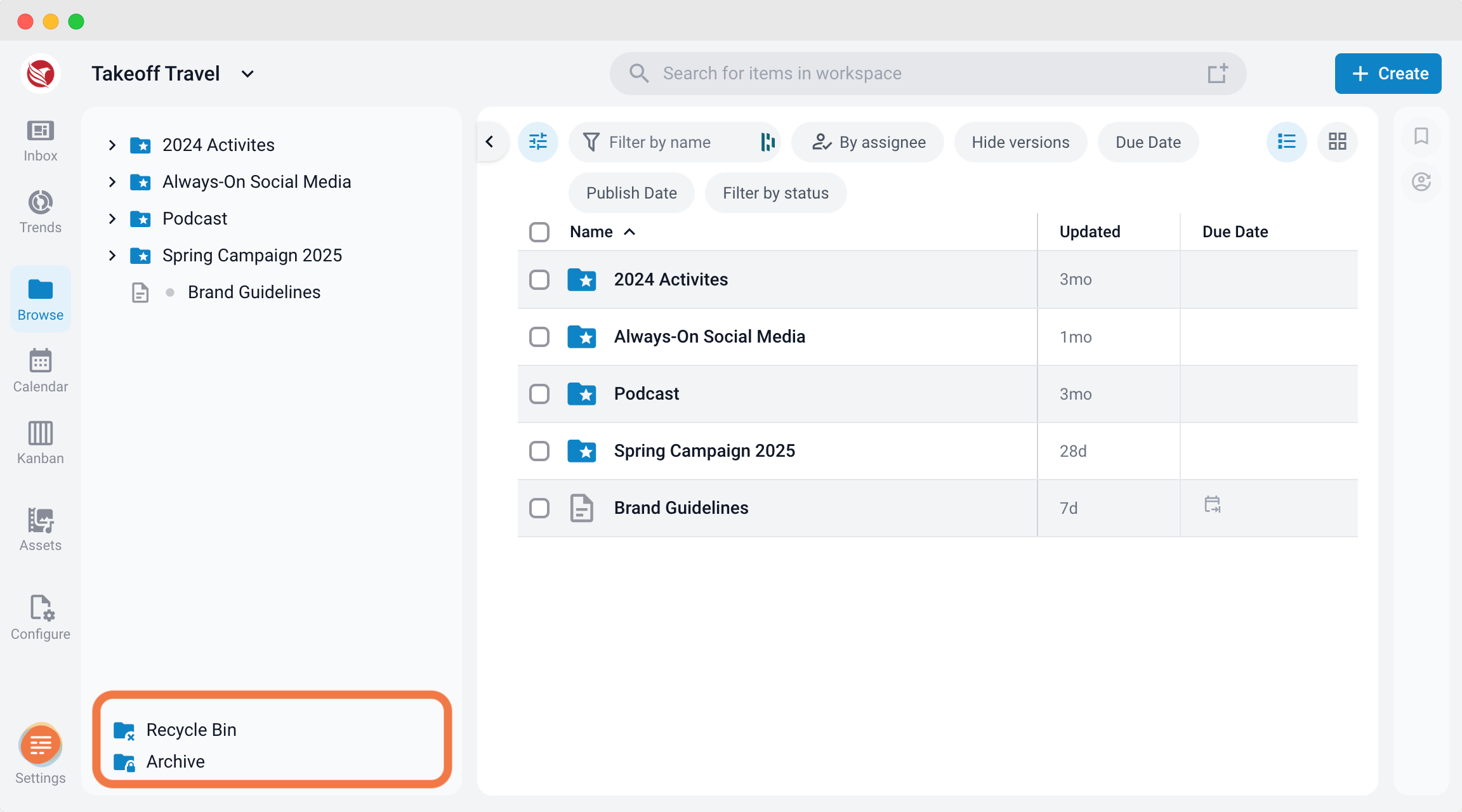
- Deleted items are moved to the Recycle Bin.
- To access the Recycle Bin, open the Explorer from the left-side panel and scroll down. Click Recycle Bin to view all deleted items.
- Use filters to find specific deleted items.
- Restoring Deleted Items:
- To restore an item, select it from the Recycle Bin.
Click the three dots next to the item or in the bulk menu and select Restore.
- The restored item will return to its original location.
- This ensures deleted items can be managed or recovered easily from the Recycle Bin.