
Applying a Template
Learn how to apply templates to content items during creation, within items, or from the browse section for consistency.
Applying a template to a content item can be done in several ways, depending on your workflow. Below are the different methods you can use:
1. Applying a Template During Content Item Creation
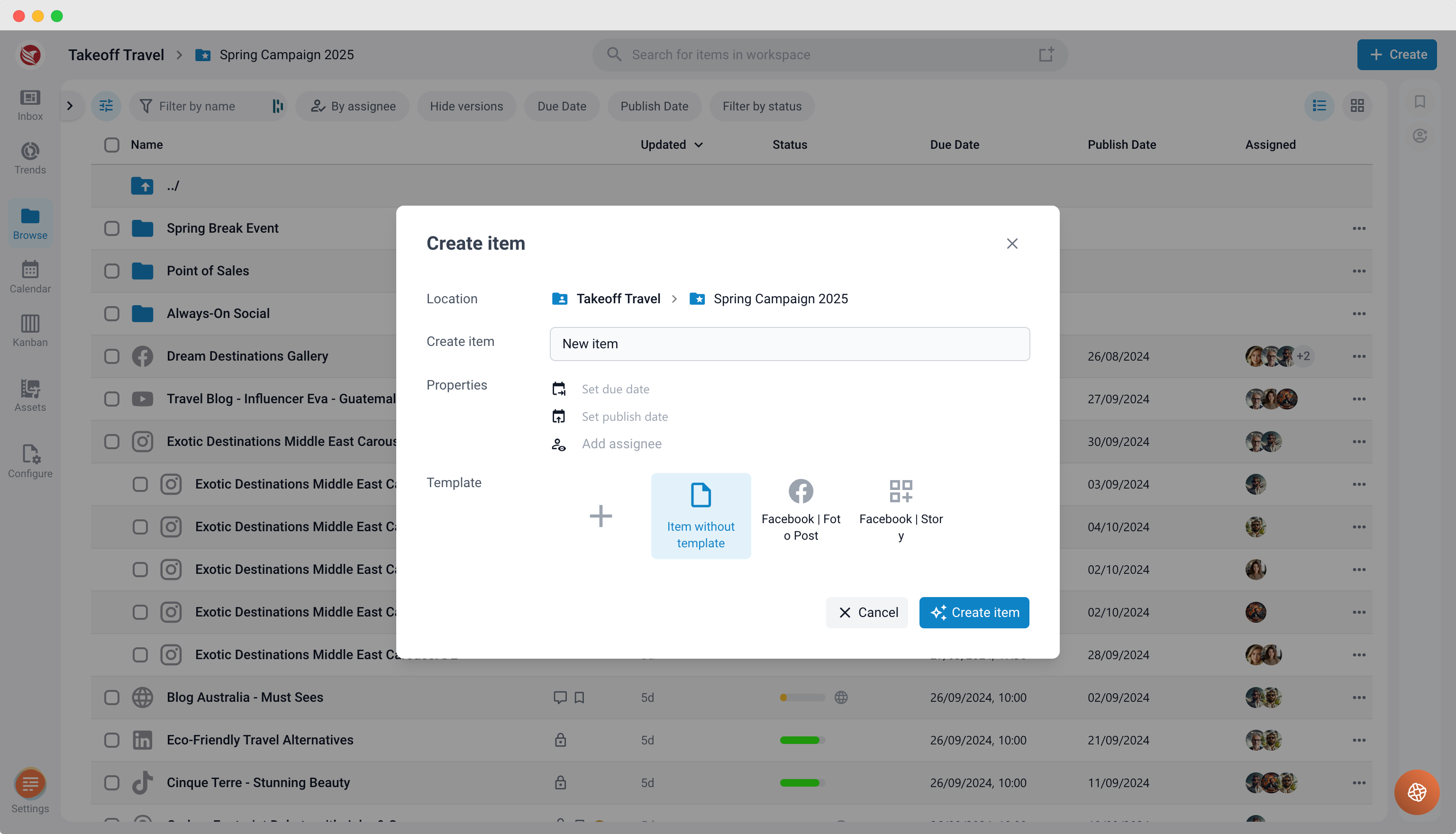
- Single or Multiple Items: When you create a new content item (or multiple items at once), you have the option to apply a template immediately.
- Process:
- Start by entering the name and necessary properties for your content item(s).
- At this stage, you can choose to proceed without setting a template or apply one by clicking the "+" button.
- The Template Selection window will open.
- Browse Templates: Navigate through global, company-wide, or workspace-specific templates.
- Preview: Click through the templates to see a preview on the right side.
- Set Template: Once you've selected the desired template, click "Set Template" to apply it to the content item(s).
2. Applying a Template to an Existing Content Item
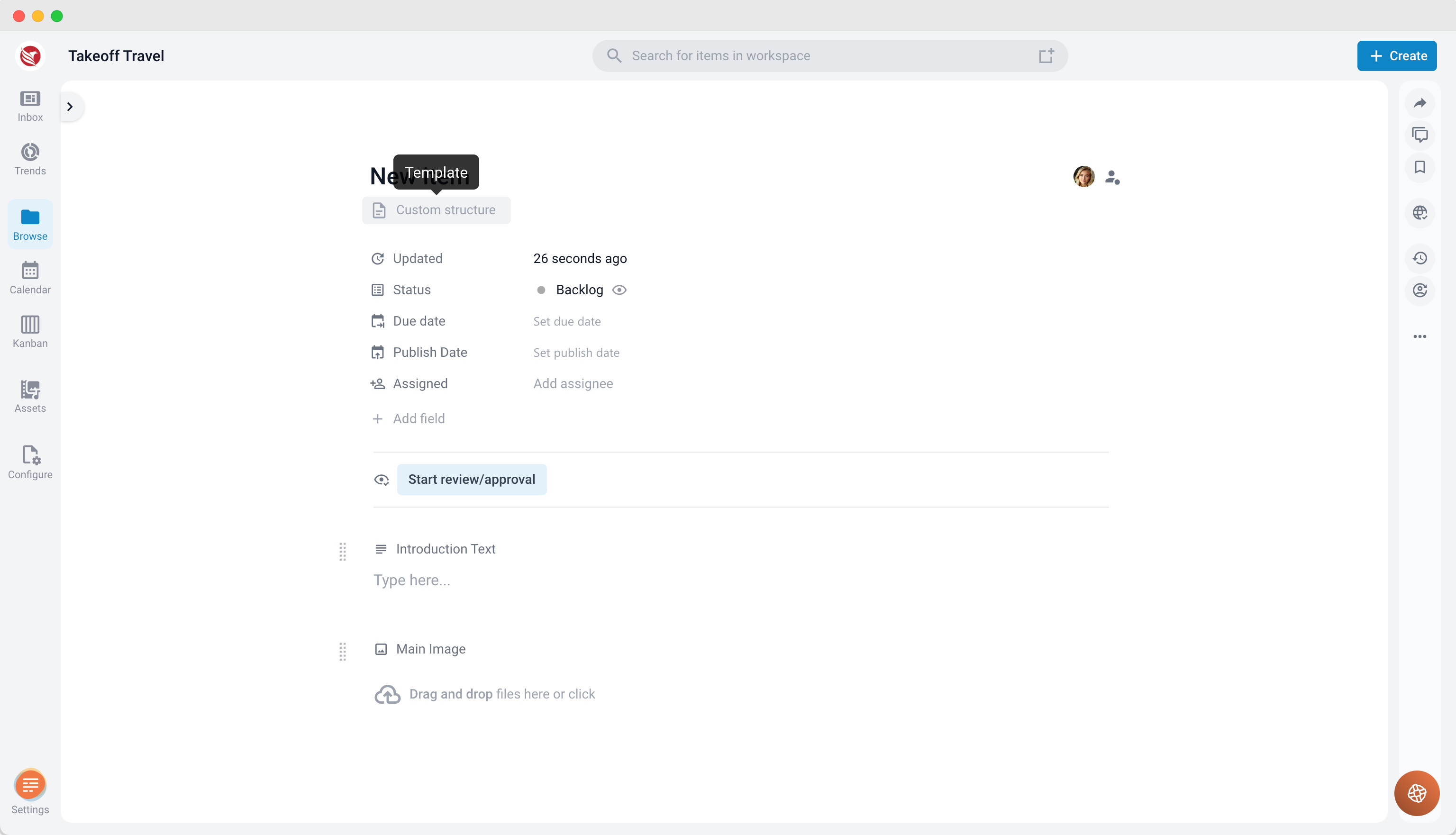
- Custom Structure Indicator: If you’ve created a content item without a template, it will show as "Custom structure" in the item’s header information under the Template label.
- Process:
- In the content item view, locate the Template label in the header.
- Click on "Custom structure".
- This will open the Template Selection window.
- From here, you can browse through available templates, preview them, and apply the desired template.
3. Applying a Template in the Browse Section
- Bulk Operations: This method is useful when you need to apply a template to multiple content items at once.
- Process:
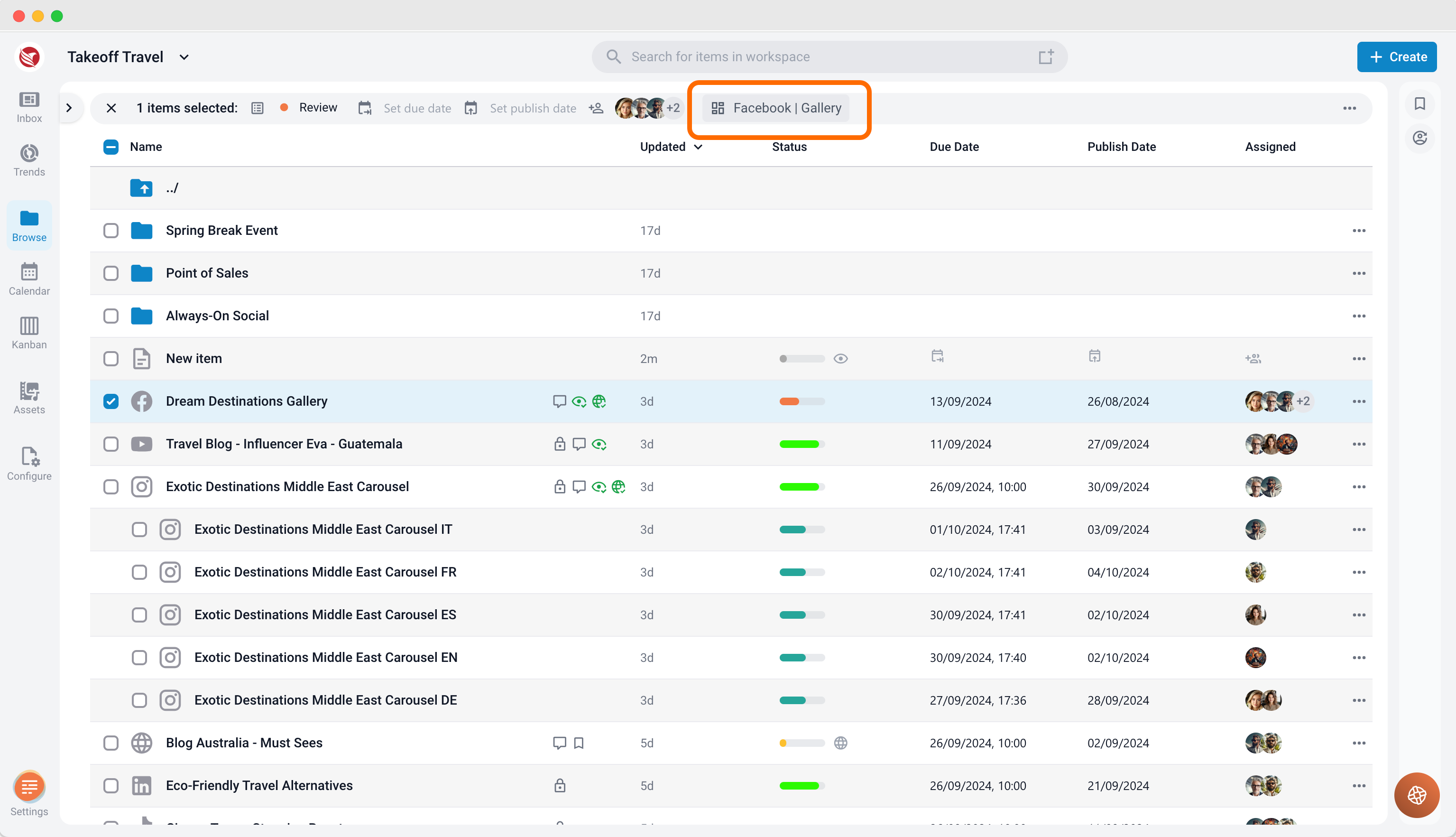
- In the Browse section, select one or more content items that you want to apply a template to.
- In the selection header that appears above, locate the Template icon.
- Click on the label next to the Template icon.
- The Template Selection window will open, allowing you to browse, preview, and apply the appropriate template to the selected content items.
By using these methods, you can efficiently apply templates to your content items, ensuring consistency and adherence to your project’s structure.