
Calendar Item Cards
Elements on Calendar Item Cards in ContentPaul
Calendar item cards in ContentPaul are designed to provide a snapshot of key information, making it easy for users to understand the status and context of each content item at a glance. Each element on the card serves a specific purpose, ensuring that you can manage your content efficiently.
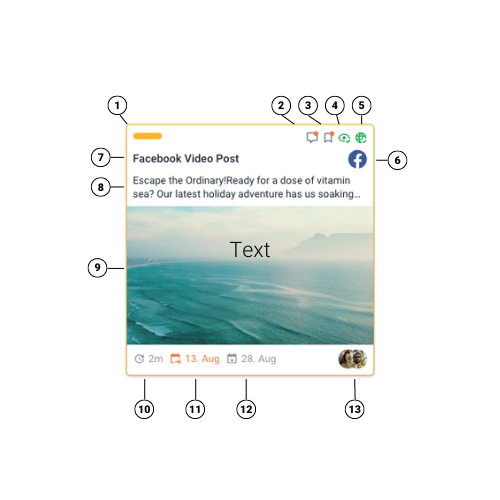
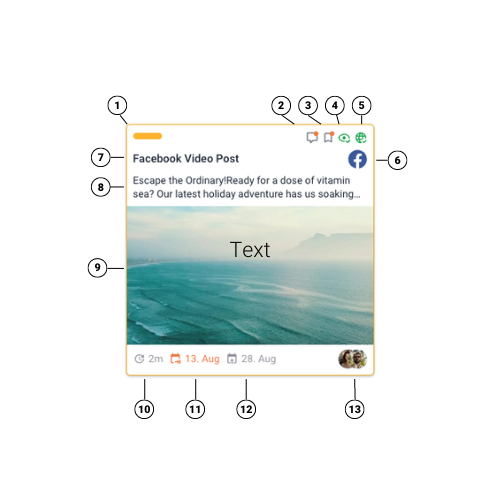
Here’s a detailed breakdown of the elements found on a calendar item card:
- Status Bar
- Purpose: The status bar at the top of the card visually indicates the overall progress or current state of the content item. It helps users quickly assess where the item stands in the workflow.
- Comments on This Item
- Purpose: A comments icon or indicator shows if there are any comments on the item. This allows you to see if there’s ongoing discussion or feedback that needs to be addressed.
- Notes on This Item
- Purpose: Similar to comments, a notes icon indicates if there are any notes attached to the item. Notes are often used for internal instructions or reminders related to the content item.
- Approval Status
- Purpose: Displays the current approval status if an approval process has been initiated.
- Color Coding:
- Red: Not approved.
- Yellow: Approved with changes.
- Green: Approved.
- Publishing Status
- Purpose: Indicates the publishing status of the item, especially if it is set to be published automatically.
- Color Coding:
- Red: Publishing failed.
- Yellow: Publishing is scheduled.
- Green: Publishing successful.
- Publishing Network
- Purpose: Shows the publishing network or platform where the content is set to be published. This is determined by the template applied to the content item, indicating the intended destination, such as a specific social media platform or website.
- Content Item Name & Title
- Purpose: The name and title of the content item are prominently displayed, providing a clear reference to the specific piece of content being managed.
- Preview Text
- Purpose: A short snippet or summary of the content, offering a quick preview of what the item is about. This helps users quickly recall the content without opening the full item.
- Preview Image
- Purpose: Displays a small preview image associated with the content item, giving a visual cue that helps in identifying the content.
- Purpose: Displays a small preview image associated with the content item, giving a visual cue that helps in identifying the content.
- Latest Updated
- Purpose: Indicates the date and time when the content item was last updated. This helps track recent changes and ensures the item is up-to-date.
- Due Date
- Purpose: Shows the due date for the content item, highlighting when the next action or step is required.
- Color Coding:
- Grey: The due date is still ahead.
- Red: The due date has been missed, indicating overdue tasks.
- Publish Date
- Purpose: Displays the scheduled publish date for the content item, indicating when it is set to go live.
- Assignees
- Purpose: Lists the users assigned to the content item. This helps identify who is responsible for the item’s completion and allows for easy tracking of collaboration efforts.
Editing Calendar Item Cards
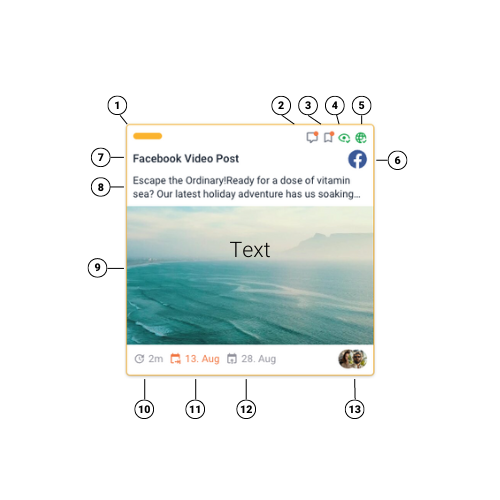
Each element on the calendar item card is not only informative but also interactive. By clicking on the card, you can open it and modify any of the information displayed. This includes changing the status, updating comments or notes, adjusting approval and publishing settings, or editing the content item’s details such as name, preview, dates, and assignees.
ContentPaul’s calendar item cards ensure that all relevant information is available at a glance, enabling efficient content management and planning.