
Applying Workflows and Updating Status
Easily apply workflows to projects in ContentPaul and update item statuses to streamline team progress and enhance collaboration.
In ContentPaul, workflows help guide projects through specific stages, allowing users to monitor progress and coordinate effectively. Here's how to apply workflows, update statuses, and manage transitions smoothly within projects.
Applying a Workflow to a Project
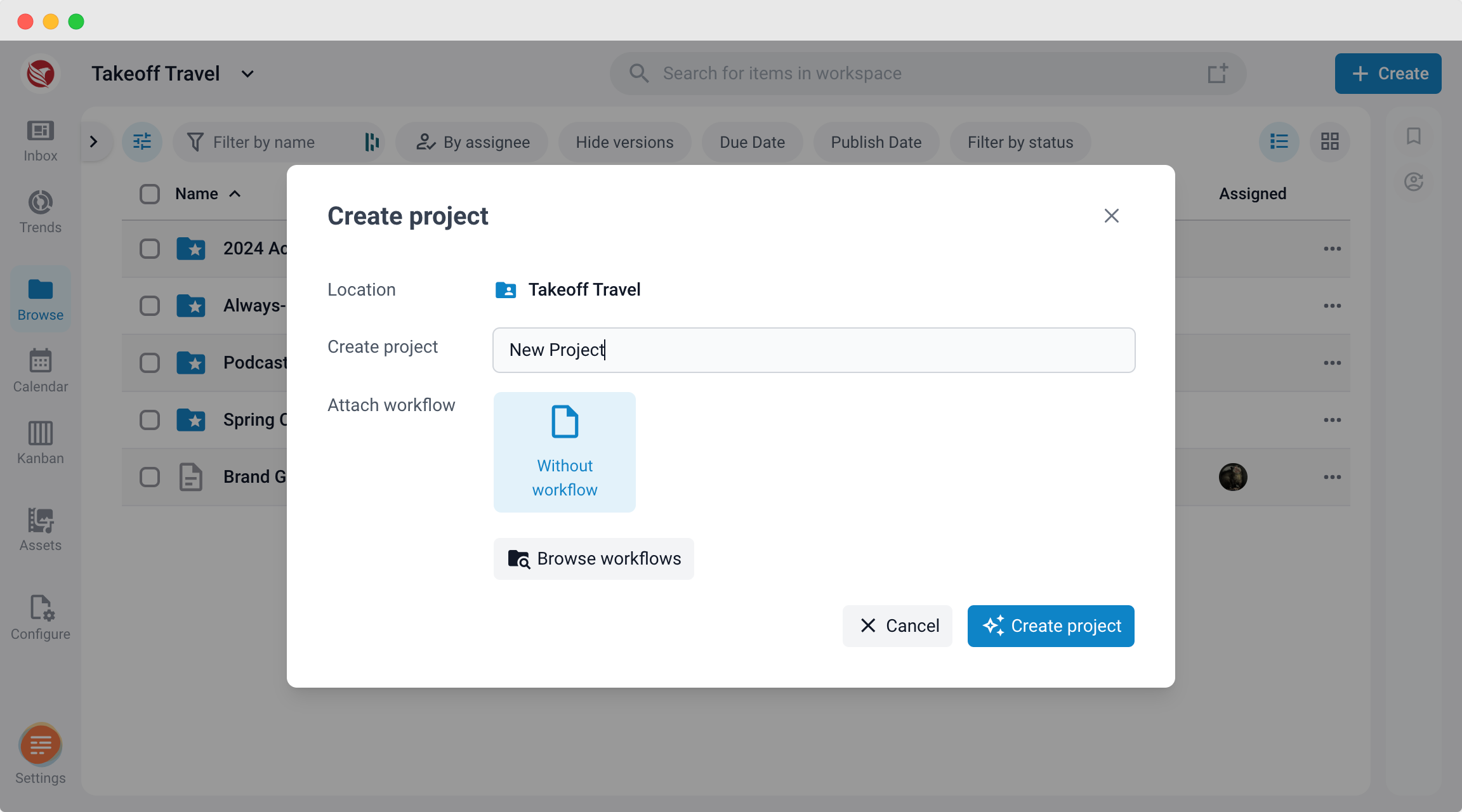
When Creating a New Project:
- During project setup, select an available workflow from the list to apply to the project. This workflow will then govern the statuses of all items within the project.
Applying or Changing a Workflow in the Browse Section:
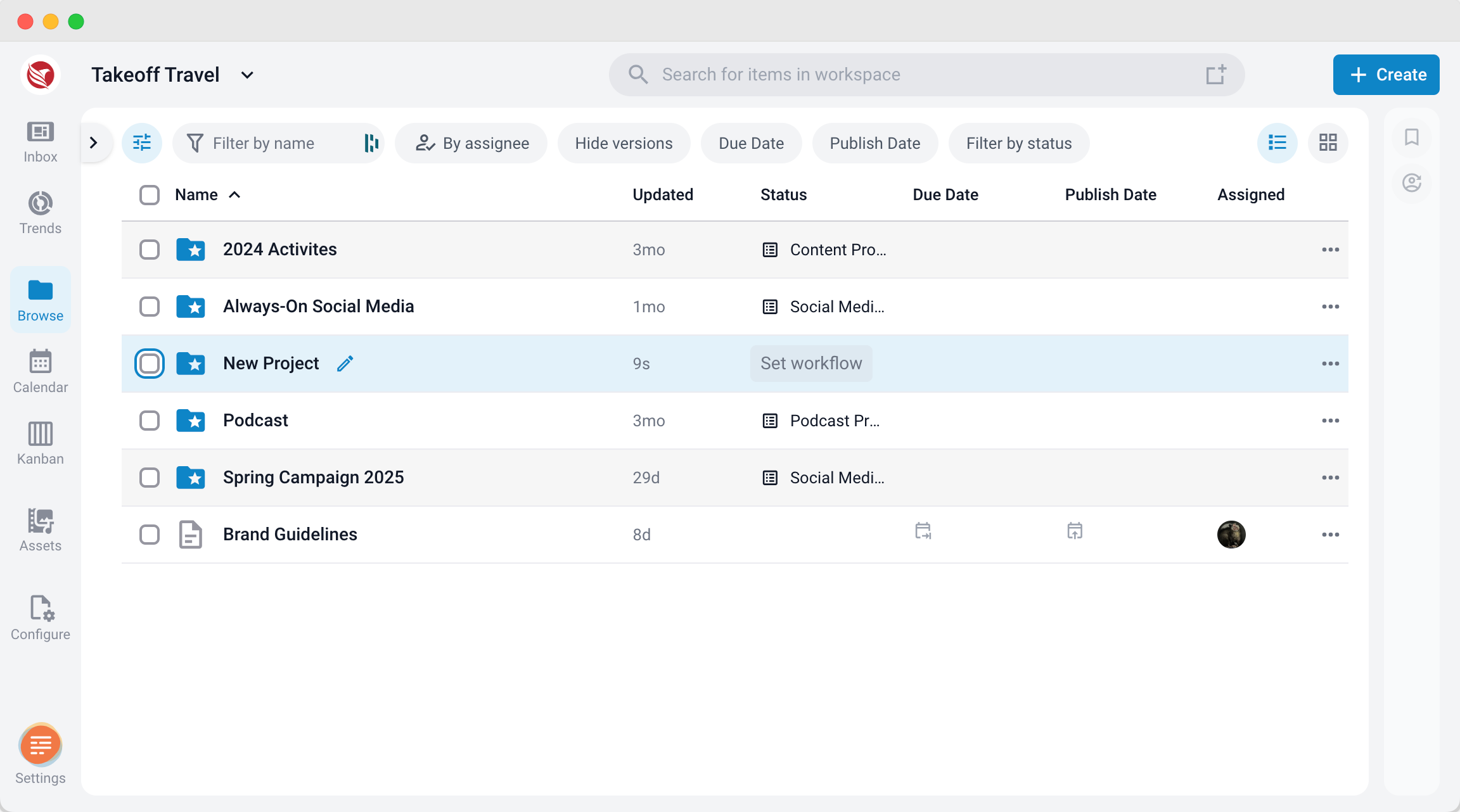
- To apply or change a workflow for an existing project, navigate to the Browse section.
- Locate the project, and click the field in the Status column next to the project name. Select the desired workflow from the available list.
- All items within this project will now use the newly applied workflow.
Managing Workflow Transitions for Moved Items
Cross-Project Workflow Handling:
- If items are moved from a project with one workflow to another project with a different workflow, they will retain the previous project’s status initially.
- When the status is updated for the first time after the move, only the statuses of the new project’s workflow will be available, allowing for seamless integration.
Updating Status for Individual Items
In the Item Detail View:
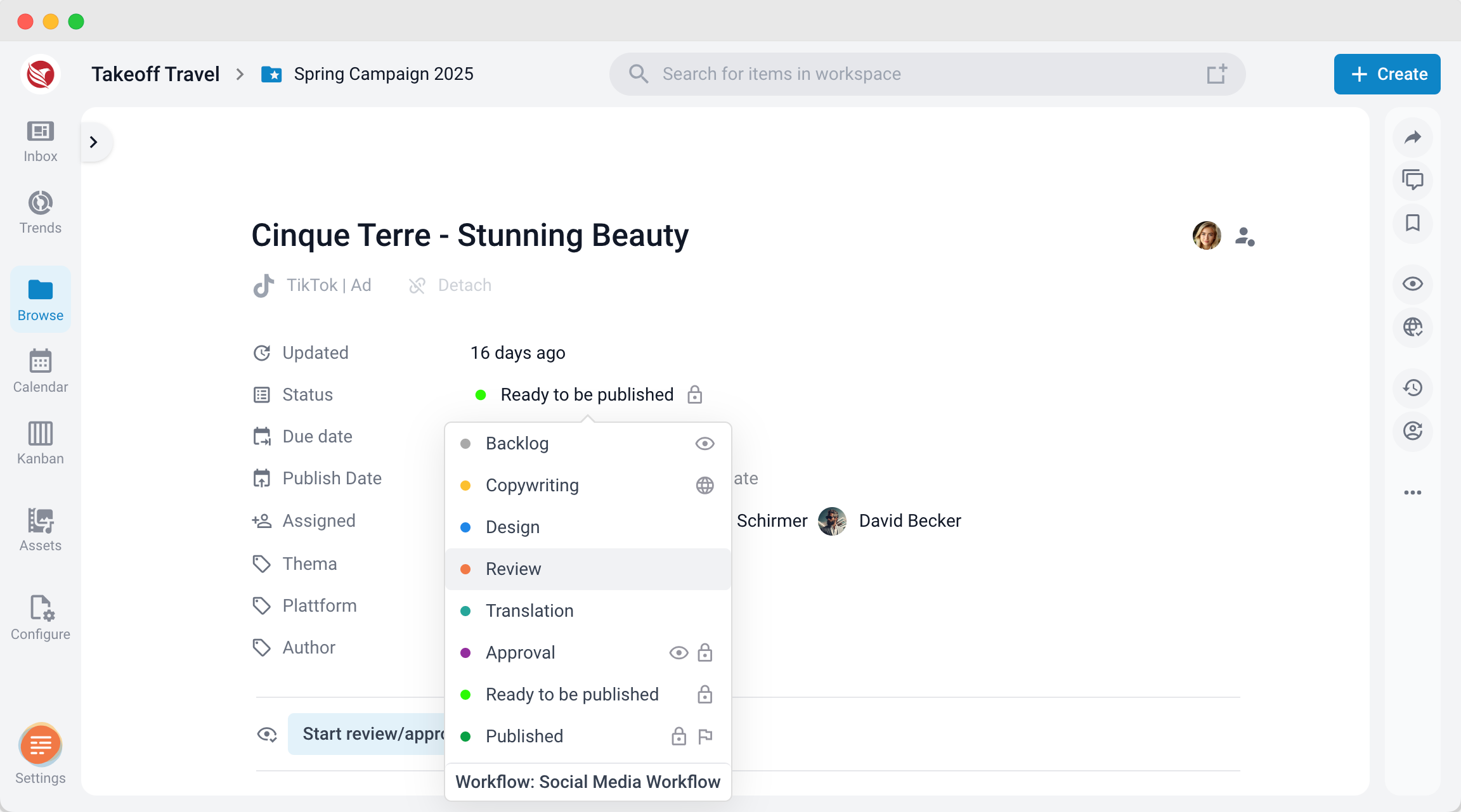
- Open the item and locate the Status field in the header section.
- Click on the status field, select the new status from the dropdown, and confirm.
- A dialogue will open, allowing you to adjust the due date and add a comment. This comment will be visible to assigned users and will also appear as a general comment in the comment section.
In the Browse Section:
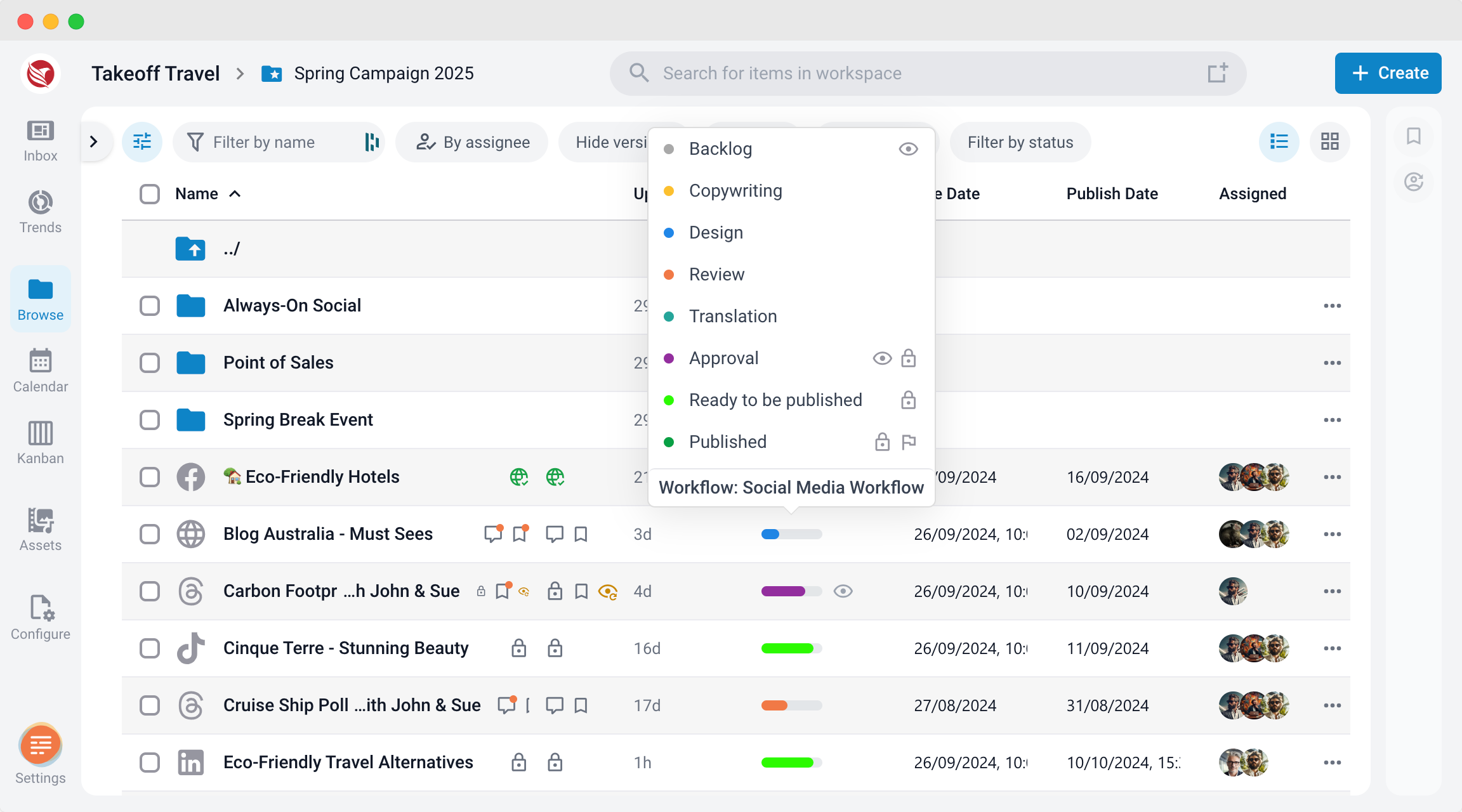
- To update an item’s status in the Browse section, click directly on the colored status bar beside the item.
- A dropdown with the available statuses will appear, allowing you to select and apply the new status instantly.
Bulk Updating Statuses
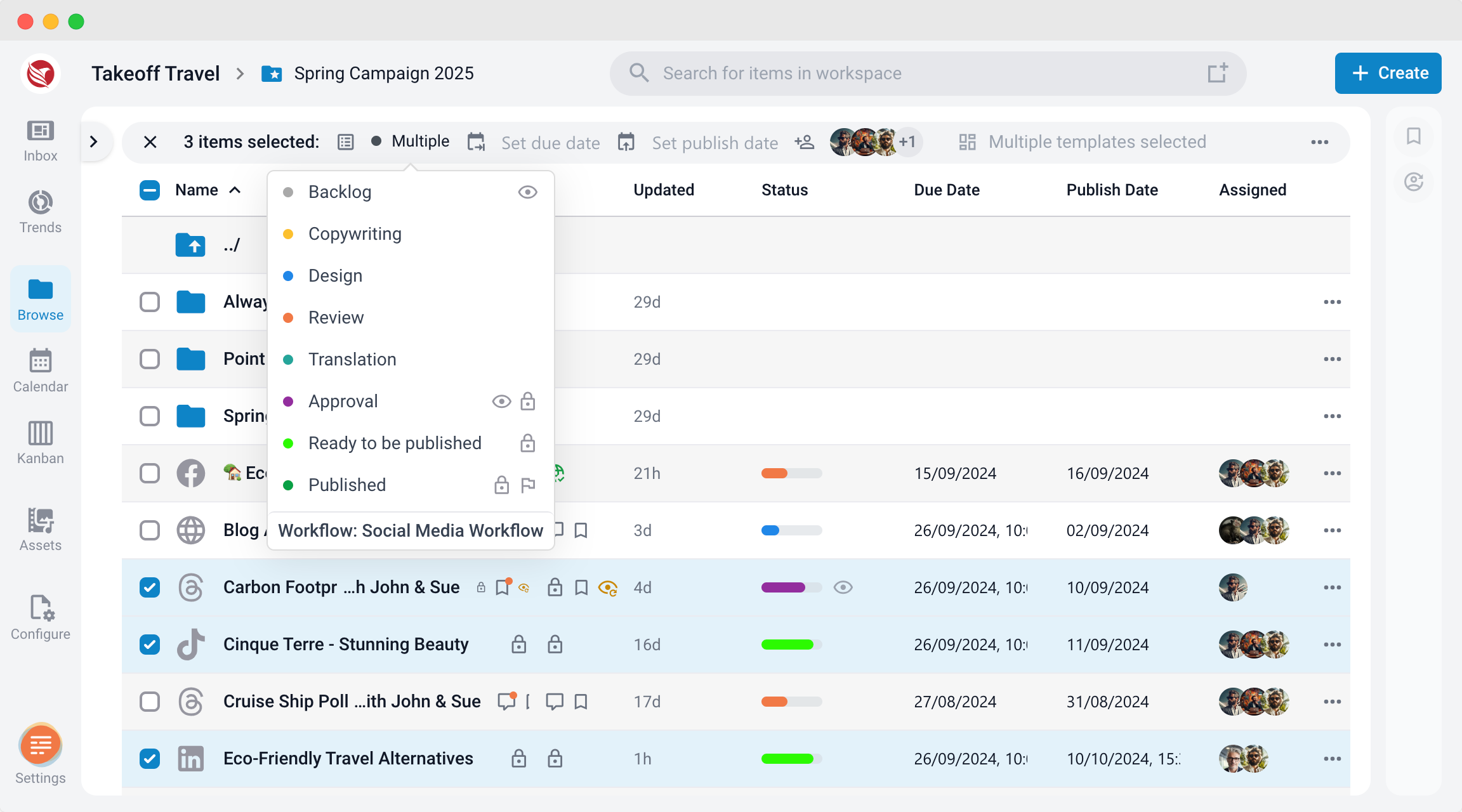
Bulk Status Change:
- To change the status of multiple items at once, select the desired items by checking their boxes.
- In the bulk menu at the top, click on the Status field. A dropdown will appear with the available statuses for the selected items.
- Choose the new status, and it will apply to all selected items simultaneously.
Using workflows and updating statuses in ContentPaul ensures projects stay organized and enables real-time progress tracking, allowing teams to collaborate effectively across stages.