
Share Content with Non-Logged-In Users
Learn how to create and share public links on ContentPaul, allowing non-logged-in users to access your content easily.
ContentPaul allows you to share content with users who either do not have an account or are not logged into the platform. By generating Public Links, you can make your content accessible to anyone via a web link. Below is a detailed explanation of how to do this.
Method 1: Sharing via the Browse Section
- Navigate to the Browse Section:
- On the left-hand side, click on Browse to access a list of all your content items.
- Select the Item:
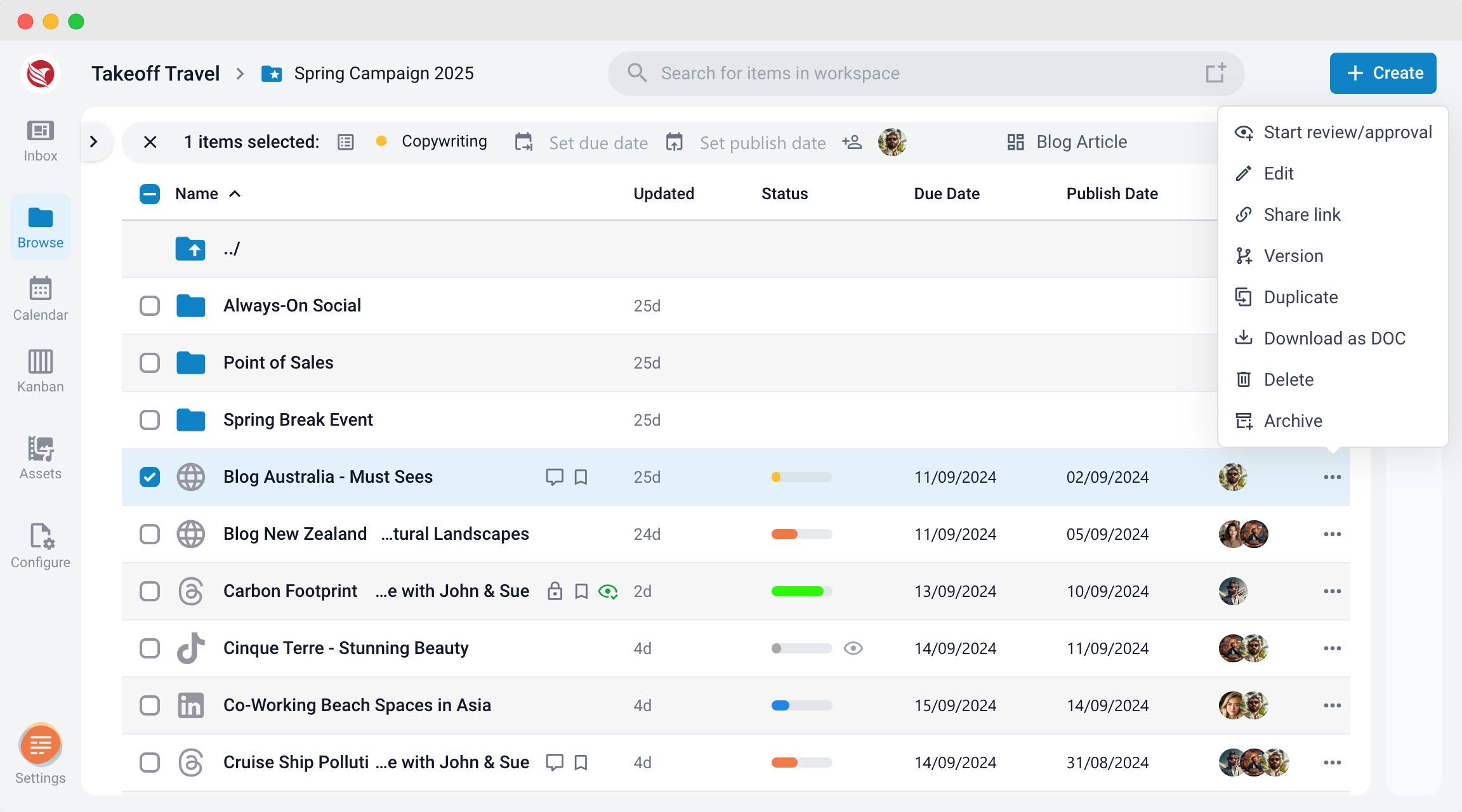
- Locate the content item you want to share. To the right of the item, click on the three dots (menu icon).
- Click the Three Dots:
- This opens a menu. From the list of options, select Share link.
- Create a Public Link:
- In the share modal that appears, you will have an option to create a Public Link. Select this option, and a URL will be generated.
- Copy the URL:
- Once the Public Link is displayed, click Copy. You can now share this URL with anyone, even if they are not logged into ContentPaul.
Method 2: Sharing via the Editor or Item Preview Modal
- Open the Item in the Editor or Preview:
- If you are currently editing or previewing an item, the share options are also available in the right-hand sidebar.
- Click the Share Symbol:
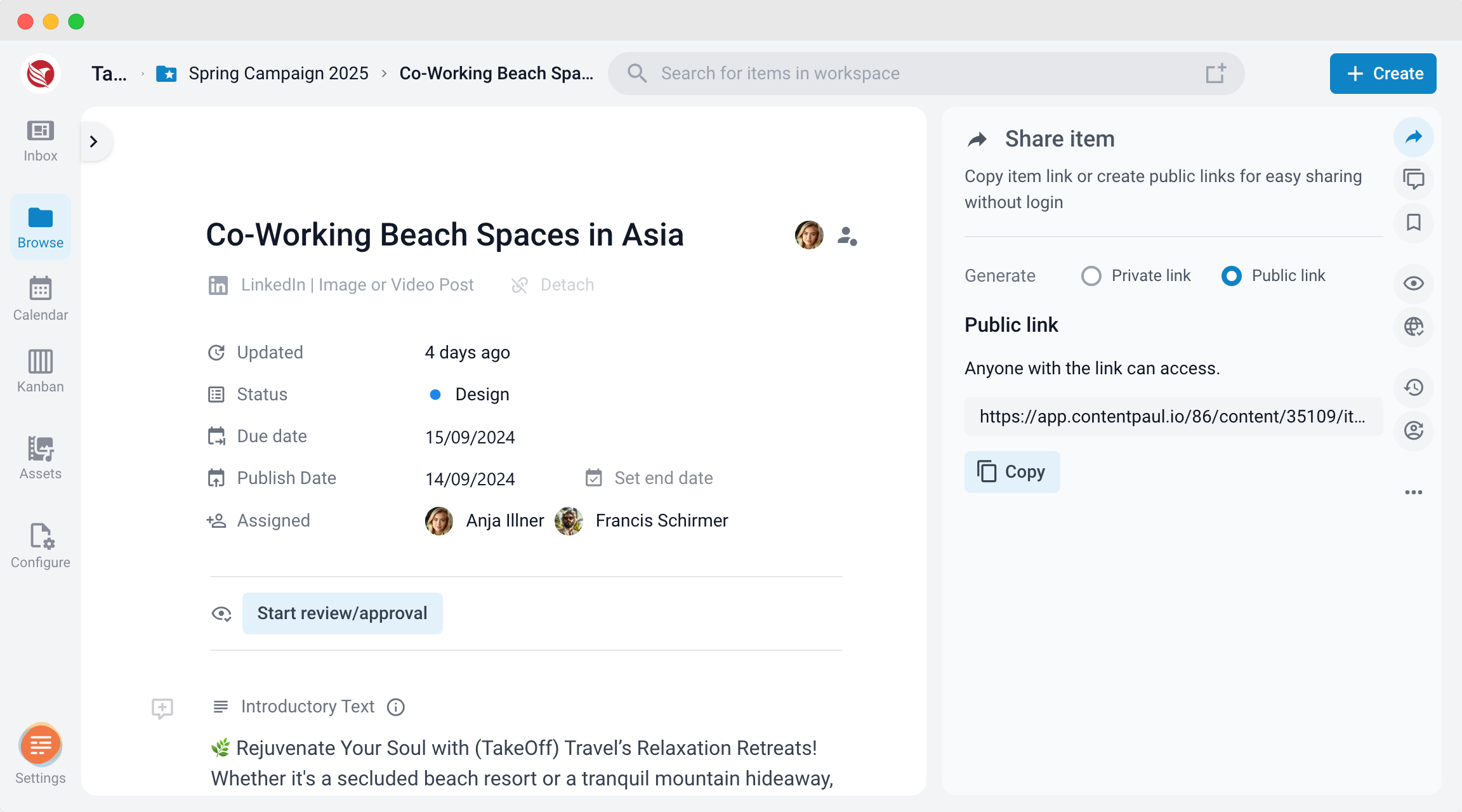
- In the right sidebar, find and click on the Share symbol to expand sharing options.
- Select the Public Link Option:
- Similar to the Browse section, select the Public Link option. A URL will be generated and displayed in the sidebar.
- Copy the URL:
- Copy this URL, which can now be shared with anyone, allowing them to view the content in preview mode without needing a login.
By using Public Links, you can share content with users who are not part of the ContentPaul platform, allowing them to access and view content items without creating an account. This is ideal for external collaboration or presenting content to a broader audience.