
Cancelling an Approval Flow
Learn how to cancel an approval flow and track the cancellation status, visible in the approval section with date and time stamps.
In ContentPaul, the user who sets up an approval flow is considered the owner of that approval. This gives them the authority to cancel the approval if necessary. Users with the Admin role also have the ability to cancel any approval flow. Below is a guide on how to cancel an approval flow.
Step 1: Navigate to the Item
- Go to the content item that has the active approval flow.
- You will see a message that says "Approval active" in the header section, along with a "Manage approval" button.
Step 2: Open the Approval Modal
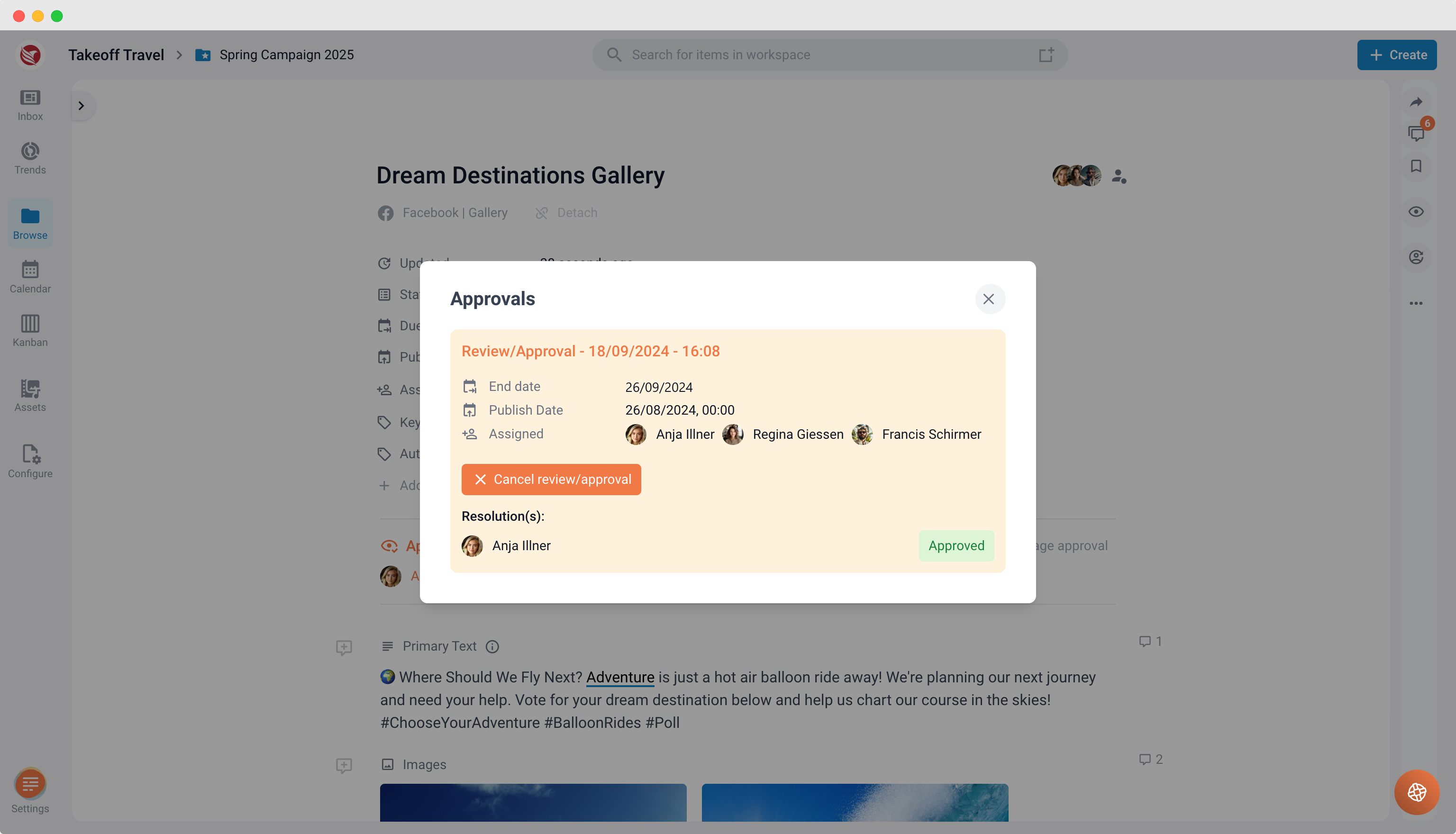
- Click on the "Manage approval" button to open the approval modal window.
- This window provides details about the ongoing approval and options to manage it.
Step 3: Cancel the Approval Flow
- In the modal window, click the "Cancel review/approval" button.
- Once canceled, the approval will be marked as a past approval with the status "Canceled".
Step 4: Review the Cancellation Status
- After closing the modal window, the status of the approval will be updated to "Canceled" in the approval section of the item.
- The date and time of the cancellation will also be displayed, providing a clear record of when the approval was canceled.
By following these steps, users can easily cancel an approval flow in ContentPaul. Once canceled, the approval is moved to the past approvals list for record-keeping, ensuring transparency in the decision-making process.