
Text Commenting
The commenting feature in ContentPaul facilitates easy and efficient collaboration among various contributors. Comments can be added directly to individual content items, providing clear and organized feedback. Here's an extensive guide on how to use the text commenting feature in ContentPaul:
Adding Comments to Text
Marking and Commenting on Text
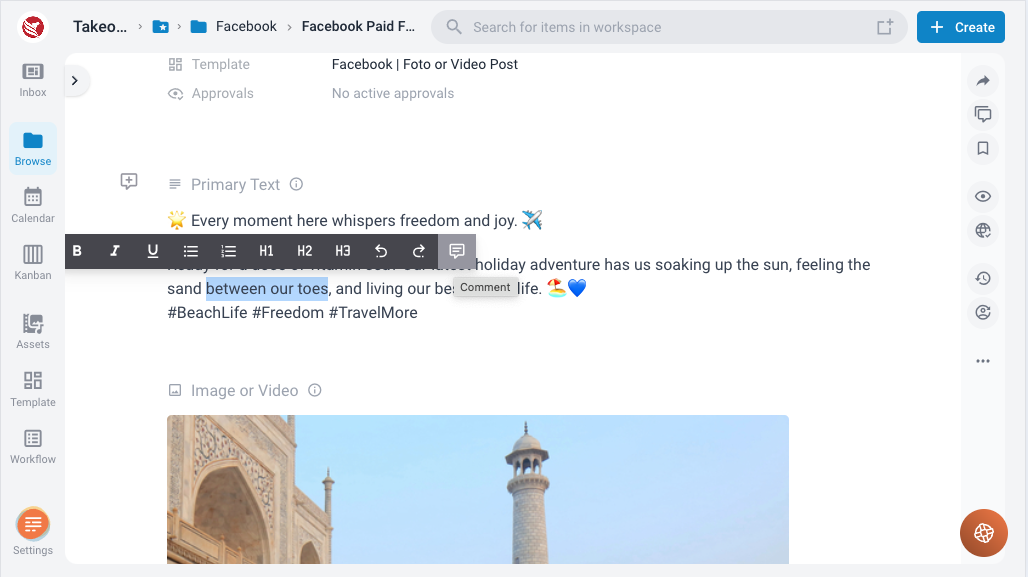
If you want to mark a specific position in the text or you want to highlight a sentence or a few words:
- Select Text: Navigate to the text you want to comment on within a content item.
- Highlight Text: Select the specific text passage or an entire text block you want to comment on.
- Add Comment: Click on the comment icon that appears above the highlighted text. A comment box will open where you can type your comment.
- Submit Comment: After typing your comment, click the submit button to add your comment to the text.
Marking and Commenting on Content Block
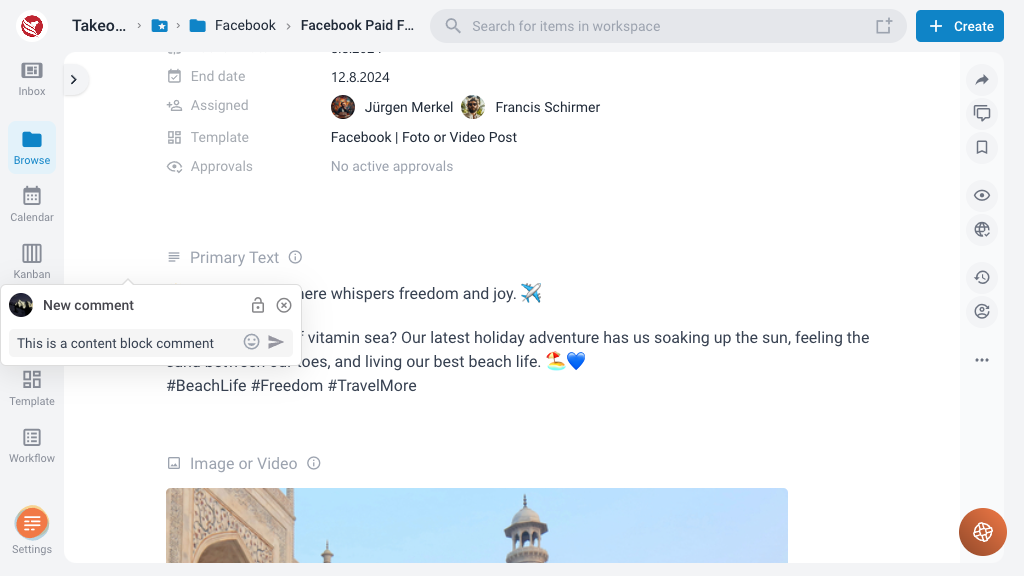
If you want to leave a general comment referring to to a content block:
- Select Text: Navigate to the text you want to comment on within a content item.
- Highlight Text: Select the specific text passage or an entire text block you want to comment on.
- Add Comment: Click on the comment icon that appears above the highlighted text. A comment box will open where you can type your comment.
- Submit Comment: After typing your comment, click the submit button to add your comment to the text.
Mentioning Other Users
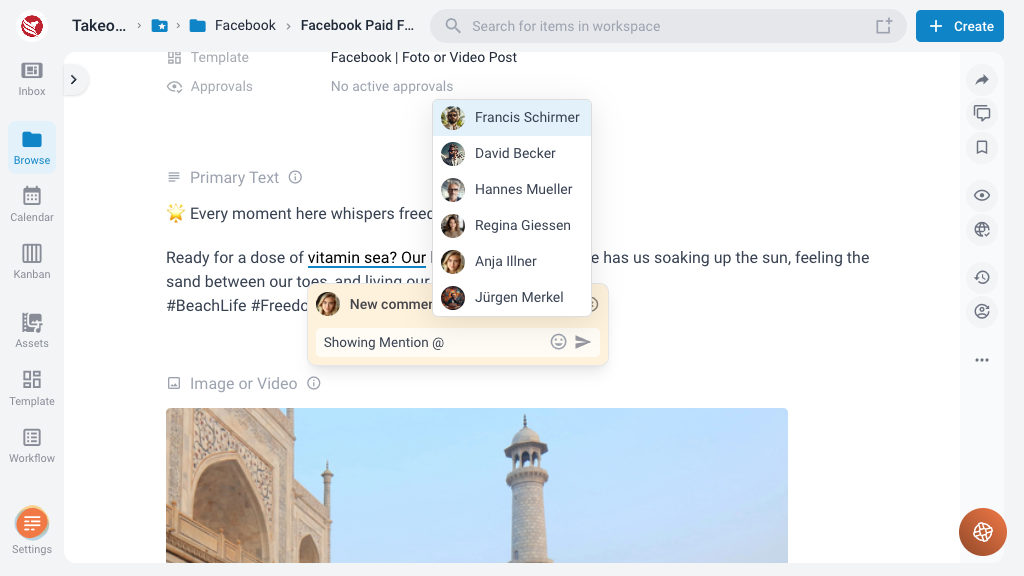
- Type “@” and Username: In the comment box, type the “@” symbol followed by the username of the person you want to mention.
- Select User: A list of matching usernames will appear. Select the appropriate user from the list.
- Notify Users: Mentioned users will receive a notification with a direct link to the specific comment.
Comment Threads
- Reply to Comments: Other users can reply to comments, creating a thread of discussion.
- Grouped Display: All replies are grouped with the original comment, making it easy to follow the conversation and understand the context.
Resolving Comments
- Mark as Resolved: Once a comment has been addressed, it can be marked as resolved.
- Archive Comments: Resolved comments are moved to the comment archive of the respective content item.
- Access Archived Comments: Archived comments can be accessed at any time for reference or review.
Editing and Deleting Comments
- Edit Comments: Users can edit their comments to correct or update information.
- Delete Comments: Users can delete their comments if they are no longer relevant or necessary.
Types of Comments
Team Comments - orange with lock
- Internal Feedback: These comments are made during the production process and are visible to all contributors.
- Workflow Integration: Team comments help streamline the workflow by providing continuous feedback.
- Restricted Visibility: Team comments are only visible to Team members and not to approvers, ensuring that feedback is targeted and relevant to the production process.

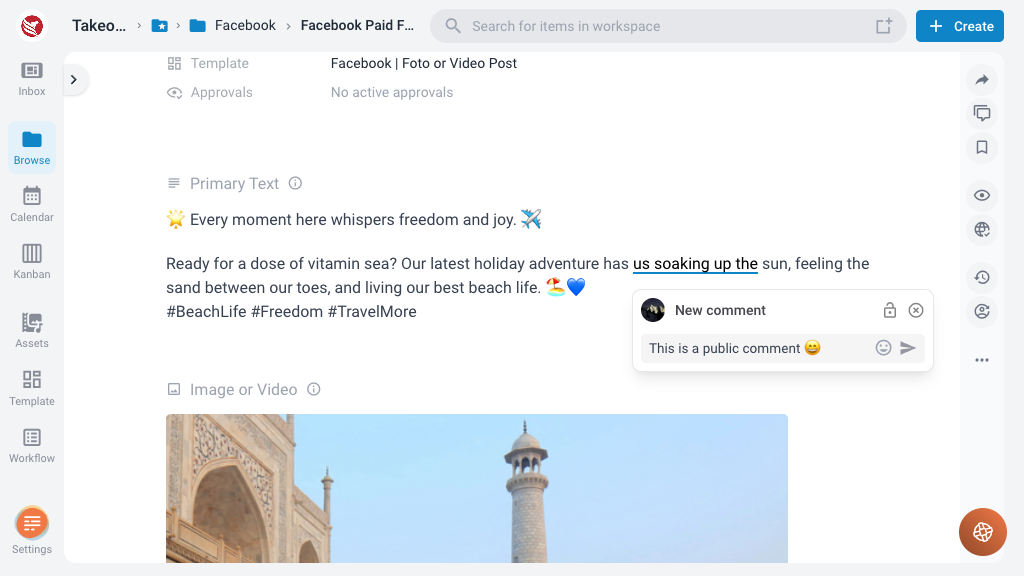
Approver Comments - white
- Approval Stage Feedback: These comments are made by approvers during the review and approval stage.
- Restricted Visibility: Approver comments are visible to everyone, ensuring that feedback is passed on and relevant to the approval process.
Benefits of Commenting in ContentPaul
- Improved Collaboration: Clear and organized comments enhance collaboration among team members.
- Efficient Feedback Management: The ability to mark comments as resolved and archive them ensures that all feedback is addressed and documented.
- Targeted Communication: Differentiating between production and approver comments ensures that feedback is directed to the appropriate audience.
ContentPaul's commenting feature for text ensures that collaboration among contributors is seamless and efficient. By allowing users to mark and comment on specific text passages, mention other users, manage comment threads, and differentiate between production and approver comments, ContentPaul enhances communication and ensures that all feedback is clearly documented and addressed.
For further assistance or more detailed instructions on using the text commenting feature, please refer to our support documentation or contact our helpdesk.