
Archiving and unarchiving Content Items and Versions
Archiving and unarchiving Content Items is easy and can be done from everywhere
How it works
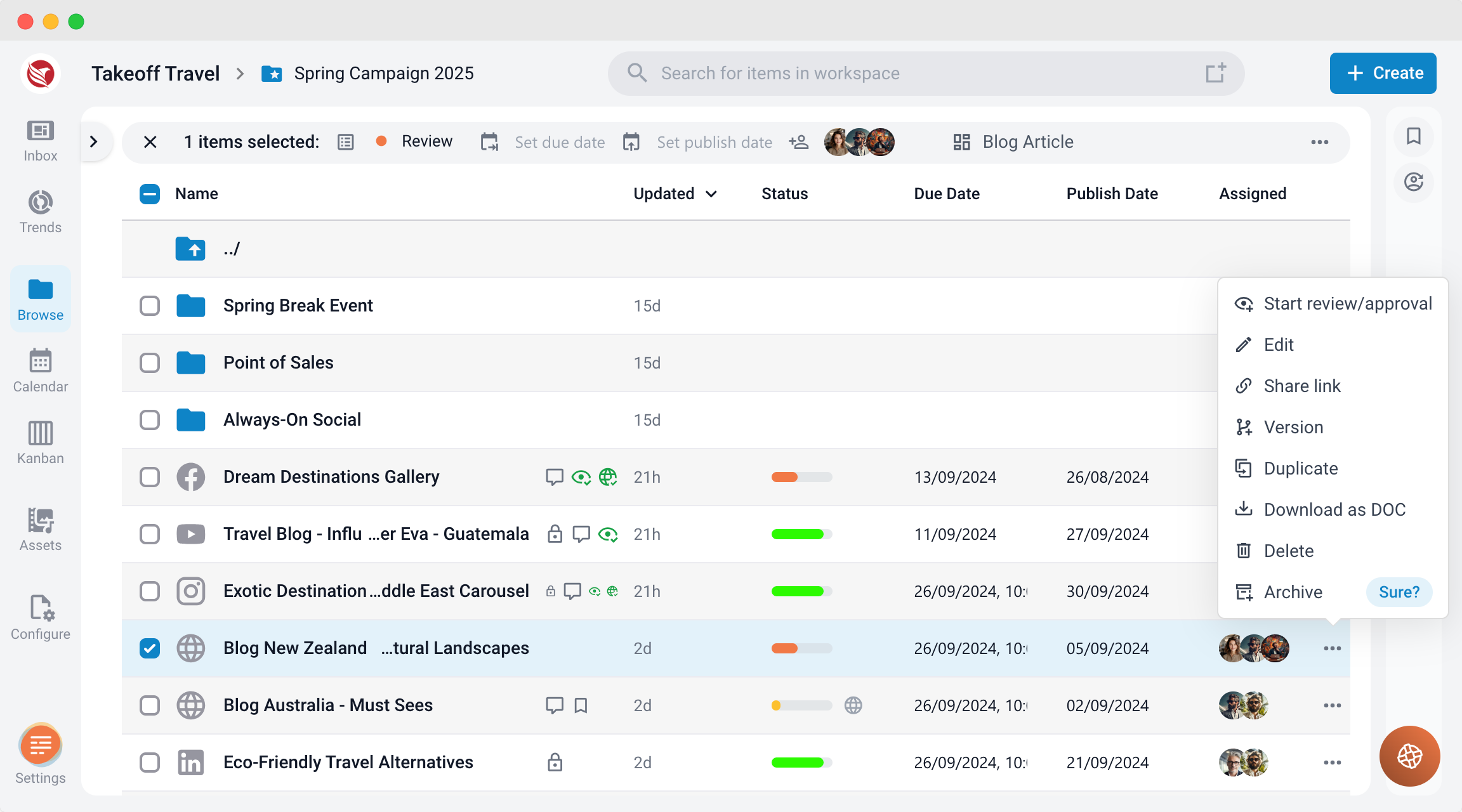
In the folder list view: click on the 3 dots on the right side of the item. Click "Archive" and confirm by clicking on the "Sure?" button that appears
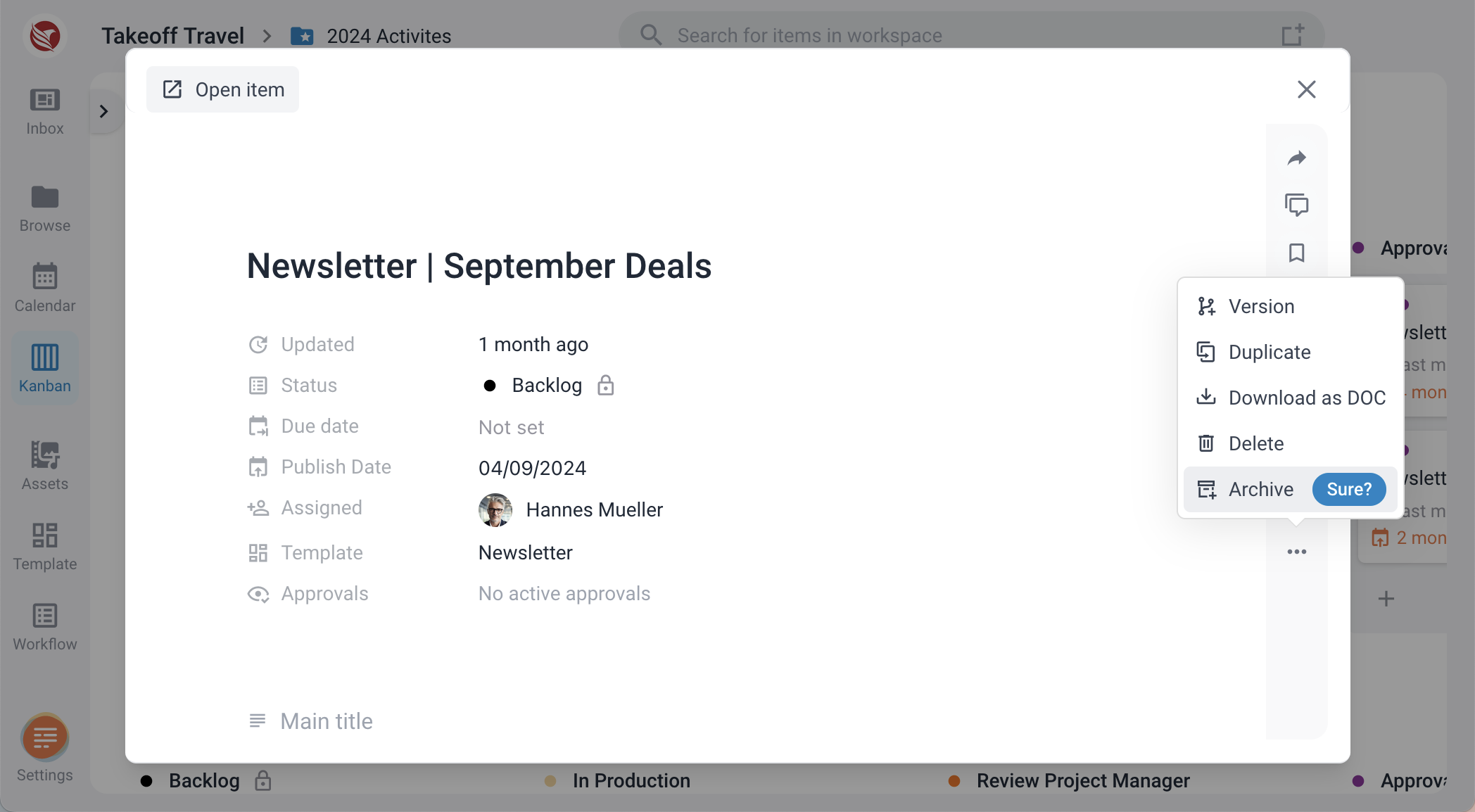
In the item pop-up or in the editor: click the 3 dots in the right side navigation. Click "Archive" and confirm by clicking on the "Sure?" button that appears
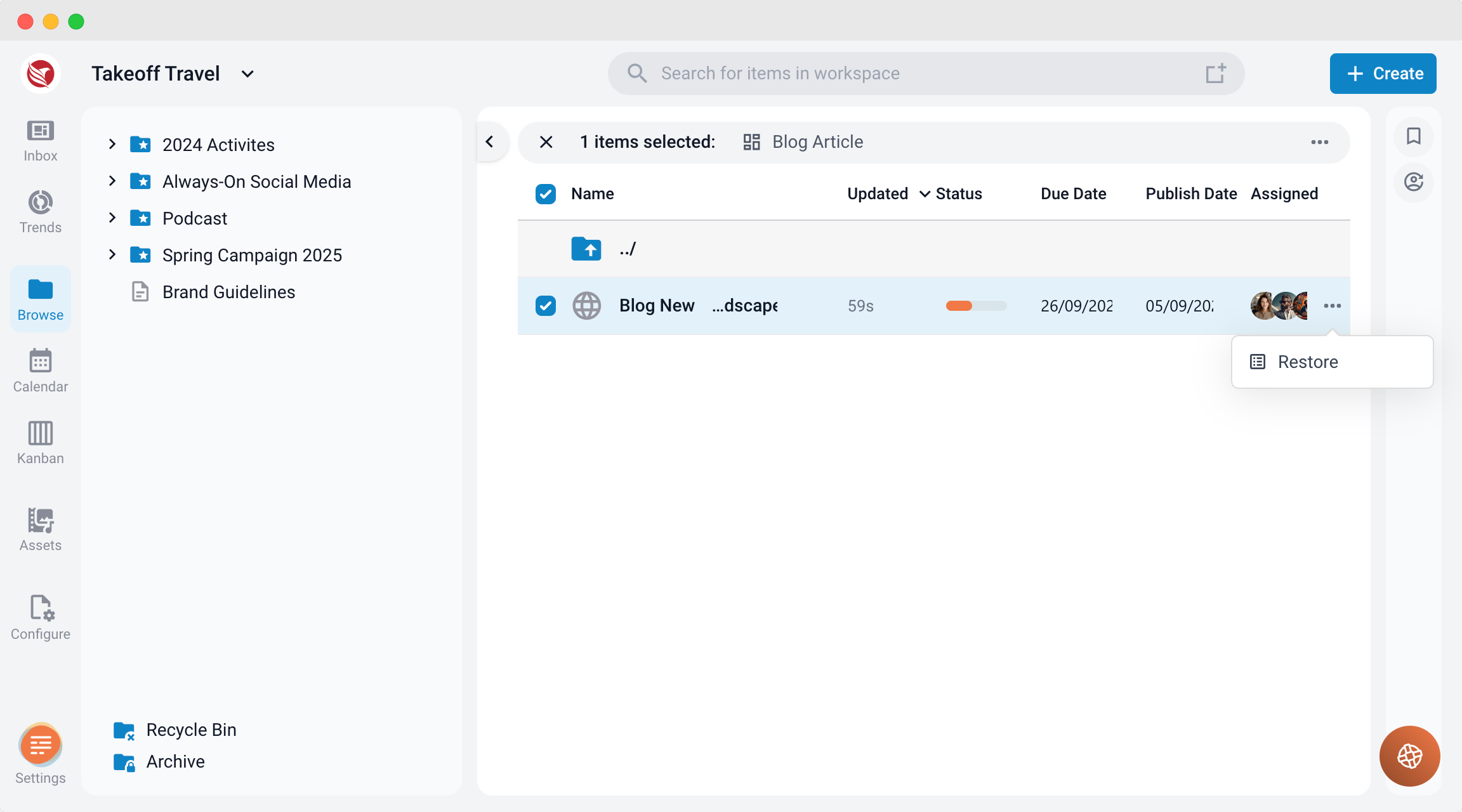
- To unarchive items, open the explorer and click on "Archive". The archived item show in the folder list view. Click on the 3 dots on the right side of the item. Click "Restore". The item is restored in its original location.
Note
Archived items do not show up in the search results.