
Commenting on Audio Files
Learn how to effectively comment on audio files in ContentPaul. This guide covers adding, accessing, and managing comments to enhance collaboration.
ContentPaul allows users to comment on audio files precisely and efficiently. This feature is designed to enhance collaboration by enabling users to provide specific feedback at exact points within the audio track. Below is a detailed guide on how to use this commenting feature effectively.
Step-by-Step Guide to Commenting on Audio Files
1. Opening the Audio File
- Navigate to the Project: Go to the content item where the audio file is located.
- Select the Audio File: Click on the audio file you wish to comment on.
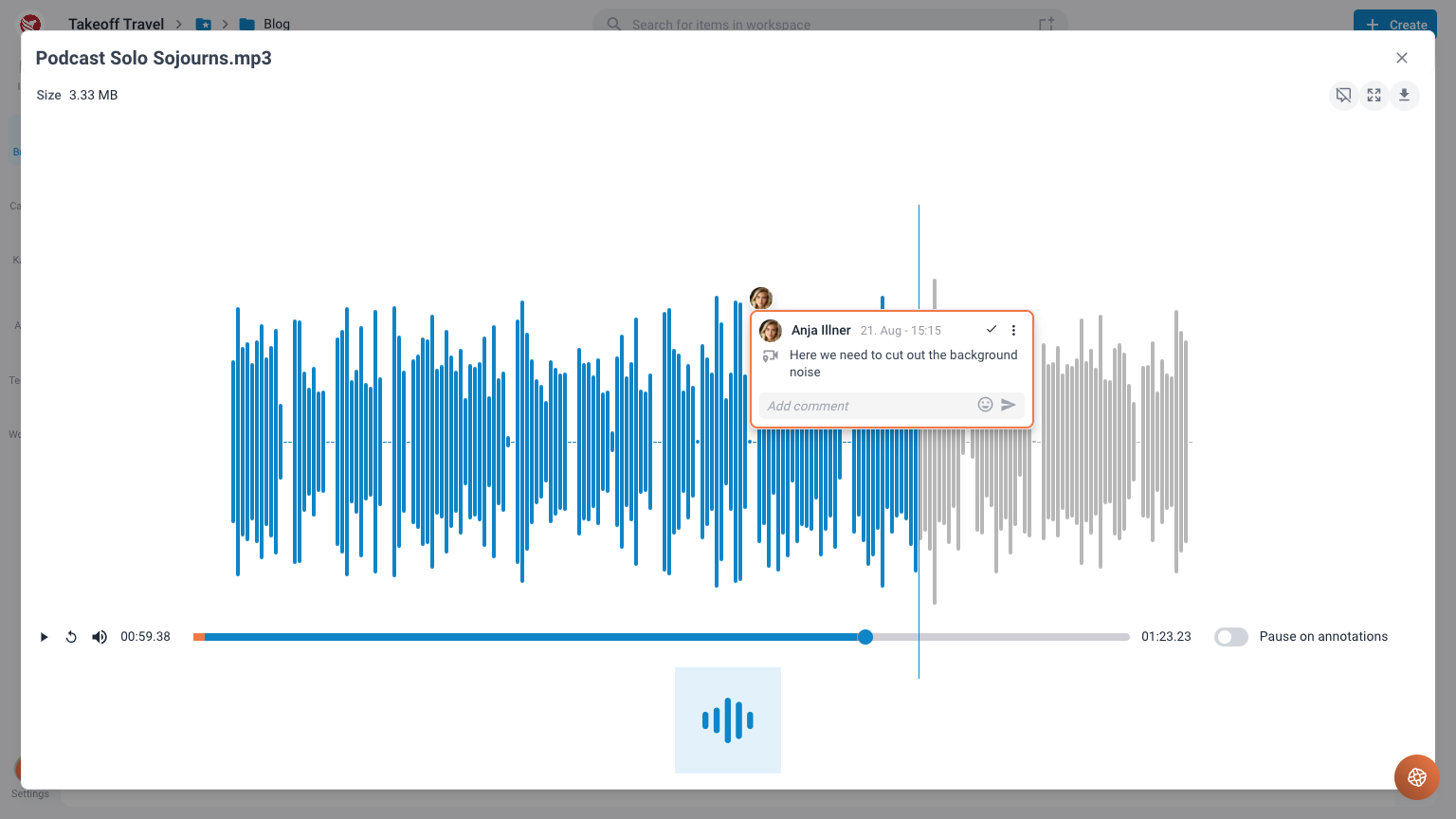
- Open the Audio Player: The audio file will open in ContentPaul’s audio player, displaying the audio as a waveform.
2. Adding Comments to the Audio File
- Play or Scroll Through the Audio: Use the play button to listen to the audio or scroll through the waveform manually.
- Select the Exact Spot: Click on the waveform at the exact point where you want to leave a comment.
- Add Your Comment: A comment box will appear at the selected spot. Type your comment into the box and click the submit button.
3. Accessing Comments
Through Notifications
- Receive Notification: When a comment is added, a notification is sent to the relevant users.
- Click the Link in Notification: The notification contains a direct link to the comment. Clicking this link will take you to the exact spot in the audio file where the comment was made.
Playing Through Audio
- Play the Audio: Start playing the audio from the beginning or any point in the waveform.
- Automatic Stopping: The audio player will automatically stop at each comment point, allowing you to view and respond to comments.
4. Managing Comments
- View All Comments: You can view all comments on the audio file by clicking the comments icon (shown as a small icon of the avatar of the user that left the comment).
- Reply to Comments: Click on a comment to open a reply box, type your response, and submit it.
- Edit/Delete Comments: If you have permission, you can edit or delete your comments by clicking the edit or delete icon next to the comment.
5. Tips for Effective Commenting
- Be Specific: When adding comments, be as specific as possible to provide clear feedback.
- Use Time Stamps: Reference specific times in your comments to ensure clarity.
- Stay Constructive: Provide constructive feedback to foster a positive collaborative environment.
- Respond Promptly: Respond to comments in a timely manner to keep the workflow moving smoothly.
6. Notifications and Links
- Direct Links: Notifications with comments include direct links to the exact point in the audio file. Use these links for quick access.
- Email Notifications: If email notifications are enabled, you will receive an email with the comment and a direct link.
7. Additional Features
- Waveform Display: The visual representation of the audio as a waveform helps in identifying specific sections easily.
- Highlighting: The waveform may highlight sections with comments, making it easy to spot feedback areas.
- Collaboration Tools: Utilize other collaboration tools within ContentPaul, such as tagging users in comments, to enhance communication.
Commenting on audio files in ContentPaul is a powerful feature that enhances collaboration by allowing precise and actionable feedback. By following this guide, you can efficiently add, access, and manage comments, ensuring a smooth workflow and effective communication within your team.