
Creating Custom Workflows
Design workflows in ContentPaul to manage project stages, set approvals, and control item editing for efficient team collaboration.
With ContentPaul's customizable workflows, users can create specific task progressions that help standardize work processes and automate parts of the approval cycle. Here’s how to set up a new workflow:
Accessing the Workflow Section
- Go to Configure > Workflows if you have permission to create or modify workflows.
- Click Create New Workflow in the top right corner of the screen.
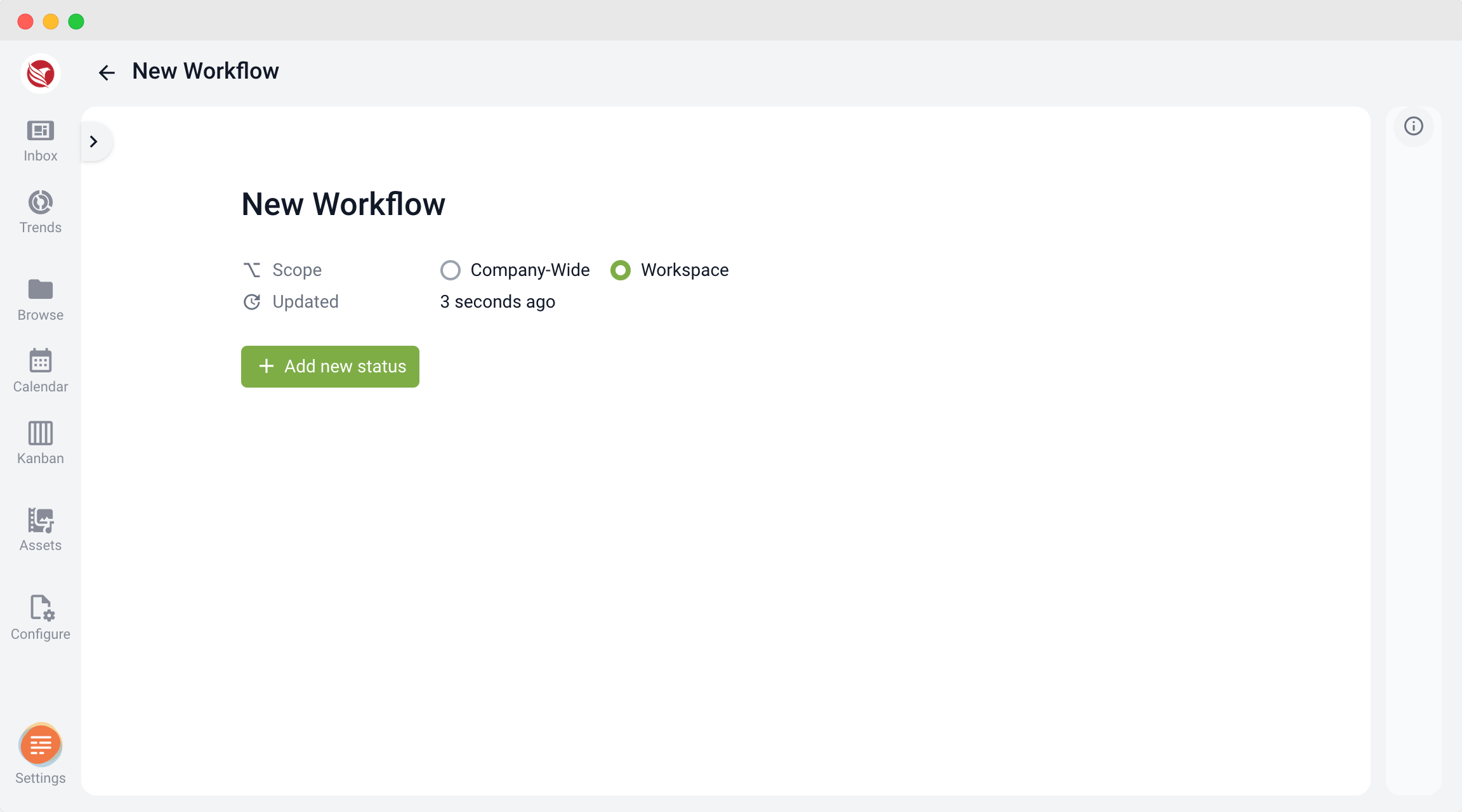
- Enter a Name for your new workflow, and the workflow editor will open.
Workflow Scope
- Choose if the workflow will be Workspace-only (limited to the current workspace) or Company-wide (available across all workspaces). This helps tailor workflows based on departmental or company-wide processes.
Adding and Managing Workflow Statuses
- Add Statuses: You can add as many workflow statuses as needed to reflect each step in your process.
- Edit Status Details:
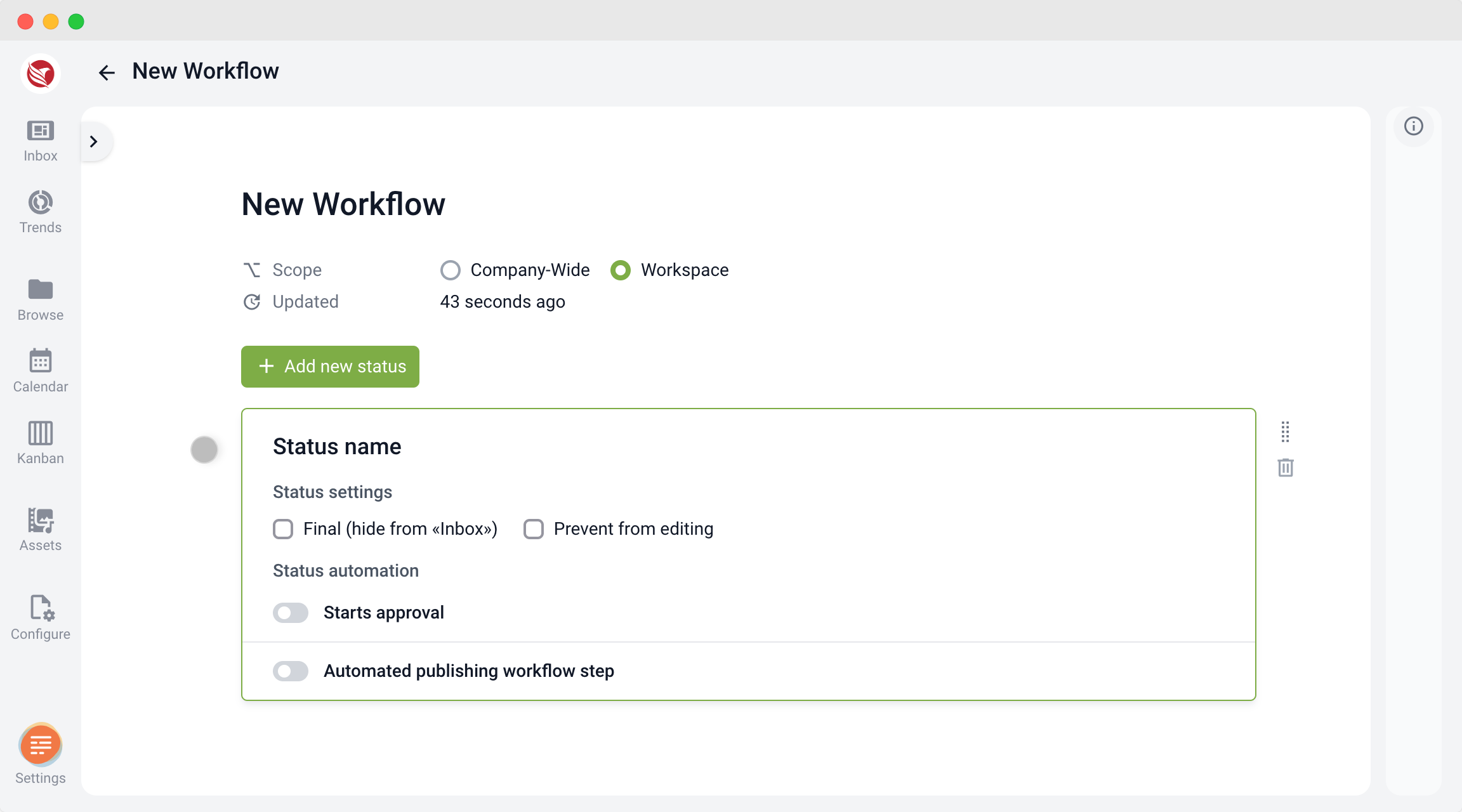
- Rename each status as needed by clicking on the name field.
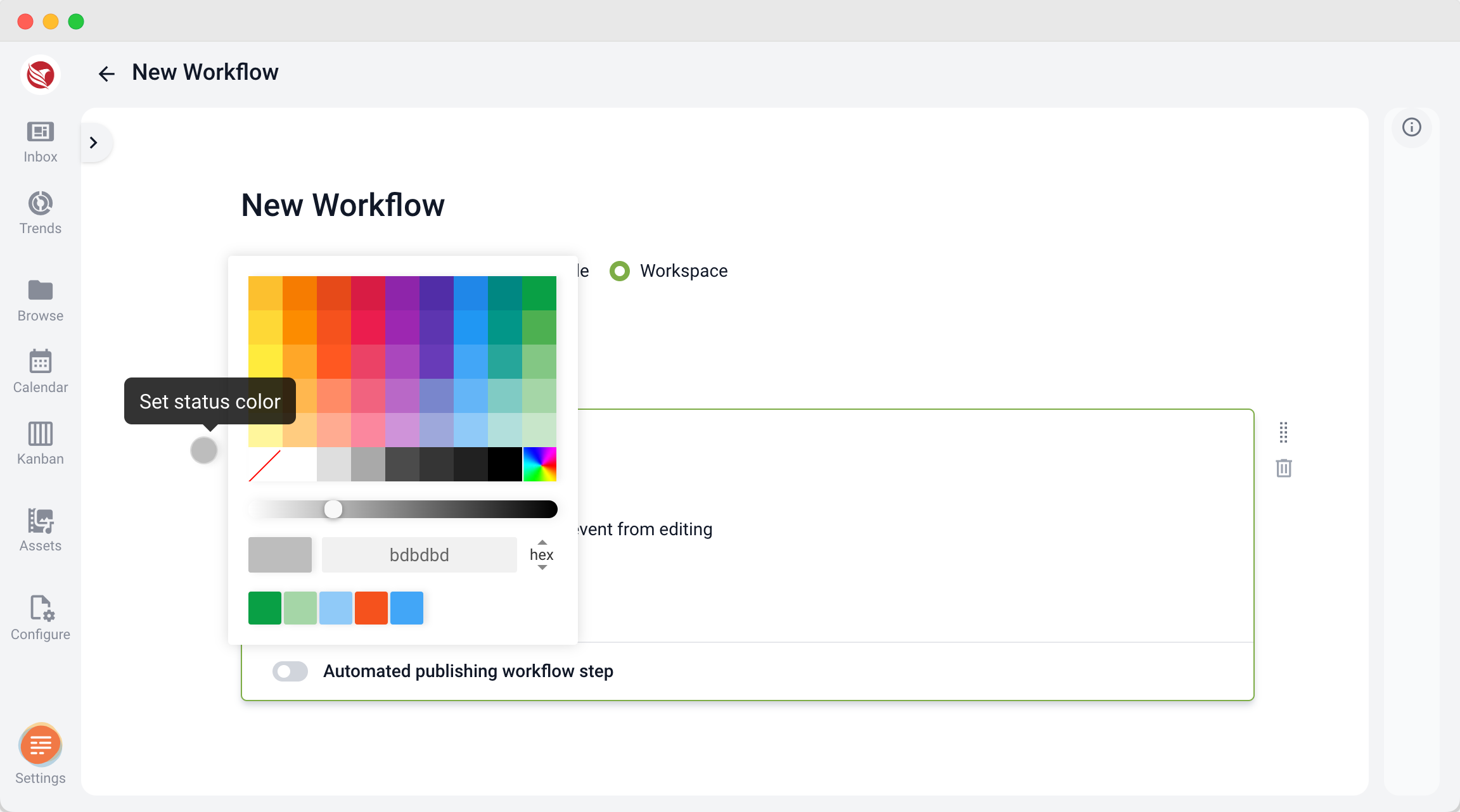
- Select a Color by clicking the colored circle beside each status name. The color visually distinguishes each step.
- Reordering Statuses: Click and drag the status using the handle on the right side to arrange statuses in the desired order.
- Deleting Statuses: To remove a status, click the trash icon next to it.
Setting Advanced Status Options
- Final (Hide from Inbox):
- Tick this box if reaching this status indicates a final step, marking the item as complete.
- Items in this status will no longer appear in users' inboxes, and notifications for it will be paused.
- Prevent from Editing:
- Select this option to make an item uneditable while it’s in this status.
- Useful for stages like “Ready to Publish” where no changes are permitted.
Approval Automation
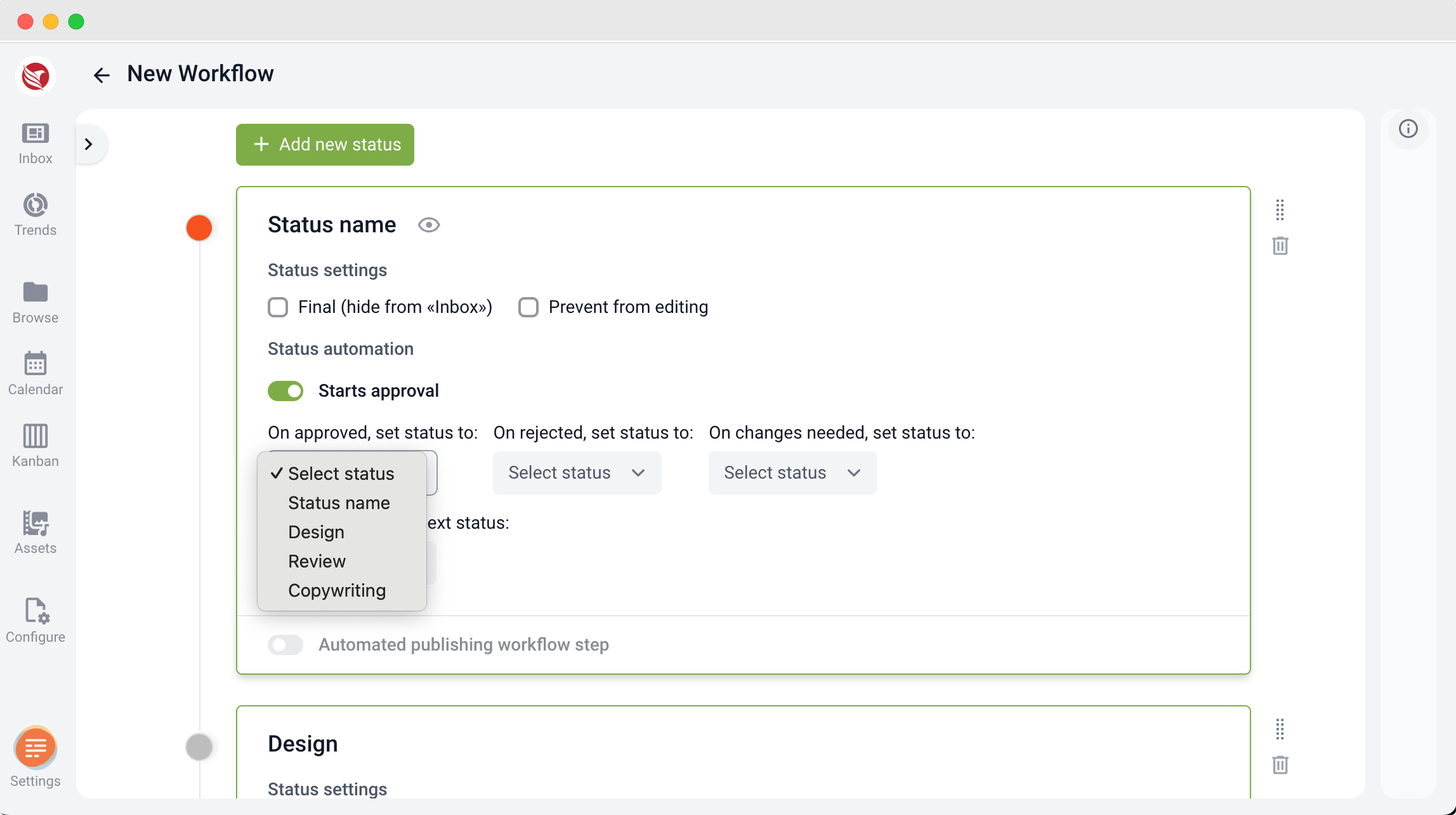
- Starts Approval:
- Enable this toggle to make the status initiate the approval process automatically.
- When an item enters this status, the approval dialogue will open, and users will be prompted to begin an approval process (based on their role permissions).
- Set Follow-Up Statuses for Approval Outcomes:
- Define automatic follow-up statuses for each possible approval outcome, such as Approved or Rejected.
- If, for example, an item is approved, it can be automatically moved to a designated next status, further automating your workflow.
By structuring tasks with customized statuses and approval options, ContentPaul workflows allow for smoother project management and better control over content progress and approval stages.