
Share Content with Other Logged-In Users
Learn how to easily share content with logged-in users on ContentPaul using the Browse section or Editor view.
Sharing content with other users who are already logged into ContentPaul is a straightforward process. There are two main ways to share items: through the Browse section or within the Editor or Item Preview view. Below is a detailed step-by-step guide for both methods.
Method 1: Sharing via the Browse Section
- Navigate to the Browse Section:
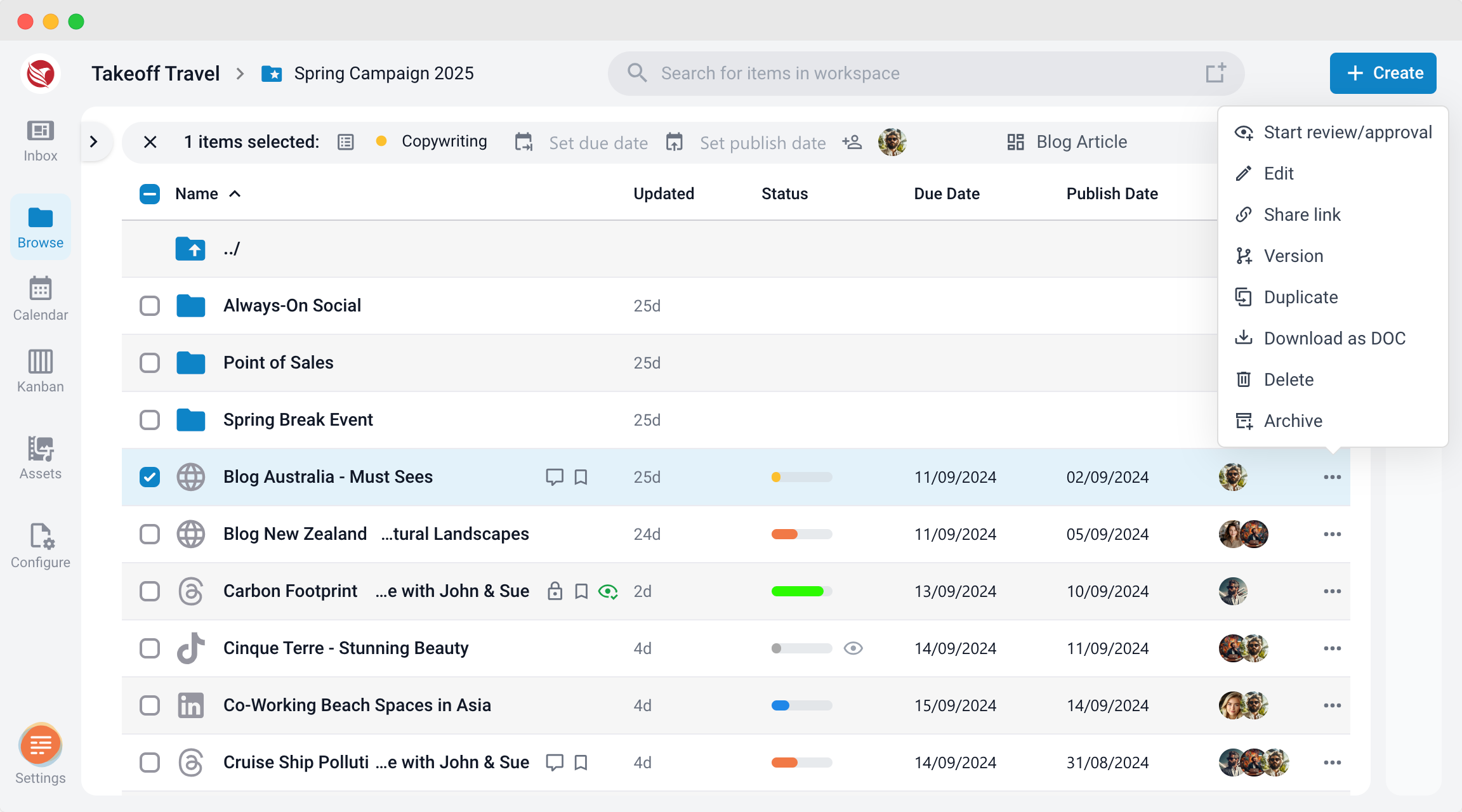
- On the left-hand navigation bar, click on Browse to view a list of all available content items.
- Select the Item:
- Locate the item you want to share. To the right of the item’s name, you will see a menu icon (three dots).
- Click the Three Dots:
- Clicking this will open a menu of options. From the list, select Share link.
- Copy the URL:
- A modal will pop up displaying a unique URL. This URL can be copied by clicking the Copy button. You can now share this URL with other users who are logged into the platform.
Method 2: Sharing via the Editor or Item Preview Modal
- Open the Item in the Editor or Preview:
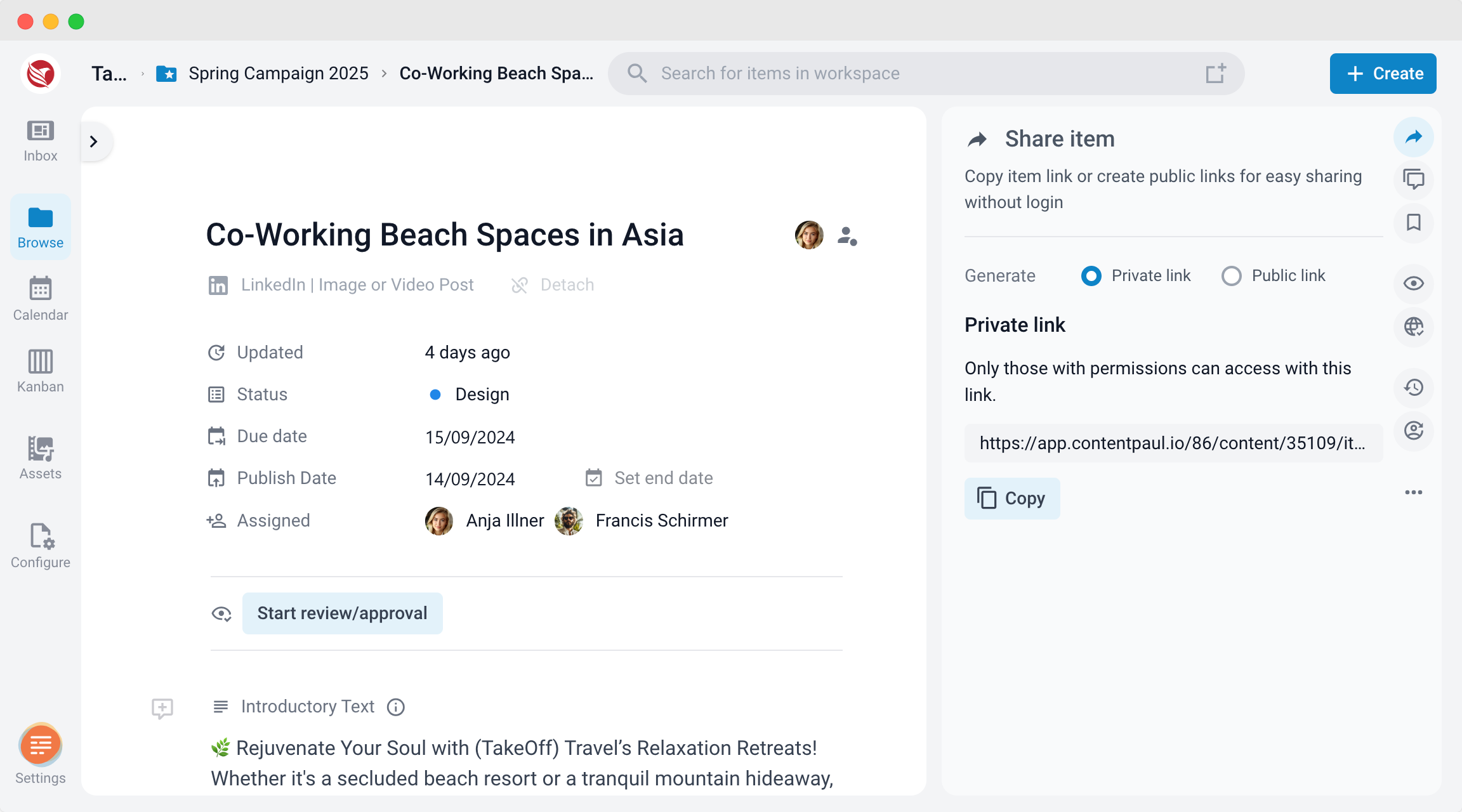
- If you are already working within the item in the Editor or viewing it in the Preview modal, look towards the right sidebar.
- Locate the Share Symbol:
- In the right-hand sidebar, you will see the Share icon. Clicking on this will expand the available sharing options.
- Share the Link:
- Similar to the Browse section, a shareable URL will be generated and can be copied. This link allows other logged-in users to access the item directly.
By using either of these methods, you can easily collaborate by sharing links to content items with other logged-in users. This functionality enables seamless teamwork and content review without any additional steps for accessing the item.
In the next article, we will look into sharing content with users who do not have a login on the ContentPaul platform.