
Customizing a template
Learn to customize templates, add content blocks, configure settings, and manage template availability efficiently.
Duplicating or Detaching Templates
If you'd like to create a new template based on an existing template, there are two methods available:
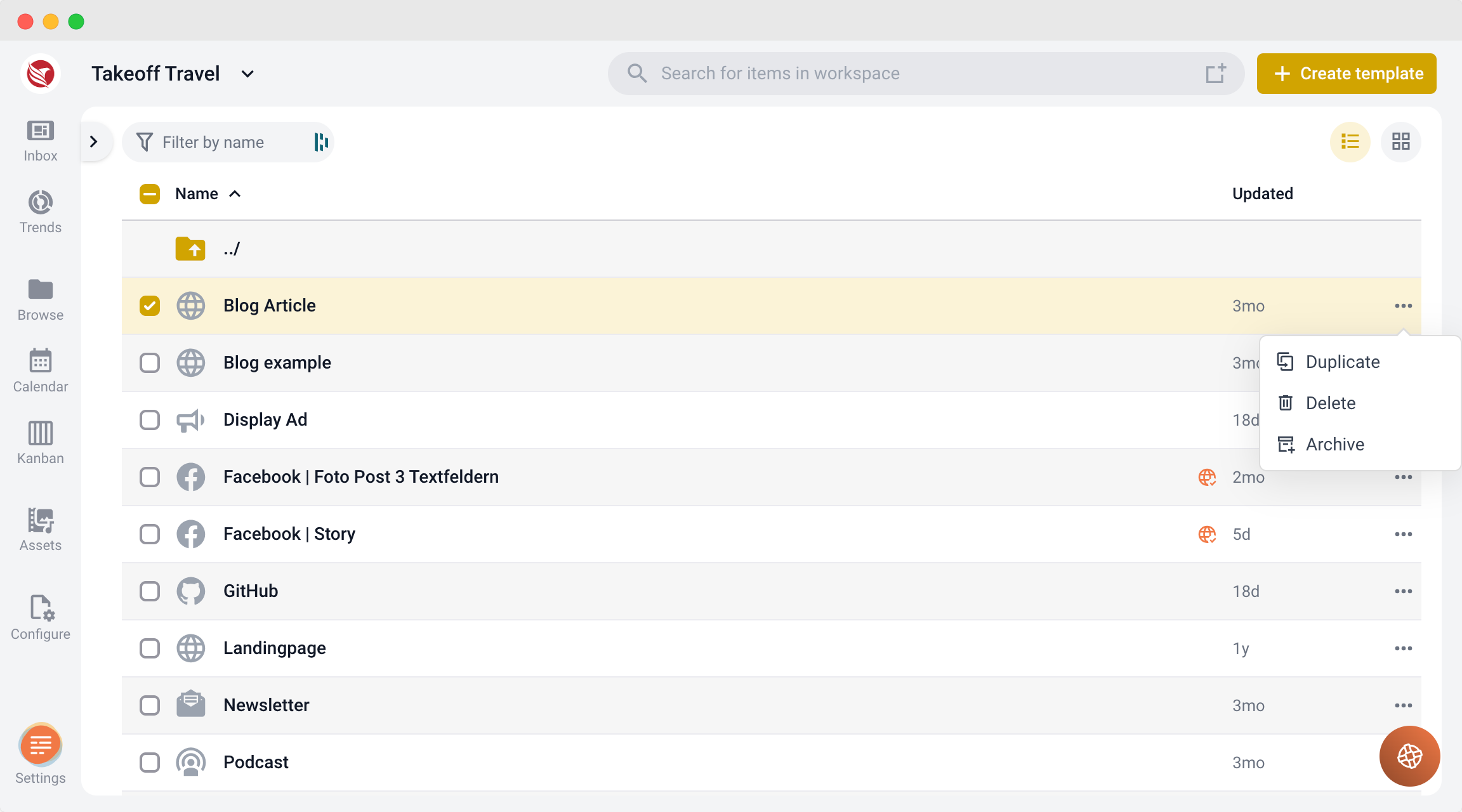
- Duplicating a Template in the Templates Section:
- Process:
- Go to the Templates section.
- Find the template you want to base your new template on.
- Duplicate the template and edit it as needed, including renaming it and setting visibility options.
- Process:
- Detaching and Editing a Template Directly in the Item:
- Process:
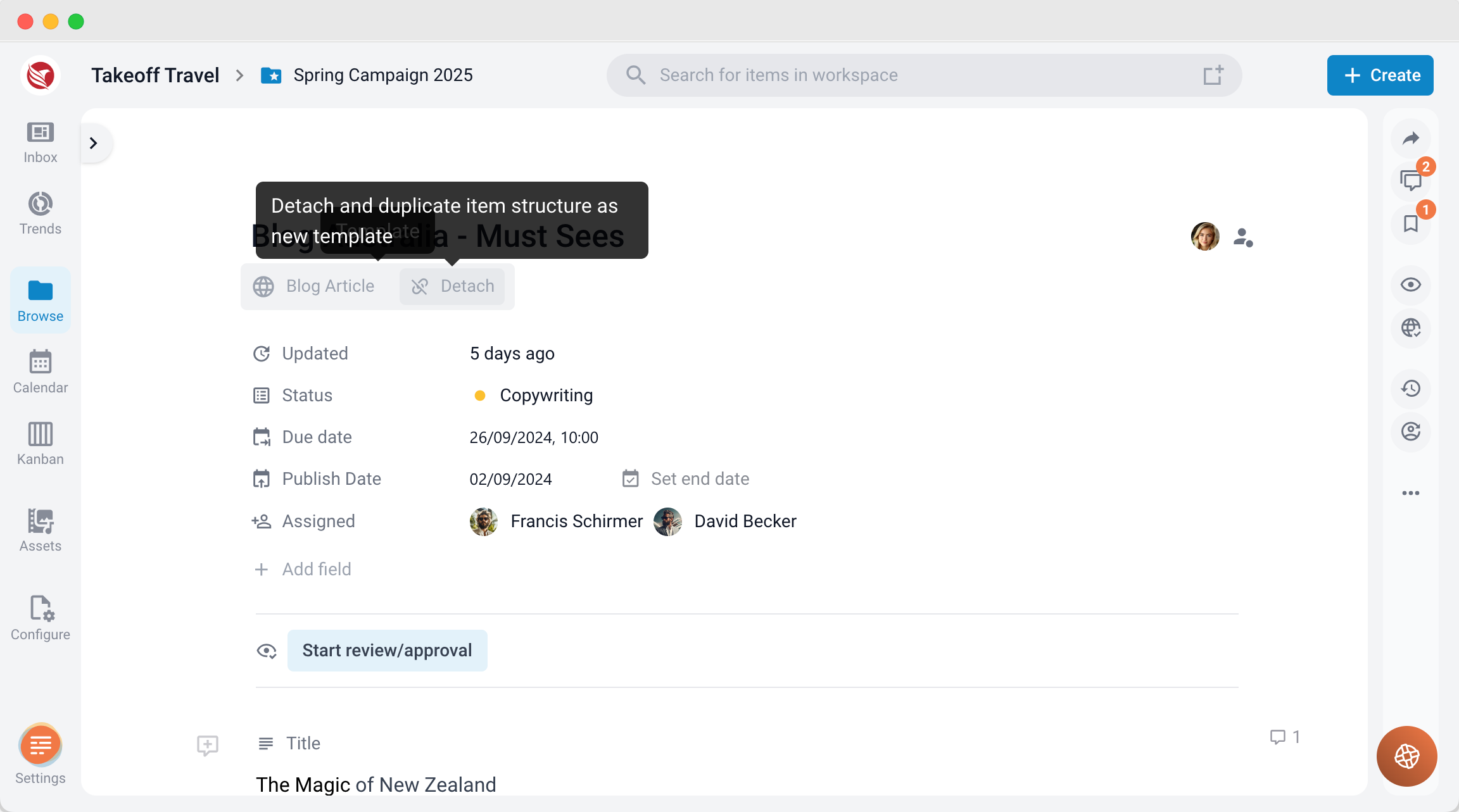
- Open the content item that uses the template you want to modify.
- Hover over the template name in the item’s header.
- When you hover, a "Detach" button will appear to the right.
- Click "Detach" to duplicate the template. The template will open in the template editor, where you can make changes, rename it, and set visibility settings.
- Note: The Detach button will only be available if the original template does not have the "Prevent Detachment" setting enabled.
- Process:
Adding new Content Blocks
After creating a copy of an existing template, you can freely add or remove content blocks, just as when creating a new template. Configure each block’s settings to meet your needs.
Important Note
When duplicating or detaching a global template, you can add new fields but cannot remove existing ones. This safeguard ensures compatibility with automated publishing, as required fields must remain for successful content publishing.
By following these guidelines, you can efficiently customize templates.