
Navigation Overview
Discover how to navigate ContentPaul efficiently, using the main menu, editor-specific tools, and additional features to streamline your work.
ContentPaul offers several key navigation components that help users efficiently manage their content and workflows. Here's a breakdown of these navigation parts:
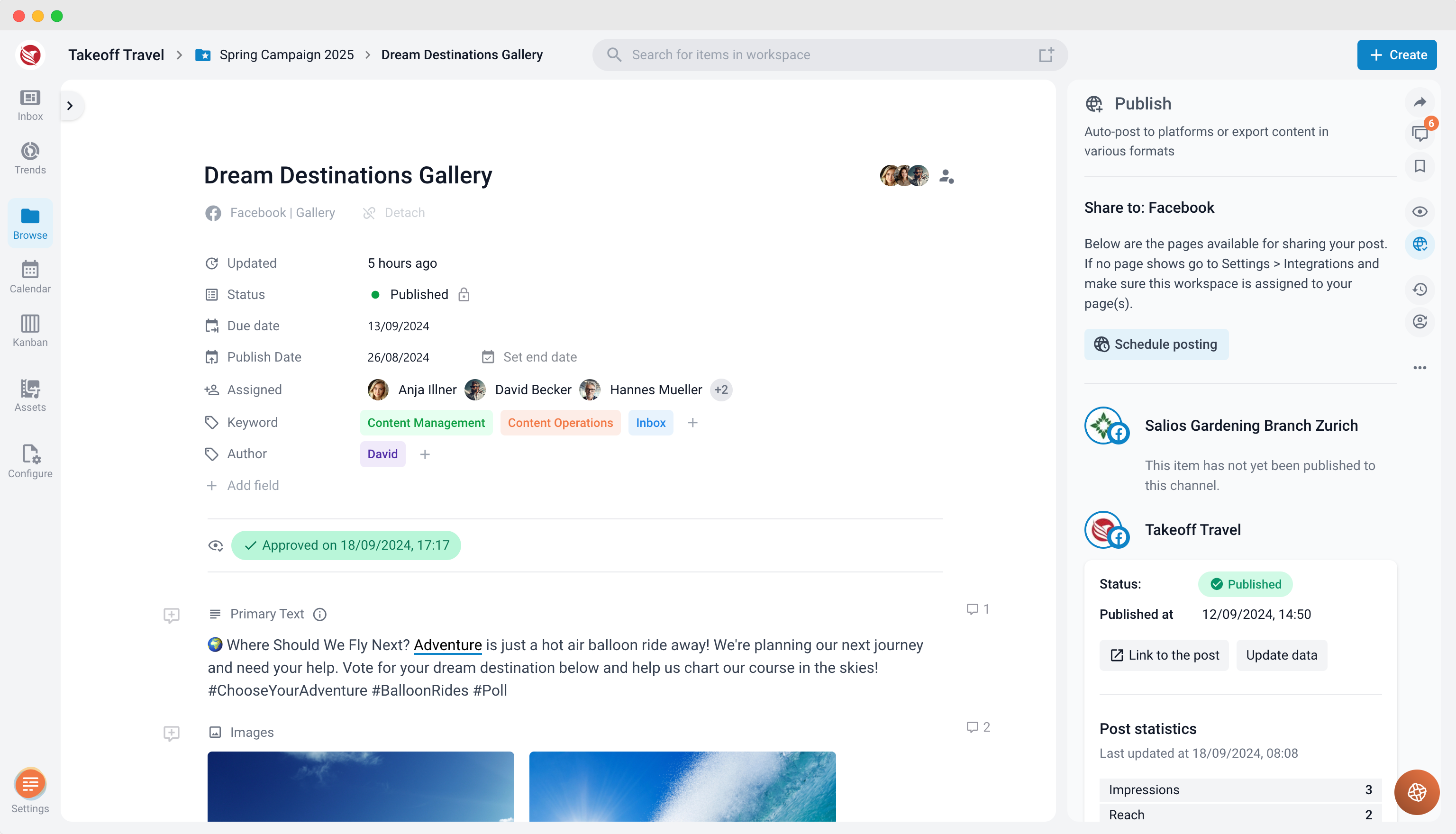
Main Navigation Menu
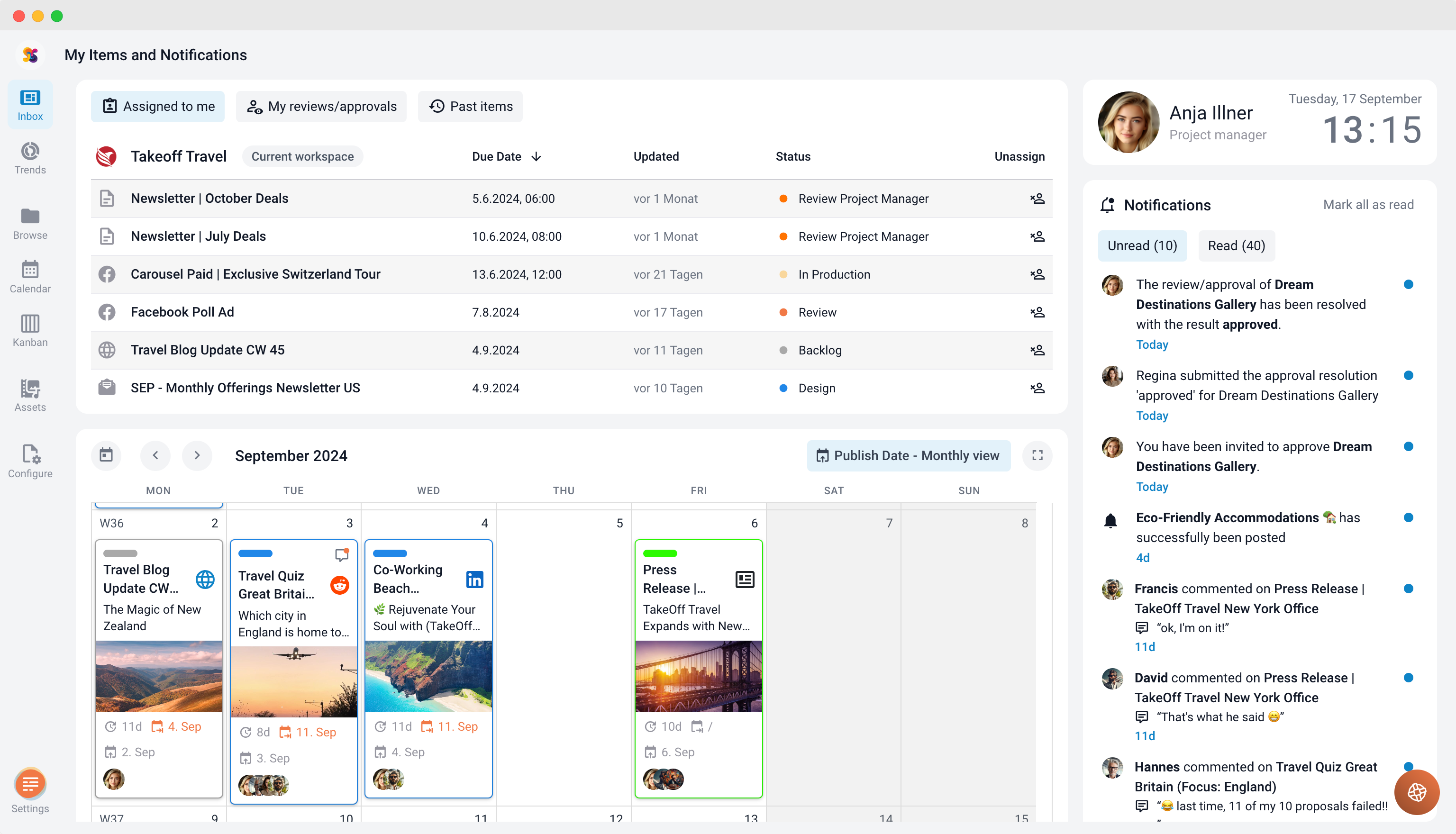
- Inbox: This is where you receive notifications, updates, and tasks related to your projects, ensuring you stay informed about all important activities.
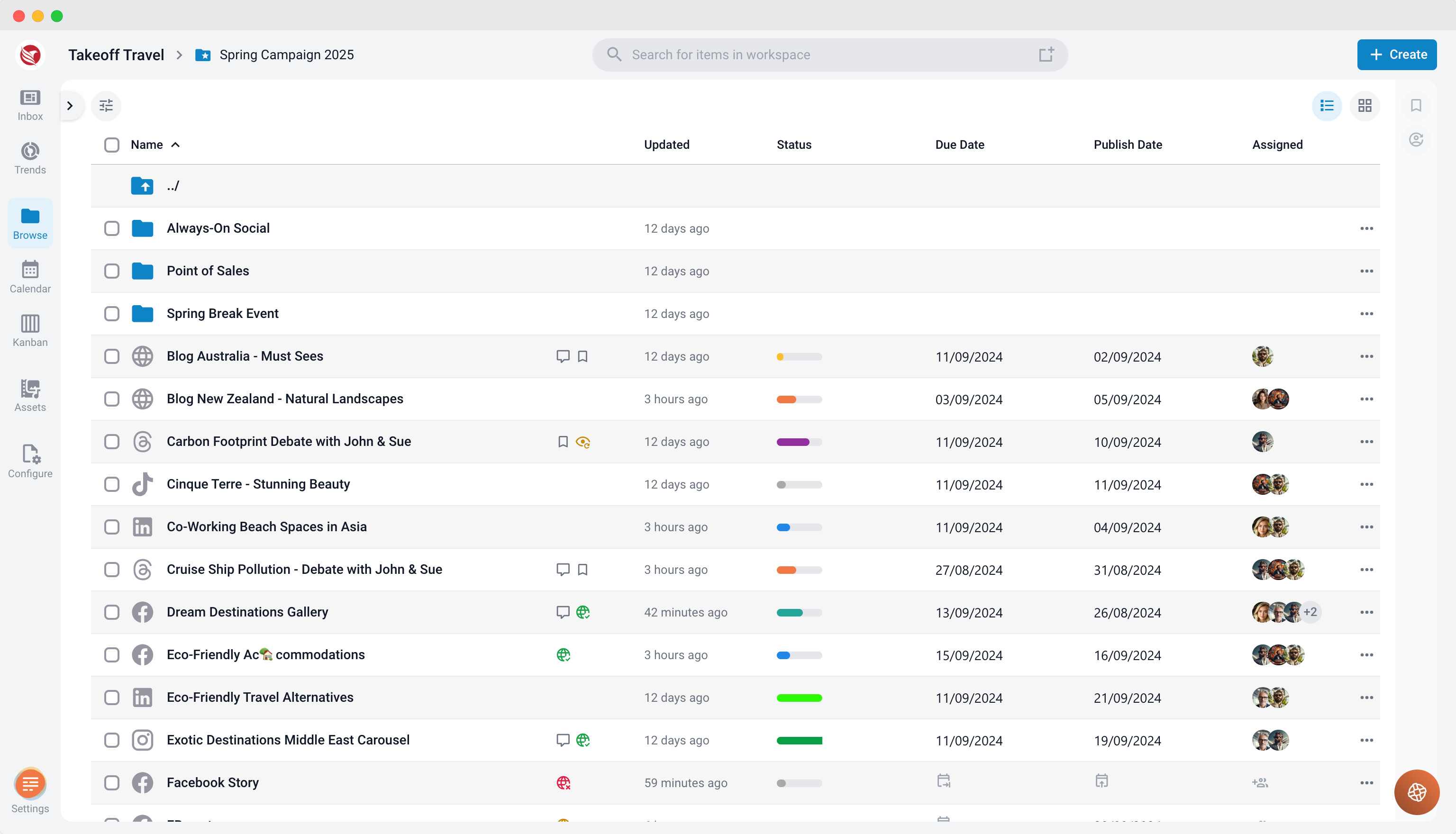
- Browse: Allows you to explore and organize all content and projects within the platform. This feature includes filters and search options to help you quickly locate specific items.
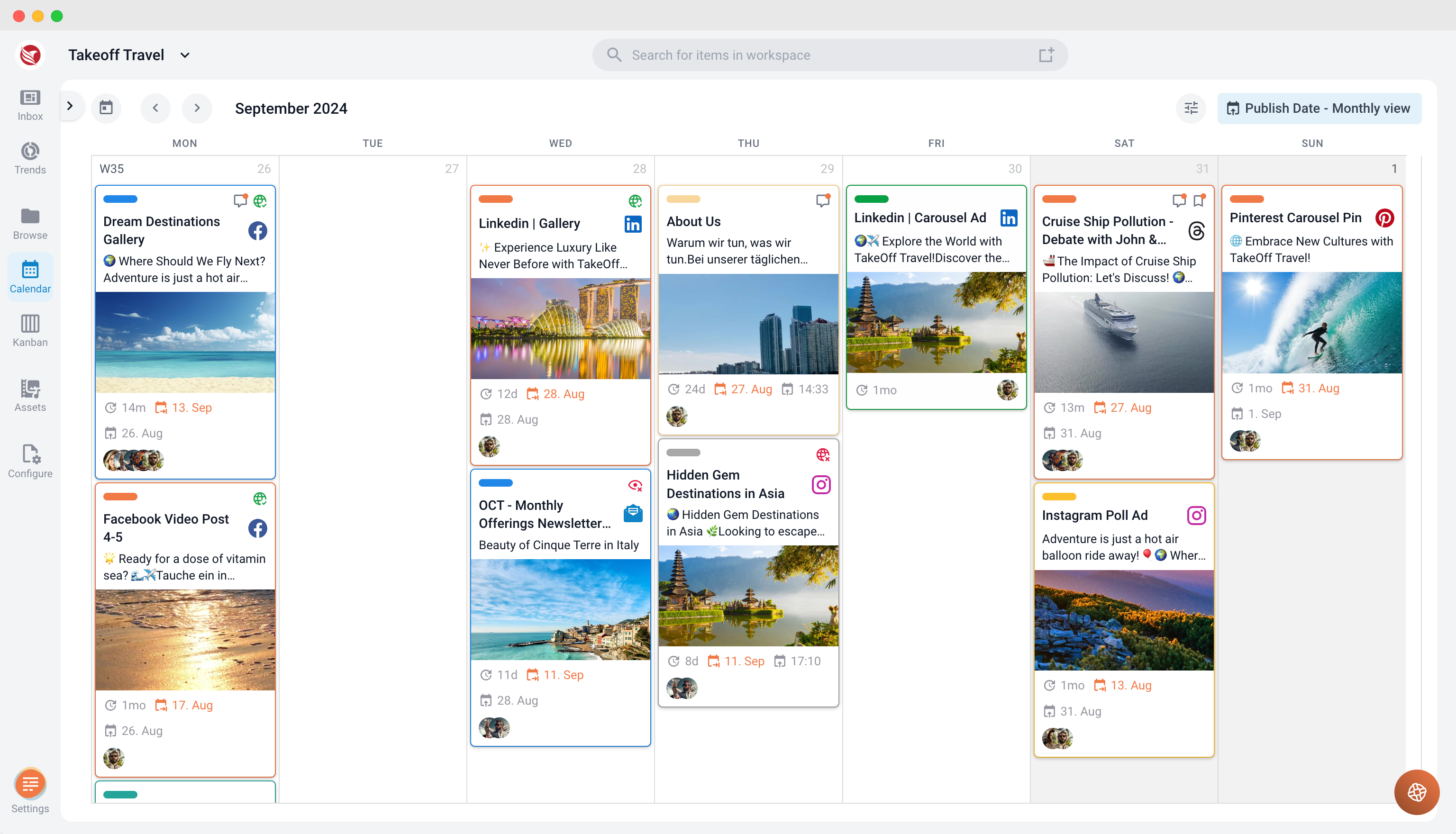
- Calendar: Provides a visual timeline of your content, displaying important dates such as deadlines and publishing schedules. You can view the calendar in various formats, such as monthly or weekly views.
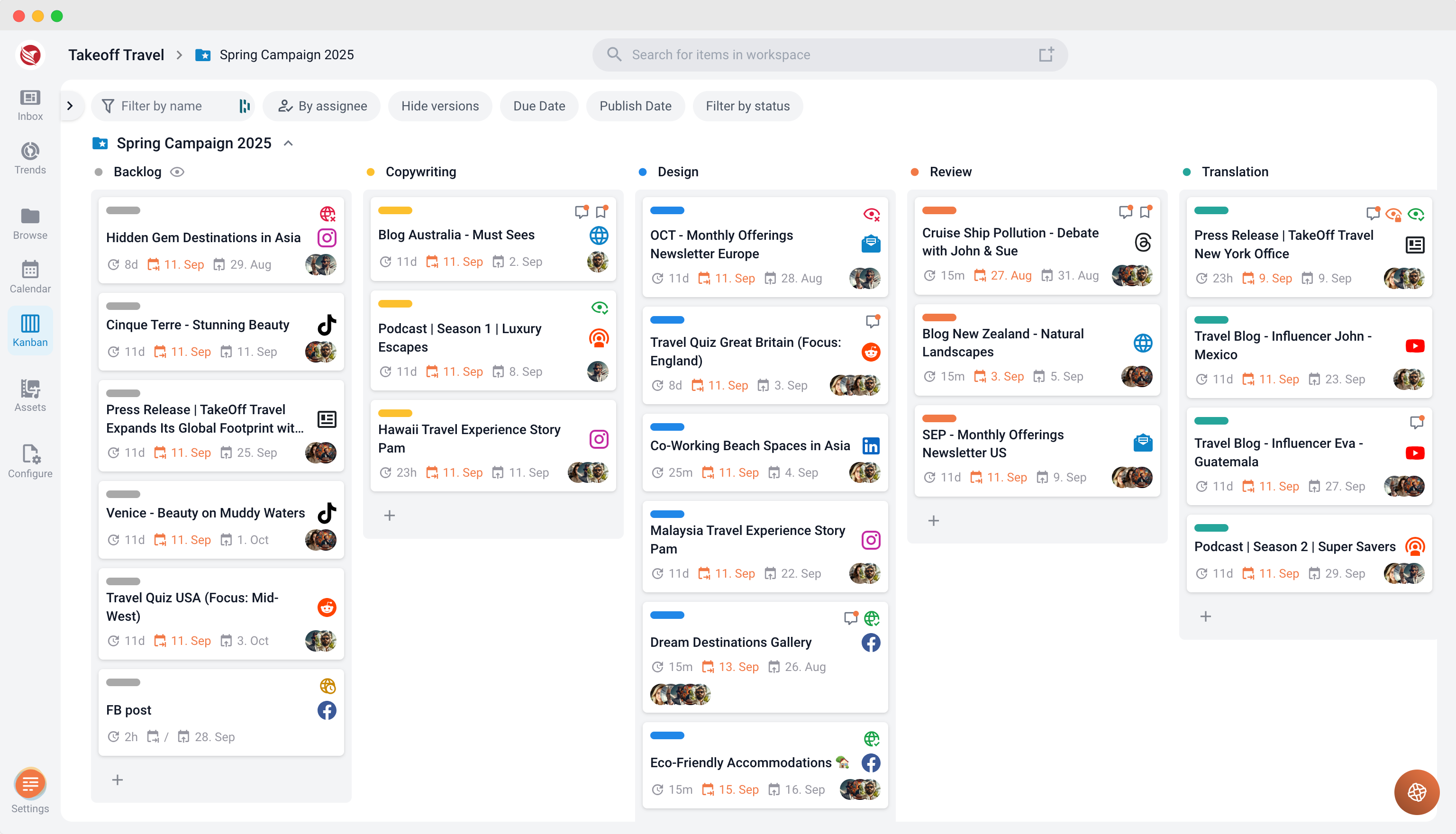
- Kanban: A visual workflow management tool that displays the progress of tasks and content items in different stages. It’s ideal for tracking the status of your work.
- Editor: Where you create and edit content. The editor includes all necessary tools for writing, formatting, and managing content.
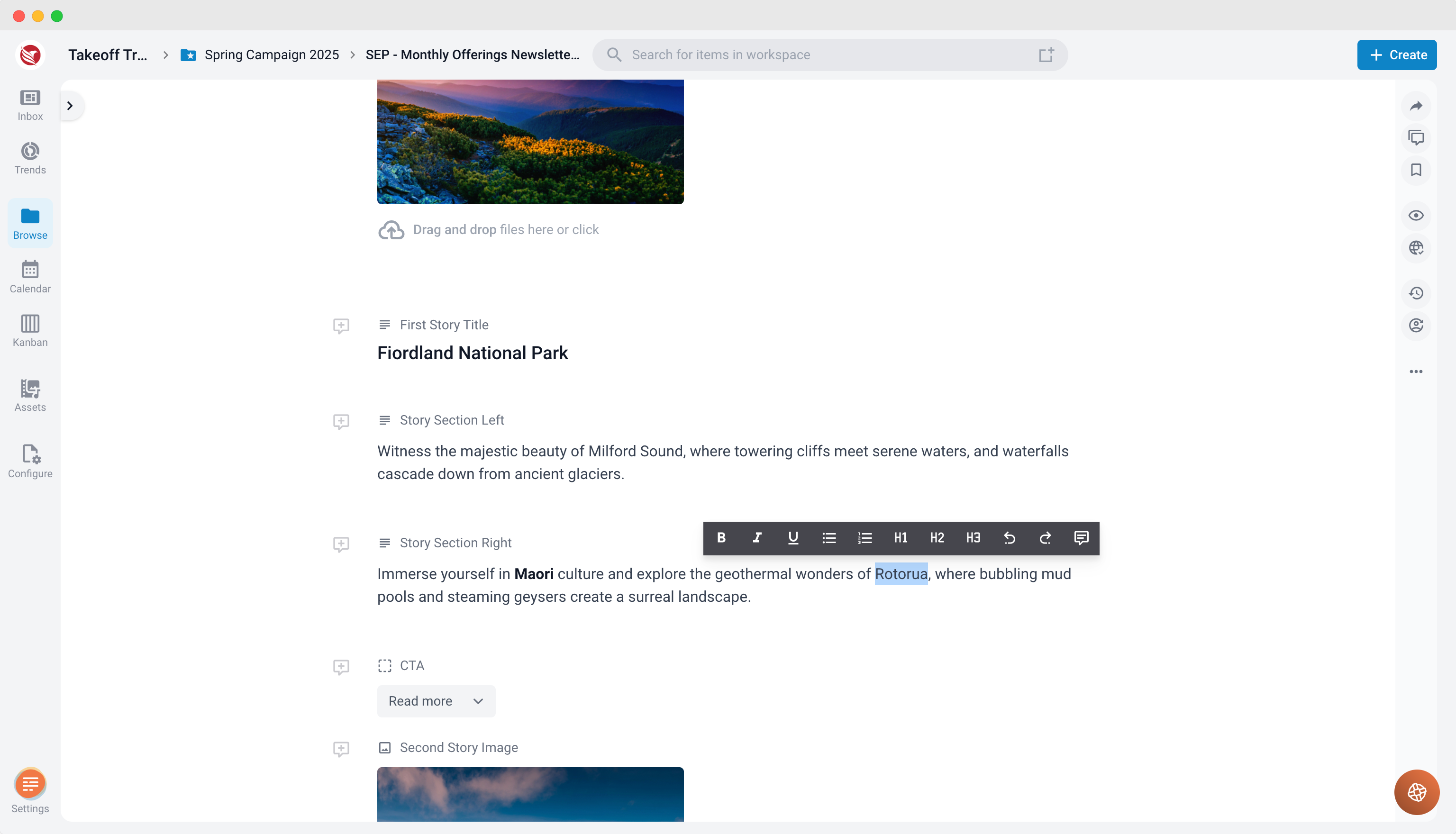
Editor-Specific Navigation
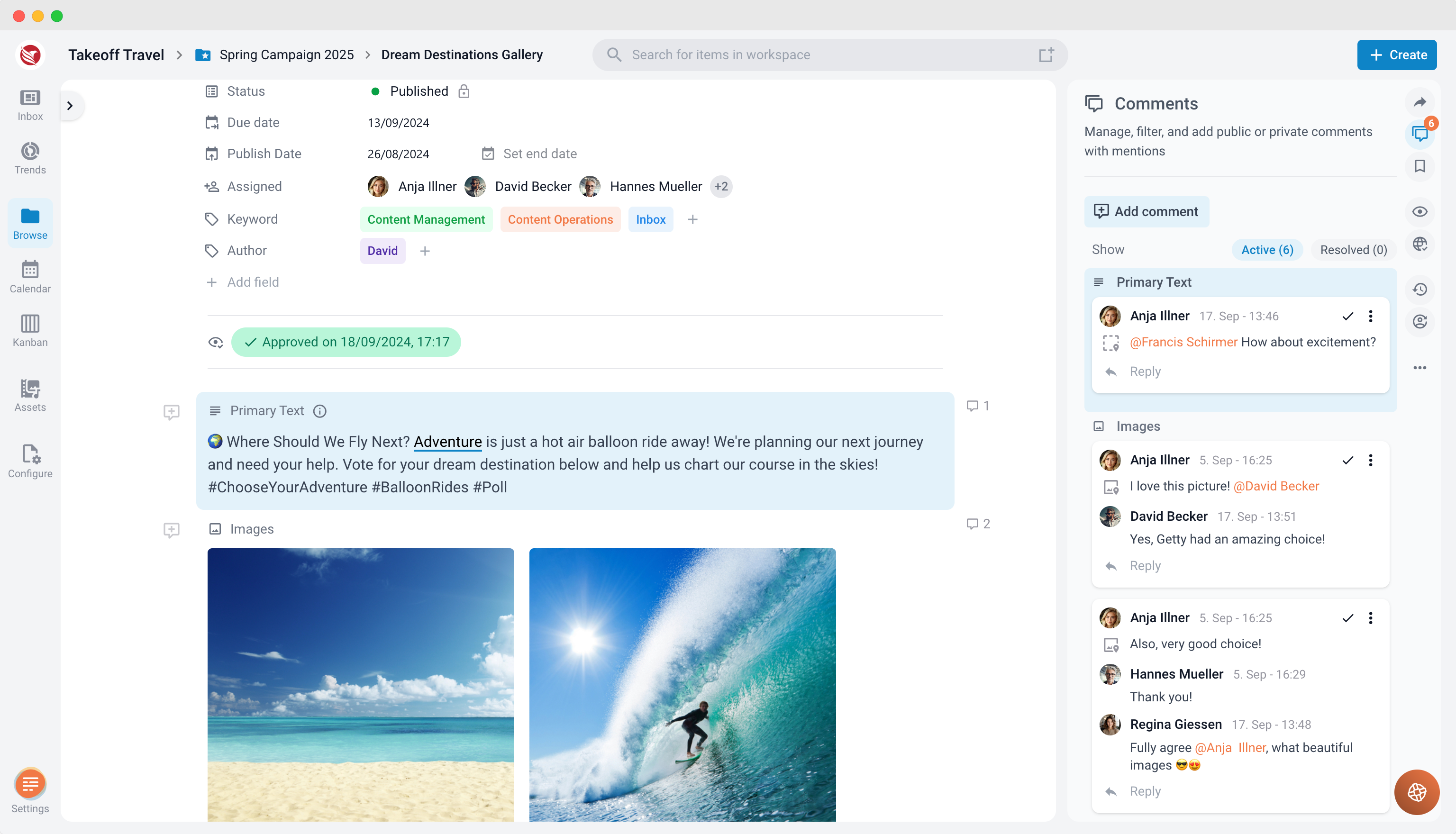
- Comments: Located on the right side of the editor, this section allows you to view, add, and manage comments on your content. It’s essential for collaboration and receiving feedback.
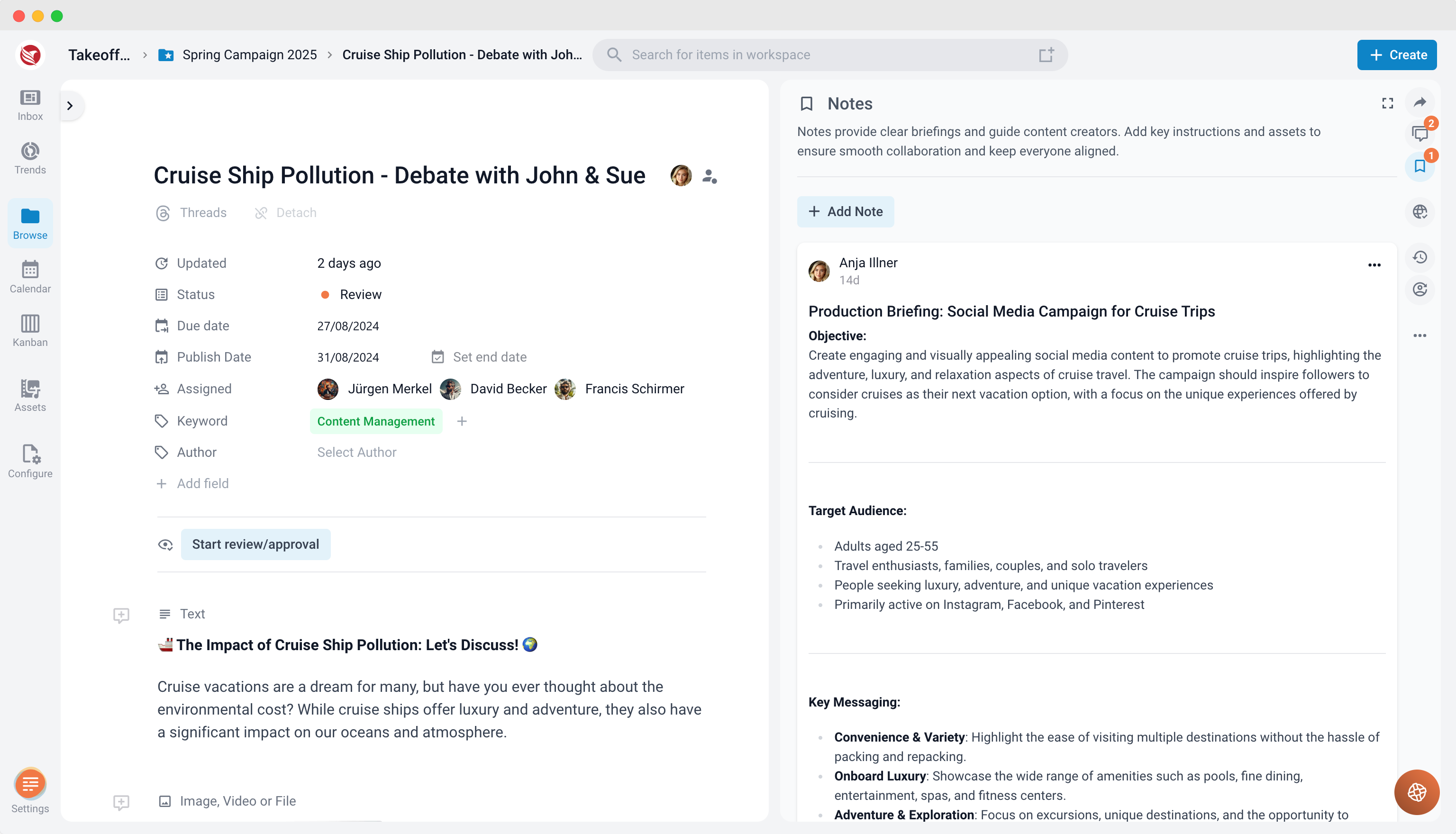
- Notes: Also on the right side, this feature lets you add and access notes that provide additional context or instructions for content creators.
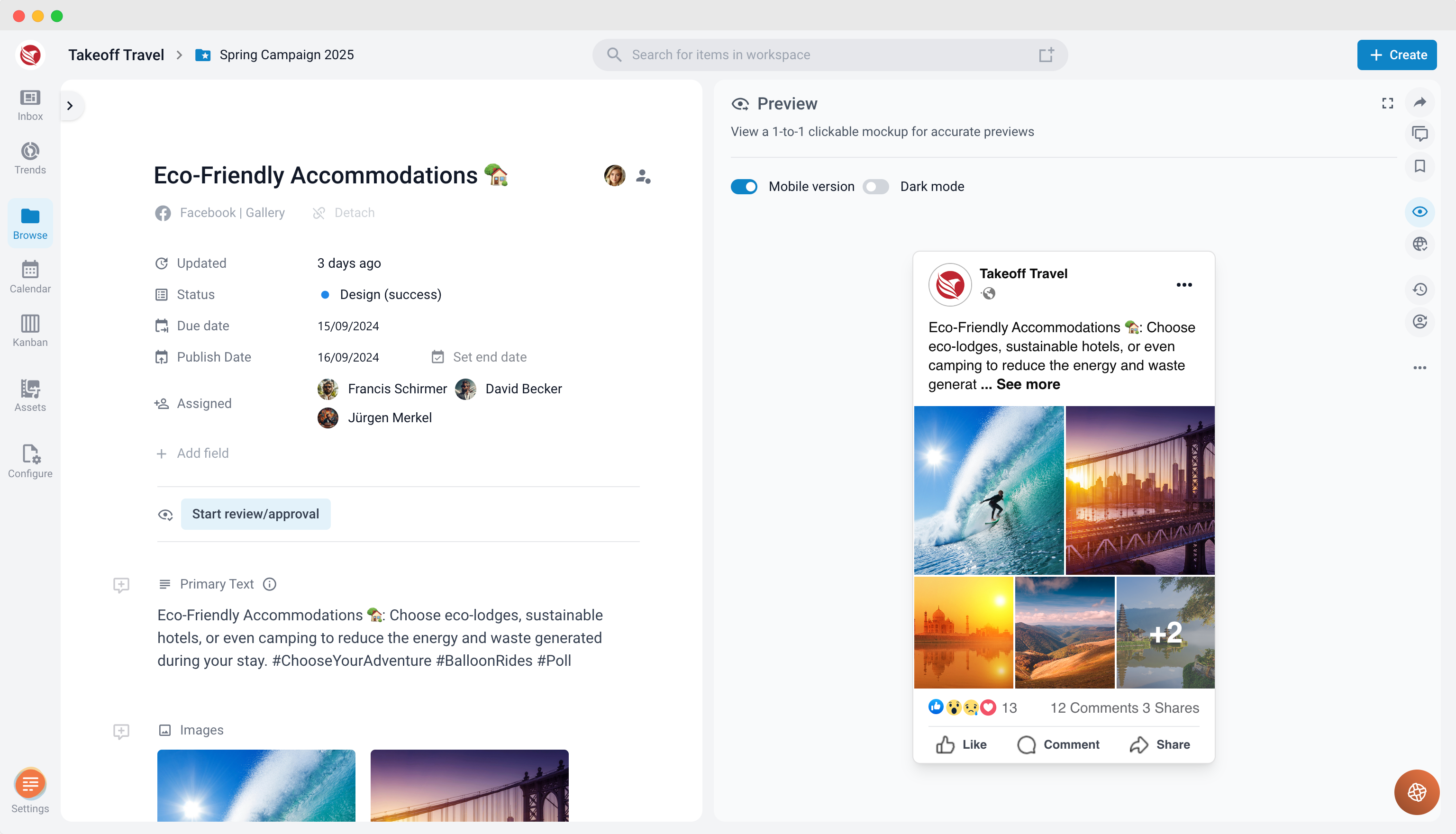
- Preview: A tool for viewing how your content will look once published. It ensures that everything appears as intended before going live.
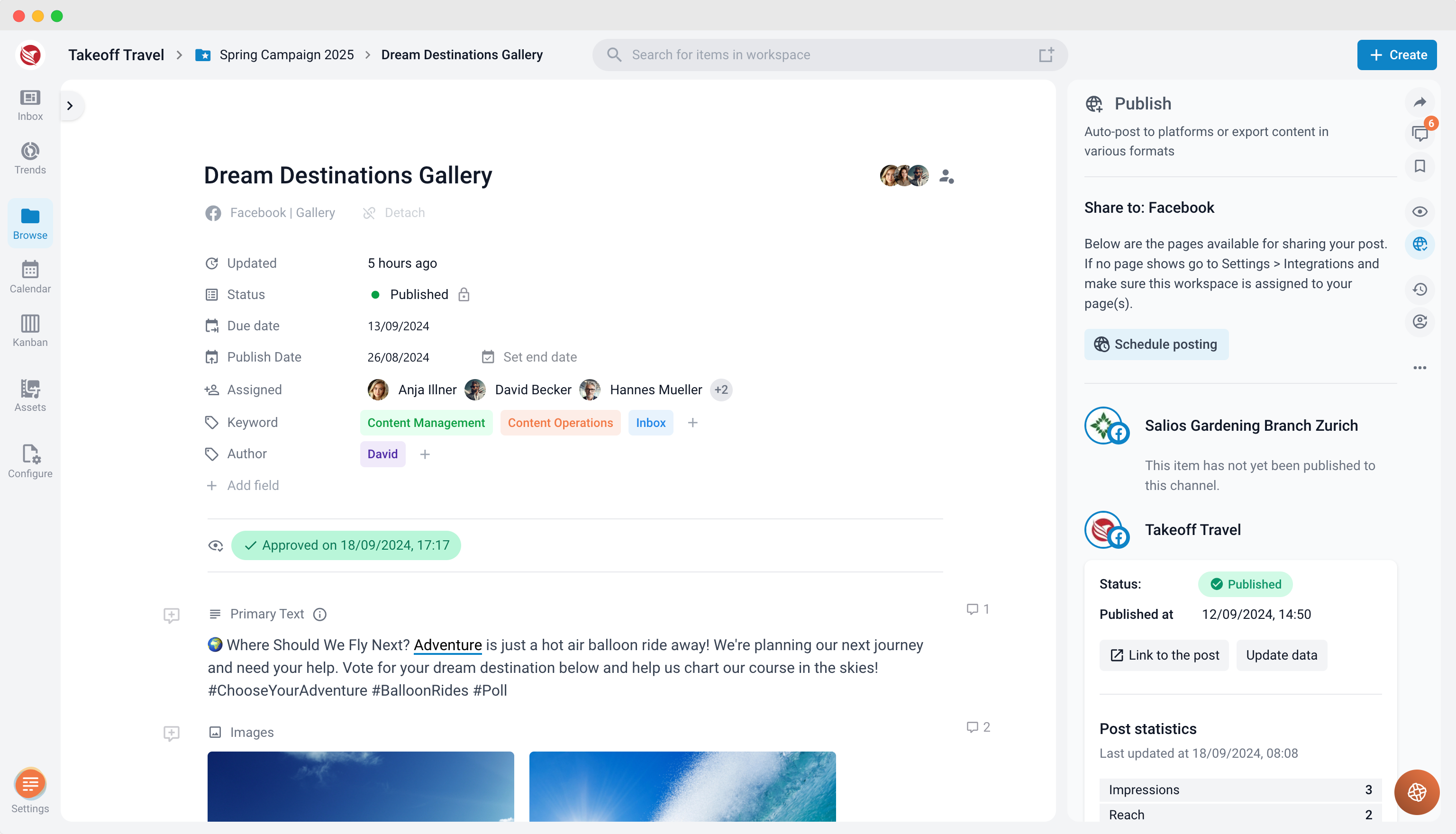
- Publishing: This section manages all aspects of publishing your content, including scheduling and selecting the platforms where your content will be posted.
- Share: Provides options for sharing content directly from the editor. You can share with users that are on the ContentPaul platform too or allow others without a login to view the content.
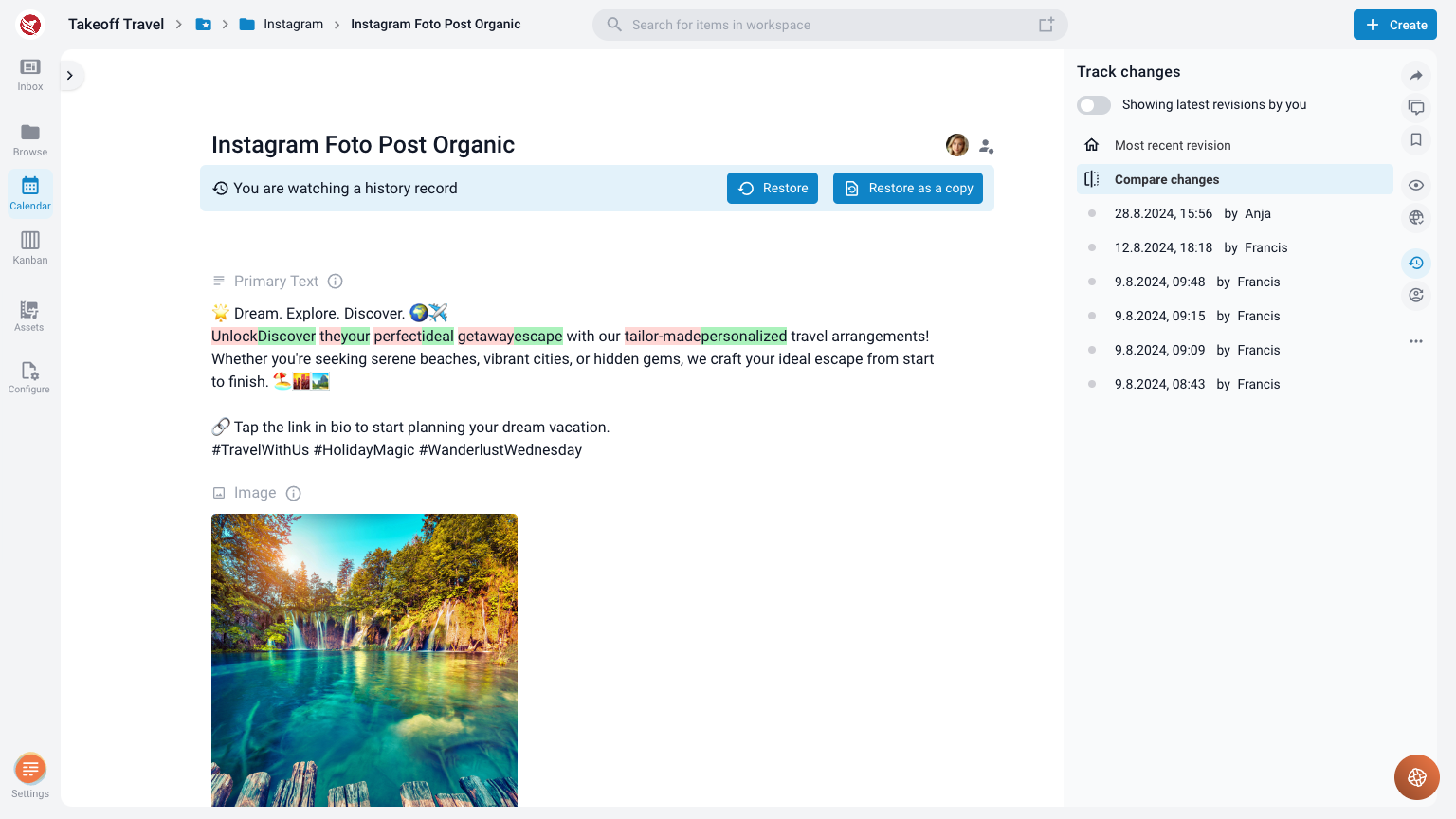
- Track Changes: Allows you to monitor edits made to the content, showing who made changes and what was altered. This feature is essential for maintaining version control and ensuring all edits are accounted for.
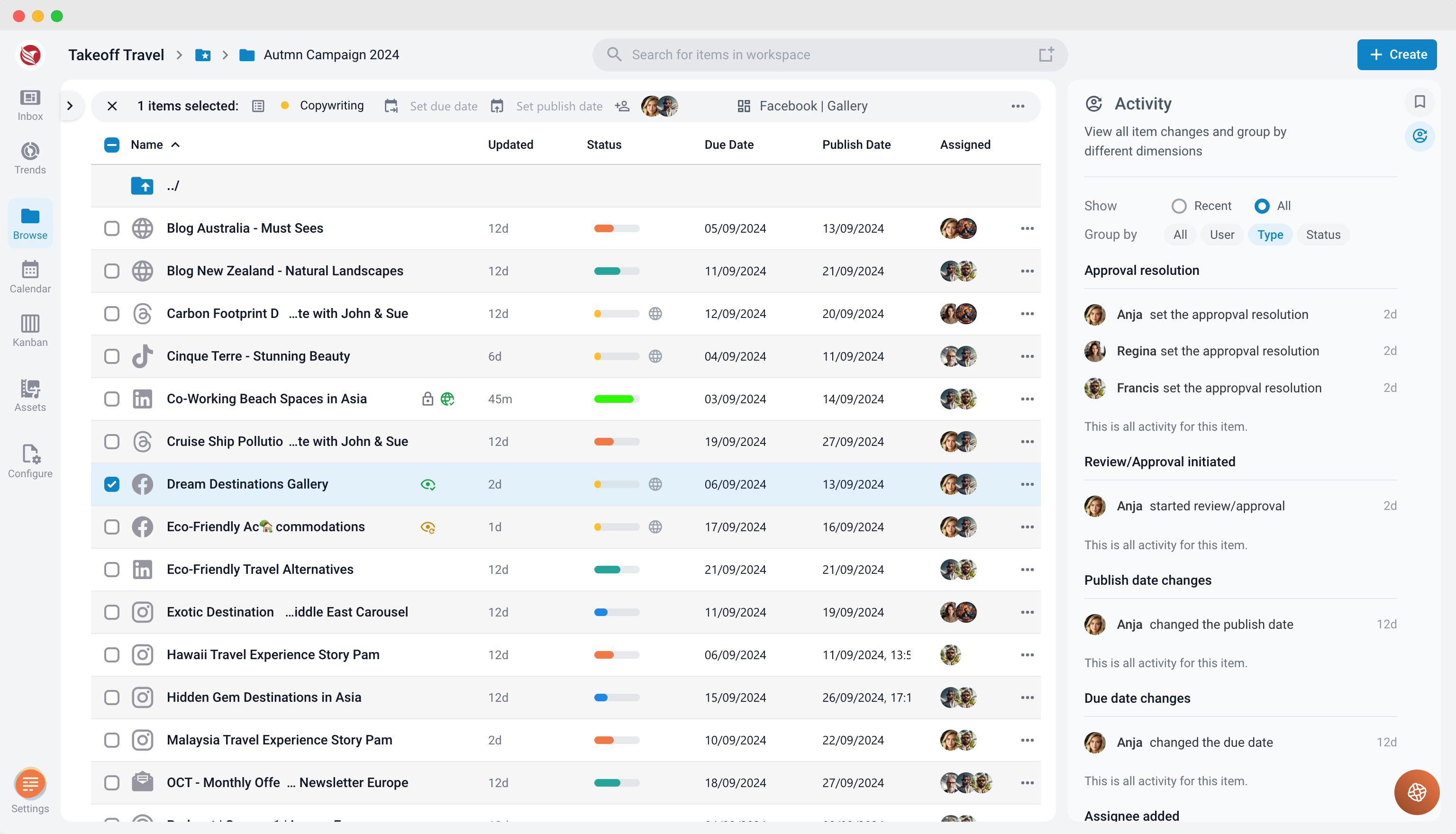
- Activity: Tracks and displays the history of all actions taken on a content item, allowing you to monitor changes and updates.
Additional Navigation Features
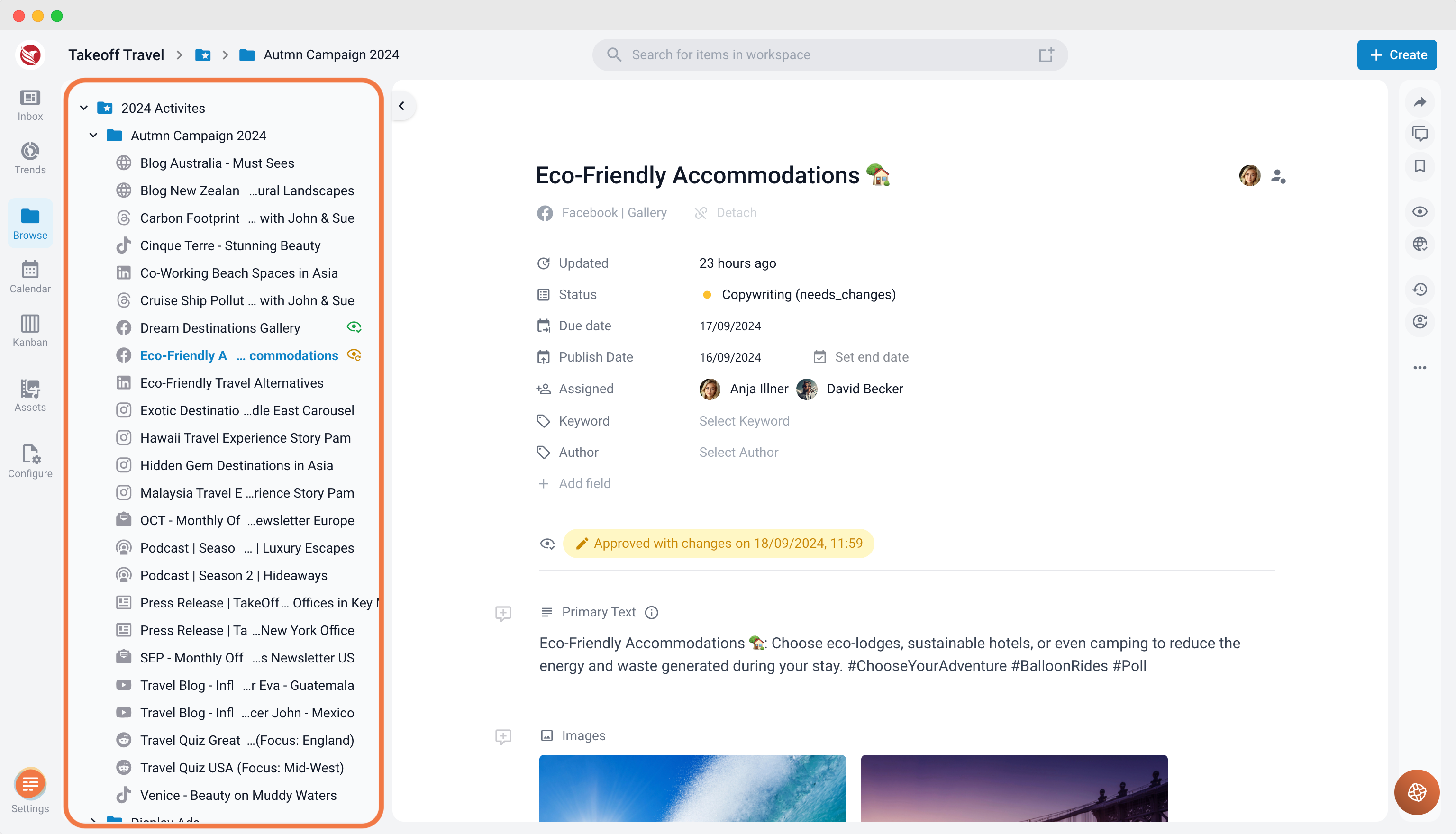
- Explorer: Typically found on the left side, this feature allows you to navigate through folders and projects, making it easier to manage and organize your work.
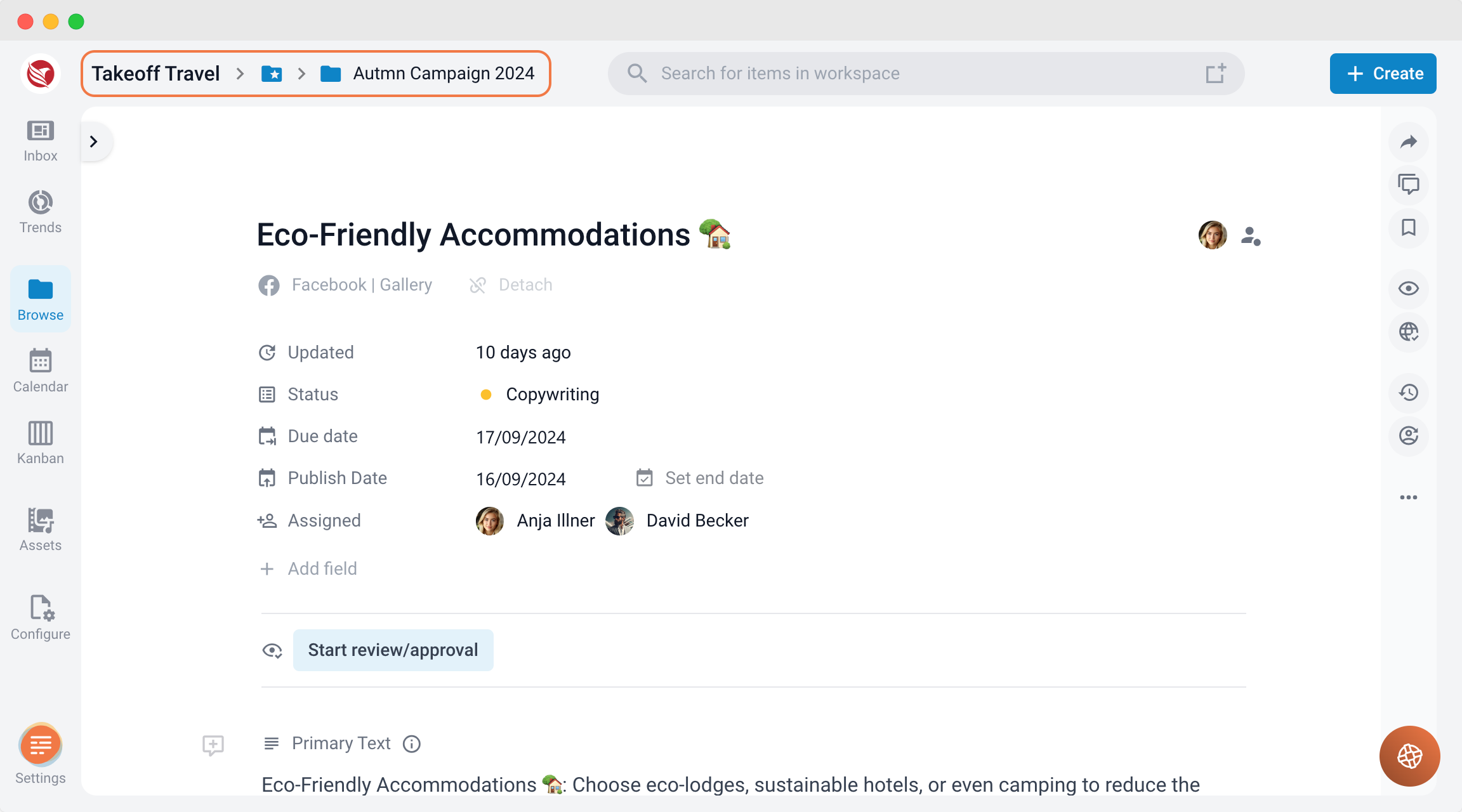
- Breadcrumb: A navigation trail displayed at the top of the page that shows the path you’ve taken within the platform. It helps you easily return to previous sections. Click on any part of the breadcrumb to access that respective folder.
These navigation elements in ContentPaul are designed to streamline your content creation process, making it easier to manage, track, share, and publish your work efficiently.