
Automating Approval Flows in Workflows
ContentPaul allows users to seamlessly integrate the approval flow into their workflows, automating the approval process based on predefined steps. This feature ensures that approvals are triggered automatically and the workflow progresses based on the decision reached.
Step 1: Access the Workflow Builder
To set up an automated approval flow:
- Navigate to Configure > Workflows.
- You can either select an existing workflow or create a new workflow.
Step 2: Define Workflow Steps
Once you're in the Workflow Builder:
- Add all the necessary steps that make up your workflow.
- Choose the step where you want the approval flow to be triggered.
Step 3: Enable Automated Approval
To activate the automated approval for a specific step:
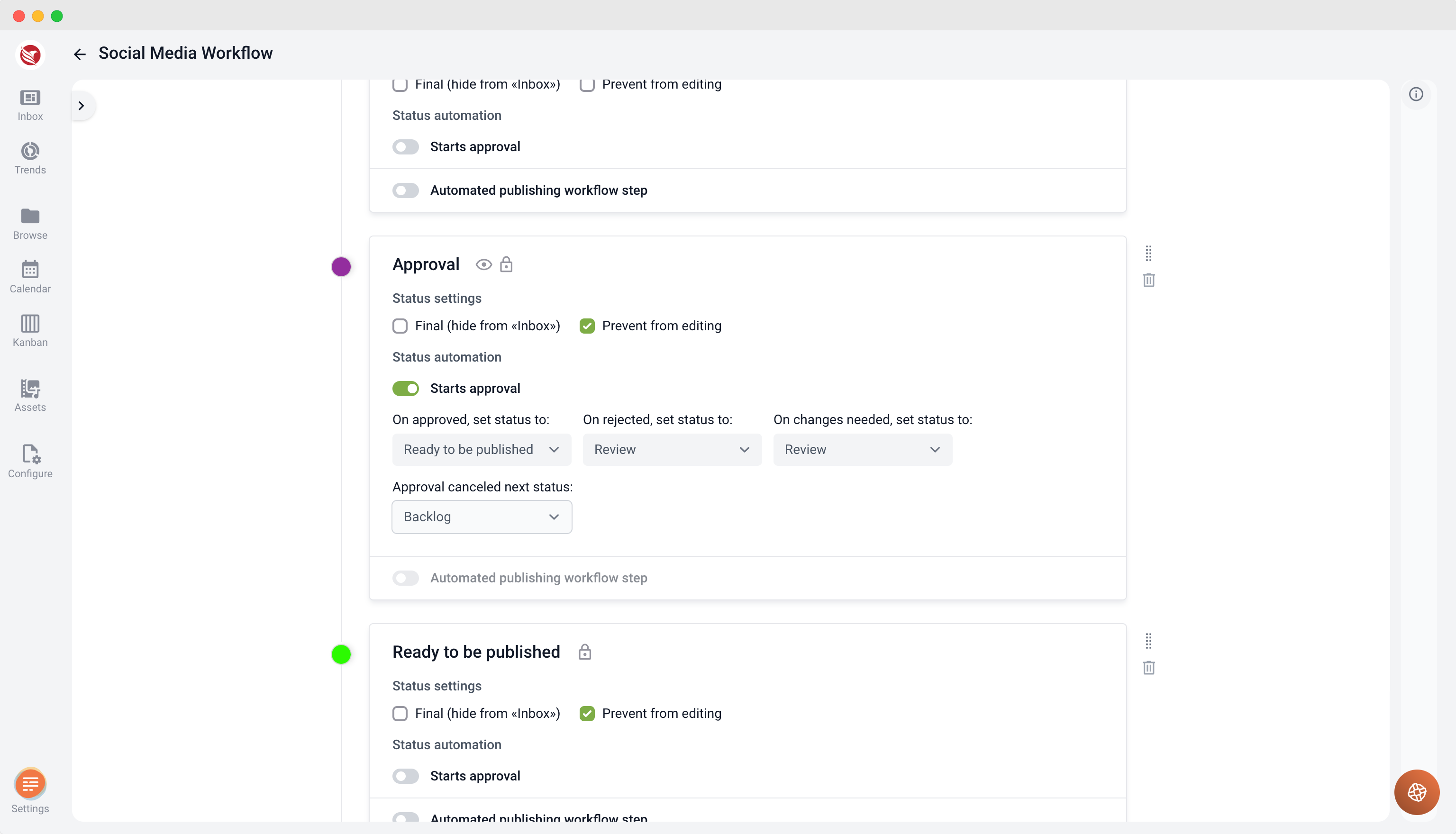
- Select the step and toggle on "Starts Approval".
- This will ensure that when the workflow reaches this step, an approval flow is automatically triggered.
Step 4: Set Resolution Options
After enabling automated approval, you can define what happens based on the decision reached:
- Below the toggle, you’ll see Resolution options for each possible outcome:
- Approved
- Approved with Changes
- Rejected
- Canceled
For each resolution, use the dropdown to select the workflow step to which the item will progress after the decision is made.
Example Scenario
For instance, if the decision is Approved, you can configure the workflow to automatically move the item to the step "Ready to be published." If the item is Rejected, it could return to a step like "Review by Project Manager" for further evaluation.
Step 5: Applying the Automated Approval Flow
Once you've configured the workflow and applied it to a project, the automation kicks in:
- When a user updates the content status to the workflow step that triggers the approval, the approval modal screen will automatically appear.
- The user must then:
- Invite approvers
- Set a deadline for feedback
- Define the voting mechanism, such as requiring a majority or unanimous decision.
Important Notes
- Only users with the Project Manager or Admin role can start an approval process.
By automating approval flows in ContentPaul, you can streamline your content review and publishing process. This automation ensures that content moves smoothly through the workflow without manual intervention, based on the decisions made during the approval process.