
Changing a template of an item
As a user, you have the flexibility to change the template of a content item at any time, either directly within the item or through the browse section. However, it's important to be cautious when doing so, as changing the template will cause all existing content to be lost. This content can be recovered by reapplying the original template, but finding the correct template can be challenging if you have many templates available.
1. Changing a Template Within the Content Item
- Process:
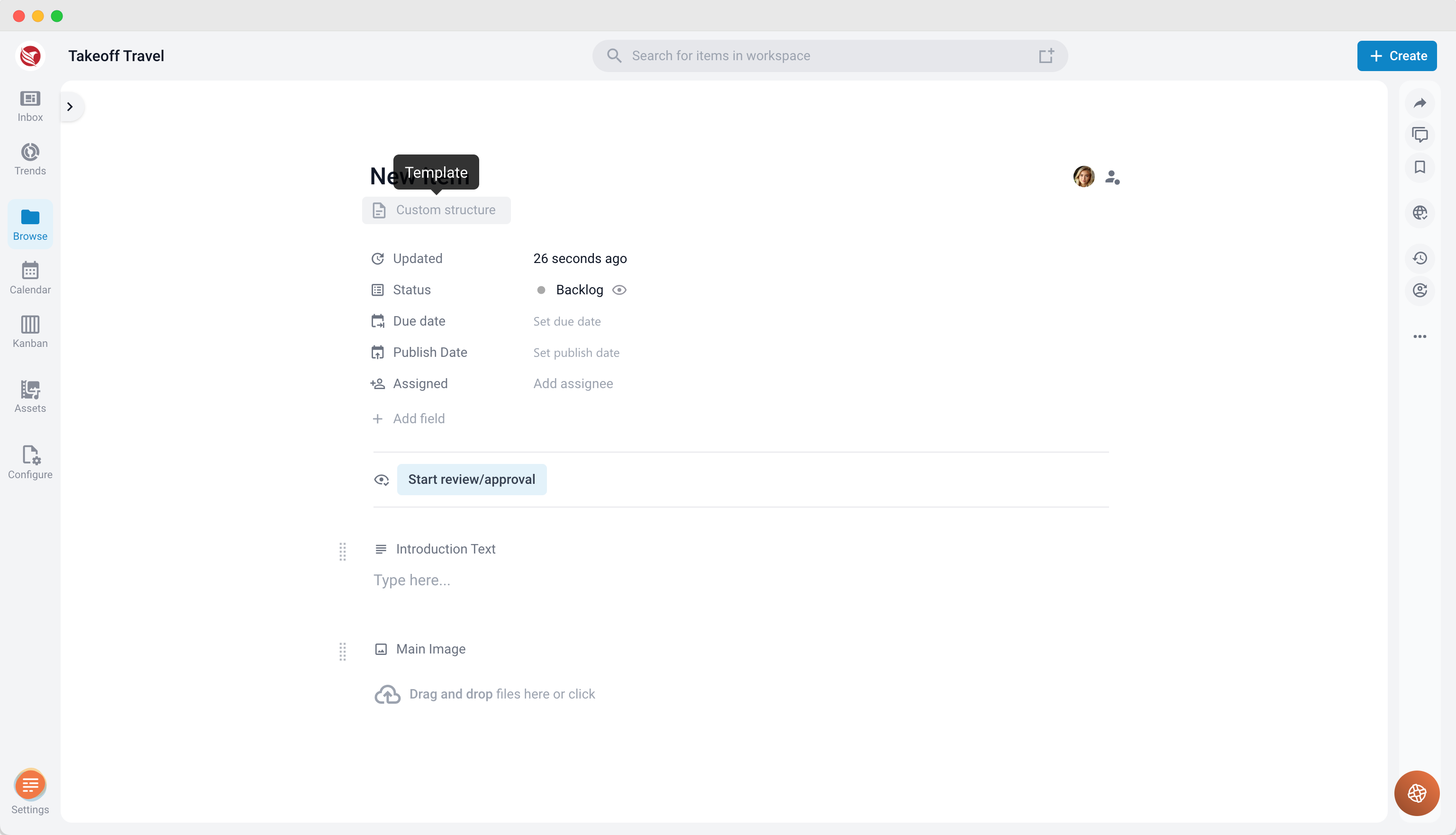
- Open the content item where you want to change the template.
- In the header section of the item, locate the current template name.
- Click on the template name to open the Template Selection window.
- Choose the new template you want to apply. Be aware that all existing content will be erased once the new template is set.
2. Changing a Template in the Browse Section
- Process:
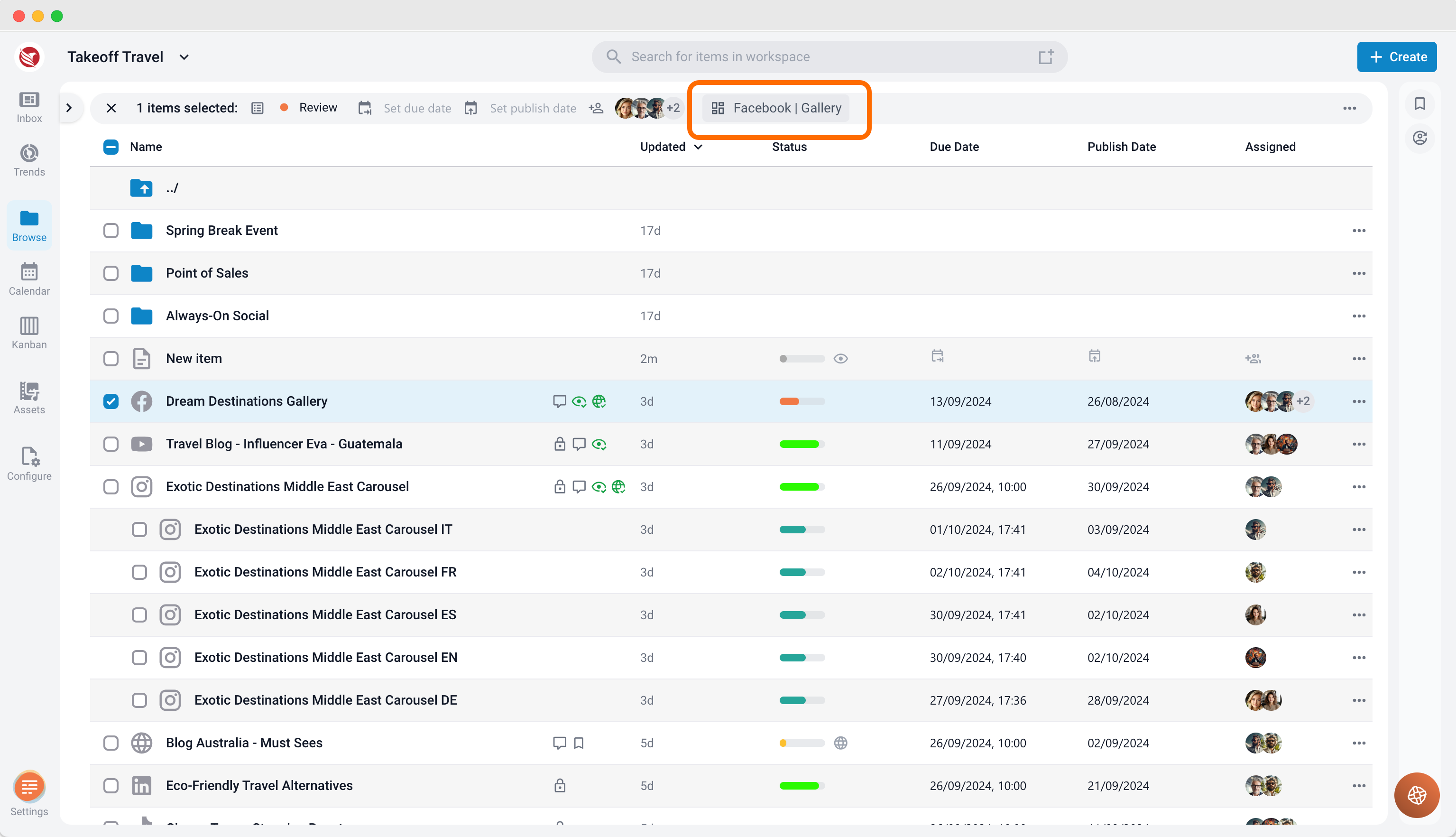
- Navigate to the Browse section and select the content item(s) you wish to modify.
- In the selection header, click the Template icon.
- The Template Selection window will appear, allowing you to choose and apply a new template to the selected content items. Remember, all previously entered content will be lost upon changing the template.
Recovering Lost Content
If you accidentally lose content by changing the template, you can recover it by reapplying the original template. However, if you have a large number of templates, locating the correct one might be cumbersome.
By following these guidelines, you can efficiently manage and change templates while minimizing the risk of losing content.